 CARSPEND
Every screen, explained.
CarSpend is a local-first car cost tracker: fuel, charging, expenses, tyres, maintenance, trips and resale valuation. All data stays on the device — there are no accounts and no cloud. Data moves between devices via JSON export/import (see Settings). Use the index alongside to jump to any screen; each section has a stable anchor (e.g. #fuel, #trips) so you can bookmark or link straight to the part you need.
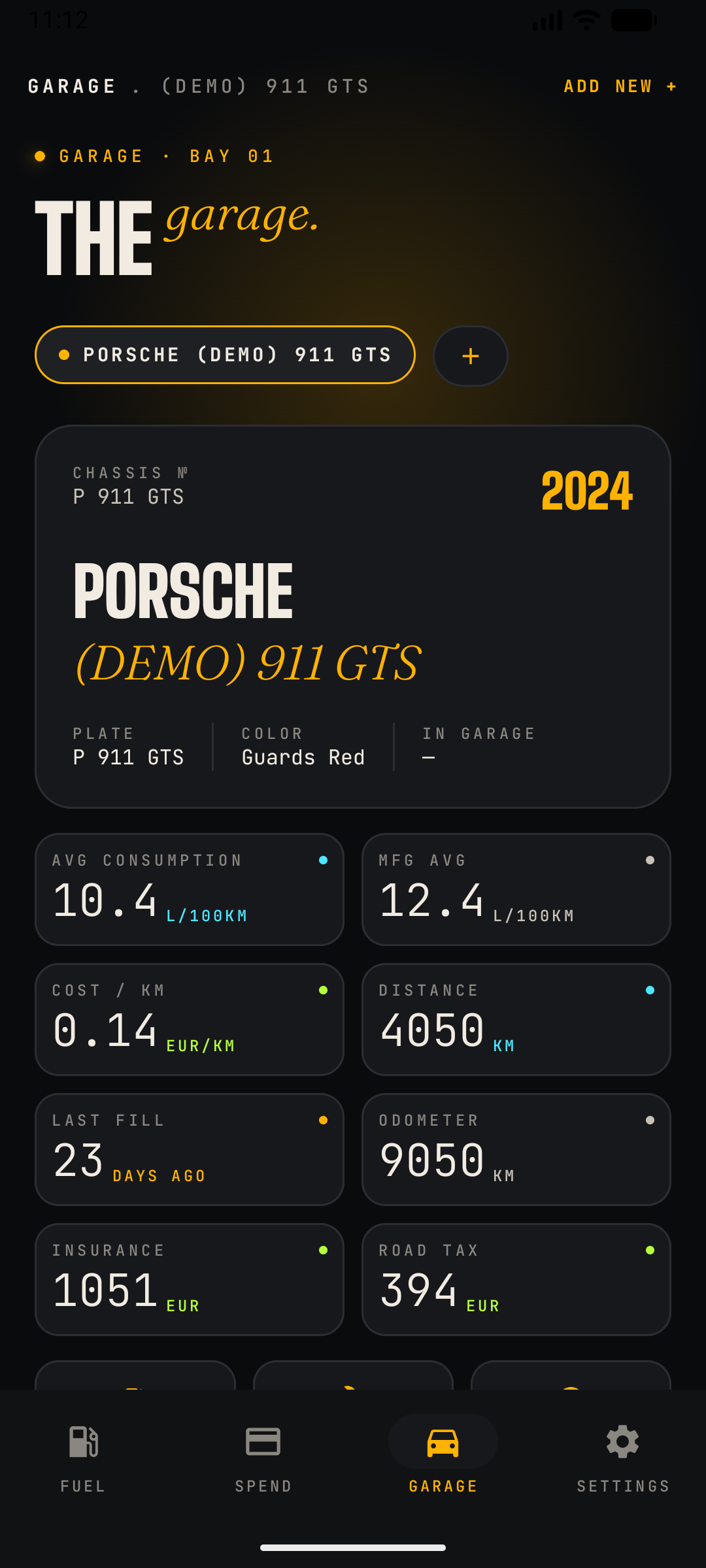
What this screen does
The Garage is the home base for each vehicle. It identifies the selected car, summarises its running costs at a glance, and is the launch point for every drill-down feature (Trips, Tyres, Valuation, Maintenance, Services, Trends).
Top of screen
- Header: shows GARAGE · [car name]. The ADD NEW + action in the top-right registers another vehicle.
- Car switcher: a horizontal pill carousel listing every car in the garage plus a round + button. Tapping a pill switches the whole app (all tabs) to that car's data.
- Free plan — choosing your active car: the free plan keeps one car active. If you have more than one car (for example after importing a backup, or when a Pro subscription ends), CarSpend asks you to pick the single car to keep active. Your other cars are never deleted — they stay saved on the device and simply lock. Locked cars appear greyed with a lock badge in the switcher; tapping one opens the upgrade screen. Going Pro unlocks every car again instantly.
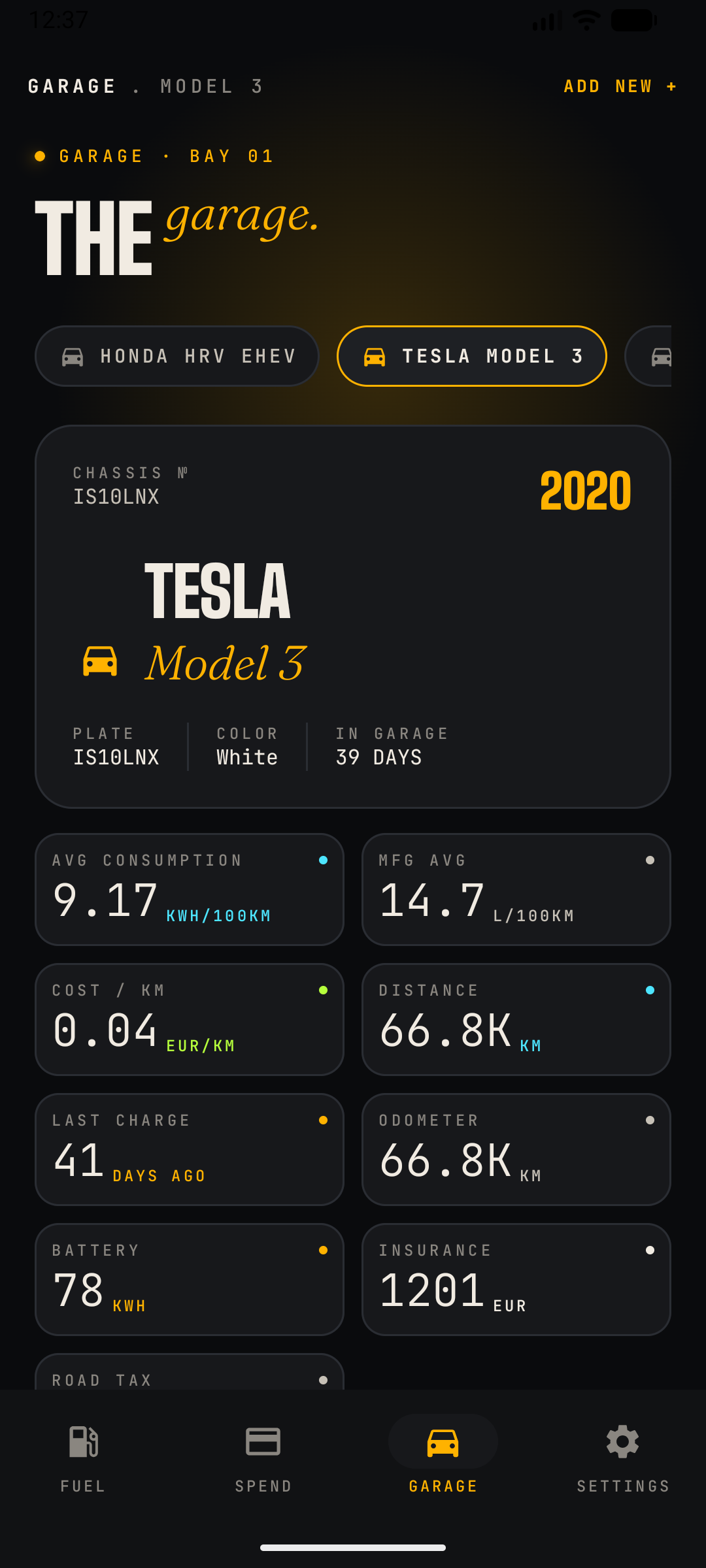
- Identity card: chassis number, model year, make and model, number plate, colour, and the "in garage" bay marker. Edited via Edit Car Details.
Stats grid
- Avg Consumption (e.g. 10.4 L/100km) — computed from full-tank fill-ups — shown next to MFG Avg, the manufacturer's claimed figure, so you can compare real vs. official economy.
- Cost / km — total running cost divided by distance tracked.
- Distance — km tracked inside the app; Odometer — latest known odometer reading.
- Last Fill — days since the most recent fuel log.
- Insurance and Road Tax — annual amounts entered on the car; these are mirrored automatically into the Spend ledger.
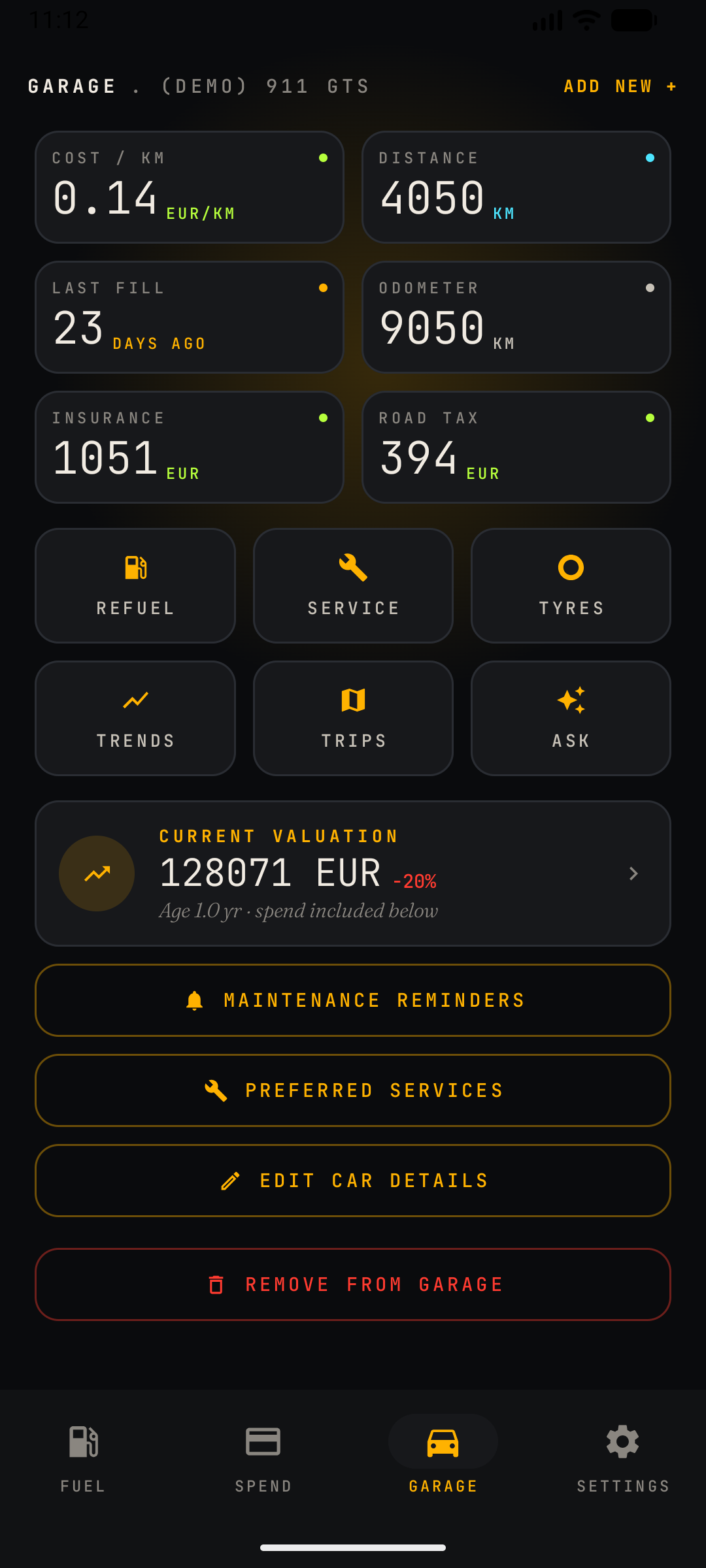
Scrolled content (screenshot 2)
- Quick actions grid: six shortcuts in two rows of three — Refuel (new fuel log), Service (log a service)Pro, Tyres (tyre management)Pro, Trends (trend tables)Pro, Ask (AI assistant) and Reminder (new maintenance reminder)Pro.
- Trips card: the trip logbook is not in the grid — it has its own full-width card above it, which also shows the last trip's date and distance.
- Current Valuation card: live resale estimate with depreciation percentage; tapping it opens the Valuation screen.
- Management buttons: Maintenance Reminders (reminders list), Preferred Services (provider directory), Edit Car Details, and the destructive Remove From Garage (outlined in red, asks for confirmation).
Empty state
With no cars registered, the Garage offers a one-tap Demo Car (Porsche 911 GTS) pre-filled with sample logs so you can explore every feature before entering your own data.
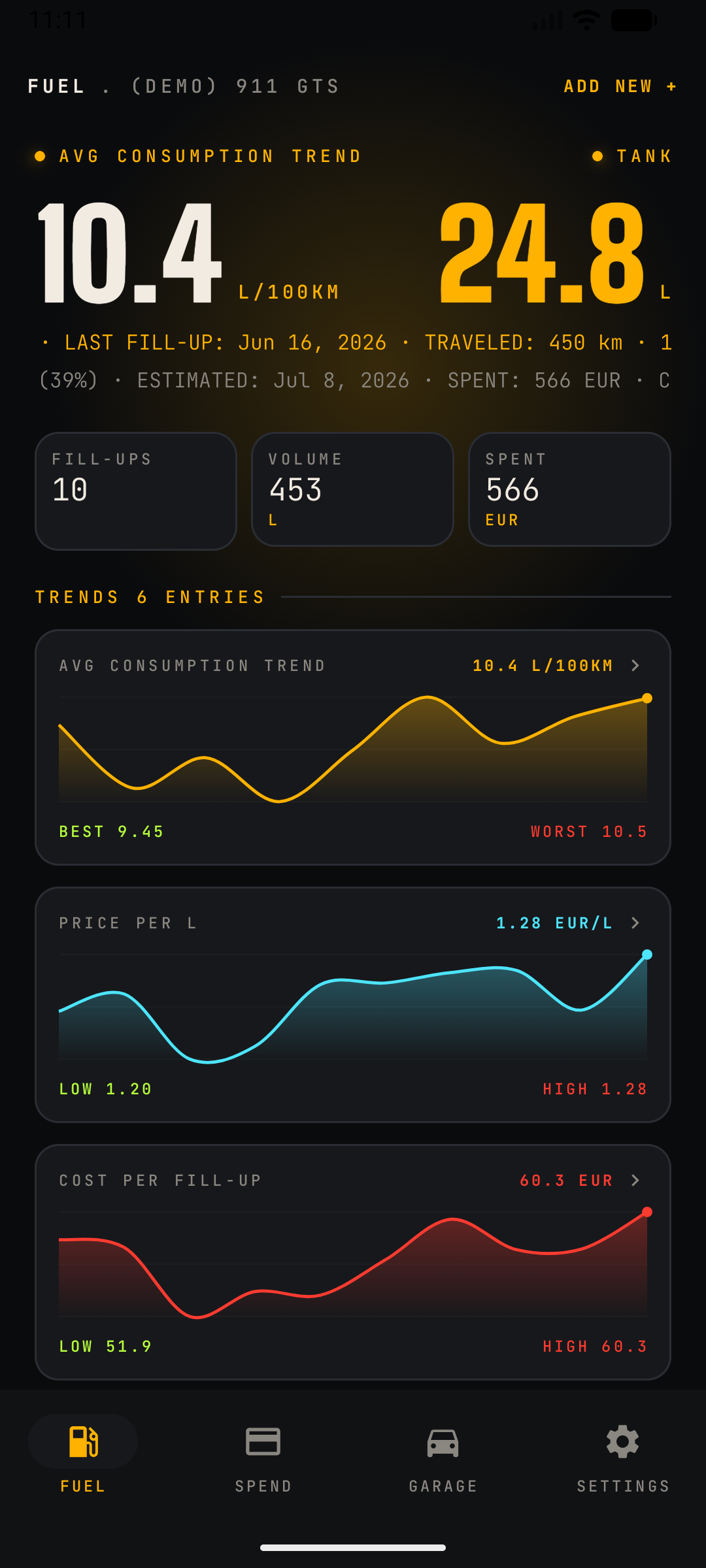
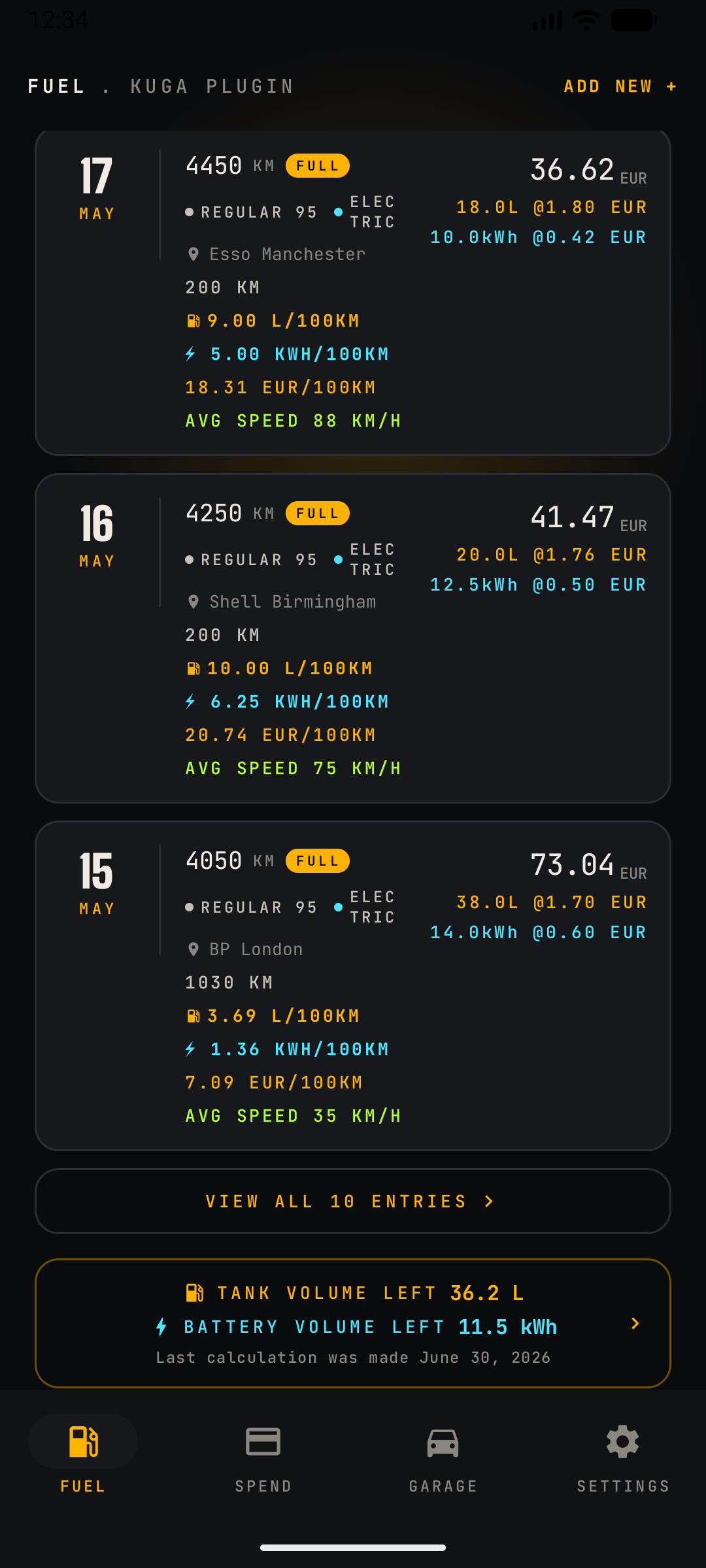
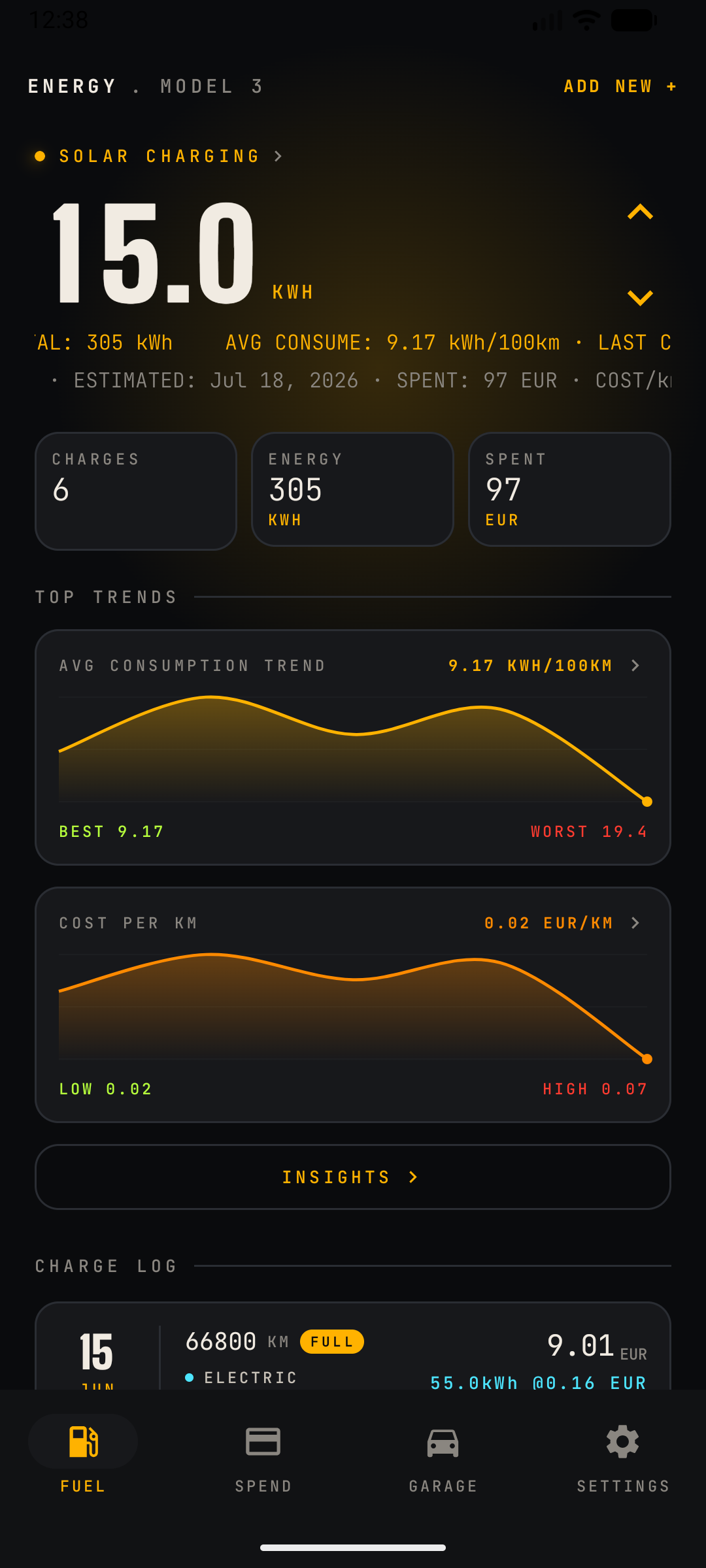
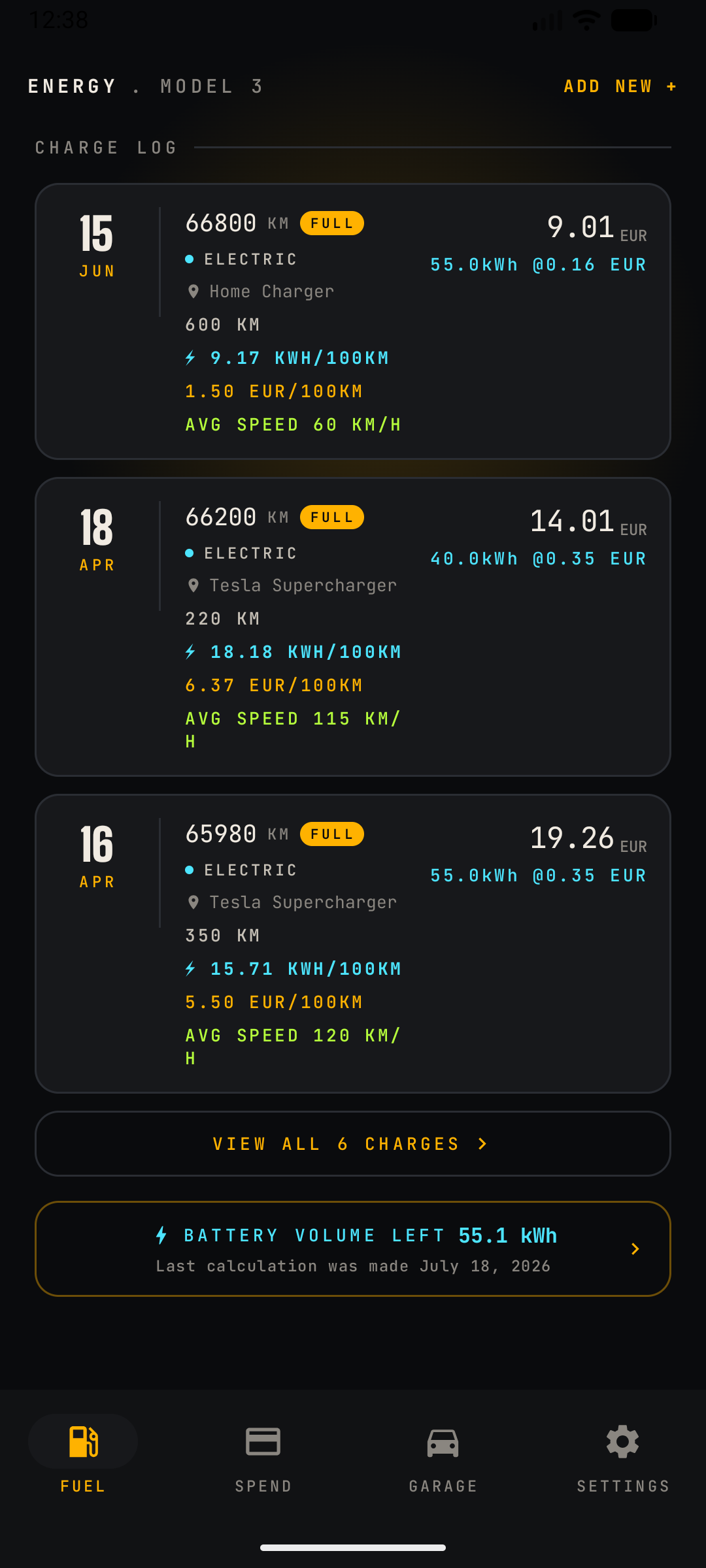
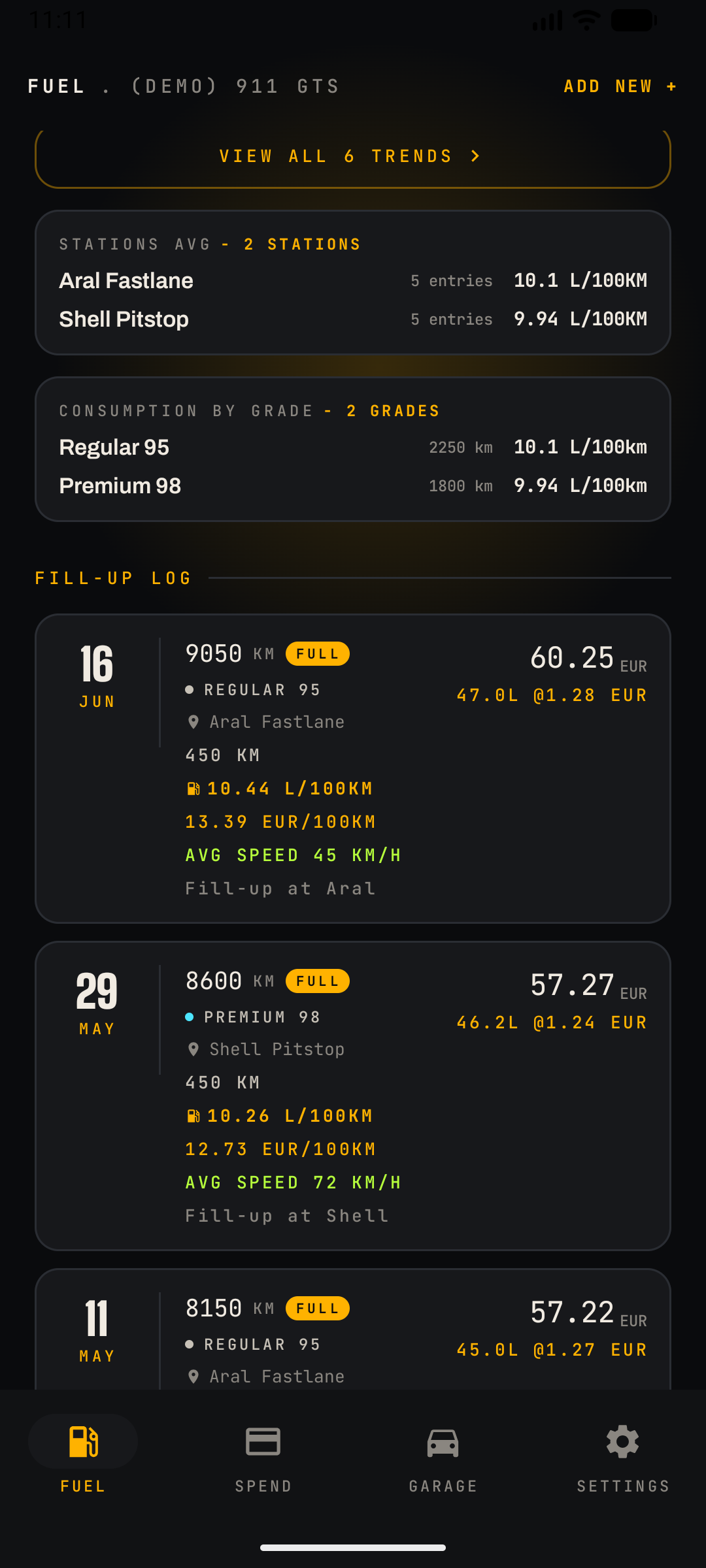
What this screen does
Everything about energy going into the car: petrol/diesel fill-ups, EV charging sessions, and — for plug-in hybrids — combined entries that record fuel and electricity in a single log. It also computes and charts efficiency over time.
Headline area
- One headline metric — a single large number (e.g. average consumption 10.4 L/100km). Use the up/down arrows beside it to step through your metrics: economy, price per unit, cost per fill-up, cost per distance and more. It no longer cycles on its own, so what you set is what stays; very large values shrink automatically to fit the width.
- Tank left / battery left: after the trend metrics the same arrows step onto TANK LEFT and — on an EV or plug-in hybrid — BATTERY LEFT. These show the volume remaining (litres, gallons or kWh, not a percentage and not a range) with a fill bar, the percentage and a one-line caption saying where the figure came from: "Last calculation" with its date, or "Estimated from logs" when it was derived from your fill-up history. They read from the same source as the TANK / BATTERY VOLUME LEFT button at the bottom of the screen, so the two can never disagree. Levels are added after the trends, so the metric the screen opens on never moves.
- The chevron beside a level readout opens the tank calculator rather than the trend tables.
- Meta strip: last fill-up date, distance traveled since, remaining percentage, an estimated empty date, and total spent.
- Scrolling summary: the line under the headline now runs the whole car in one pass — tank and battery estimate with its date, total spent, spend on fuel or charging, cost per distance, the tyre set currently fitted with its distance run, and the next maintenance reminder due.
- Totals row: lifetime Fill-ups, Volume and Spent for the selected car.
Top trend & Insights
- The dashboard shows a single Top Trend chart with best/worst markers, keeping the main screen uncluttered.
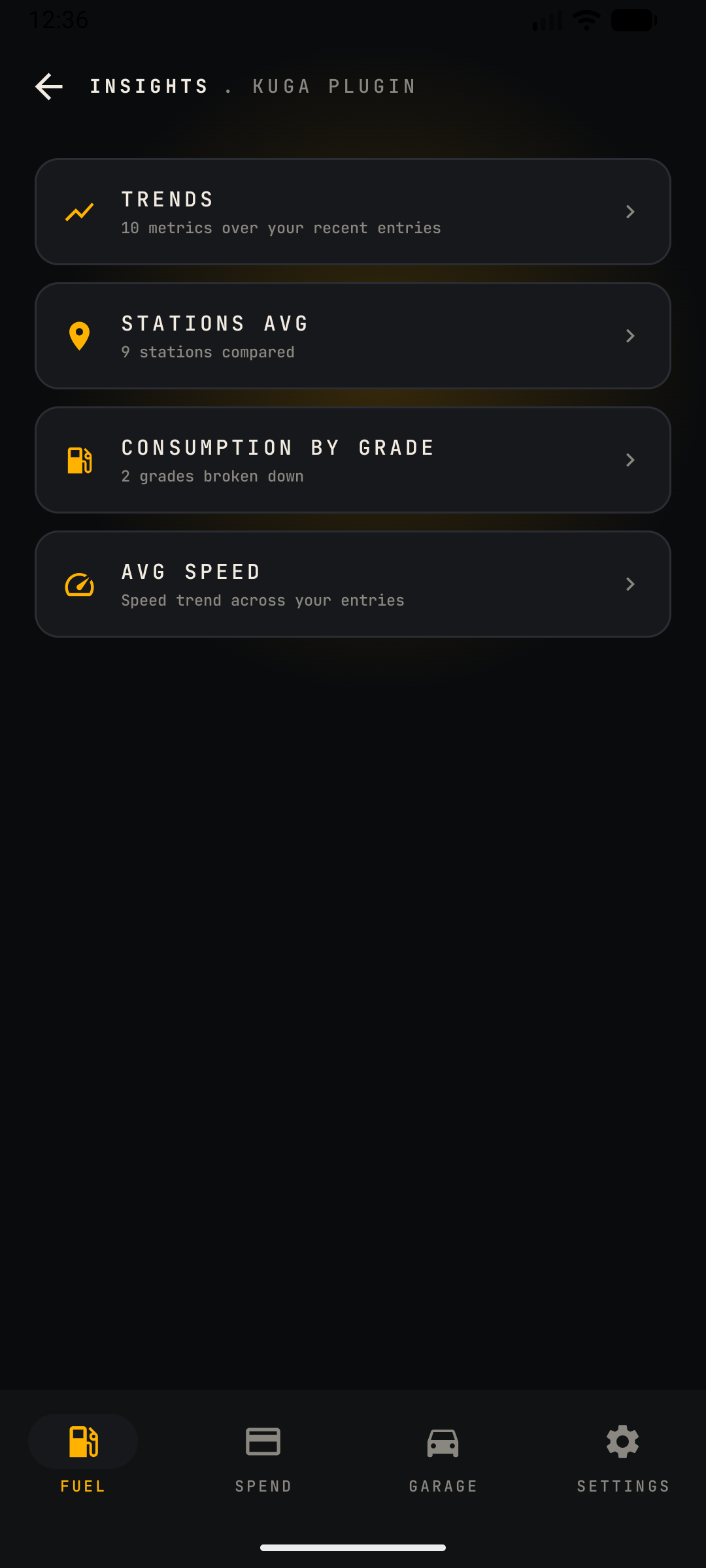
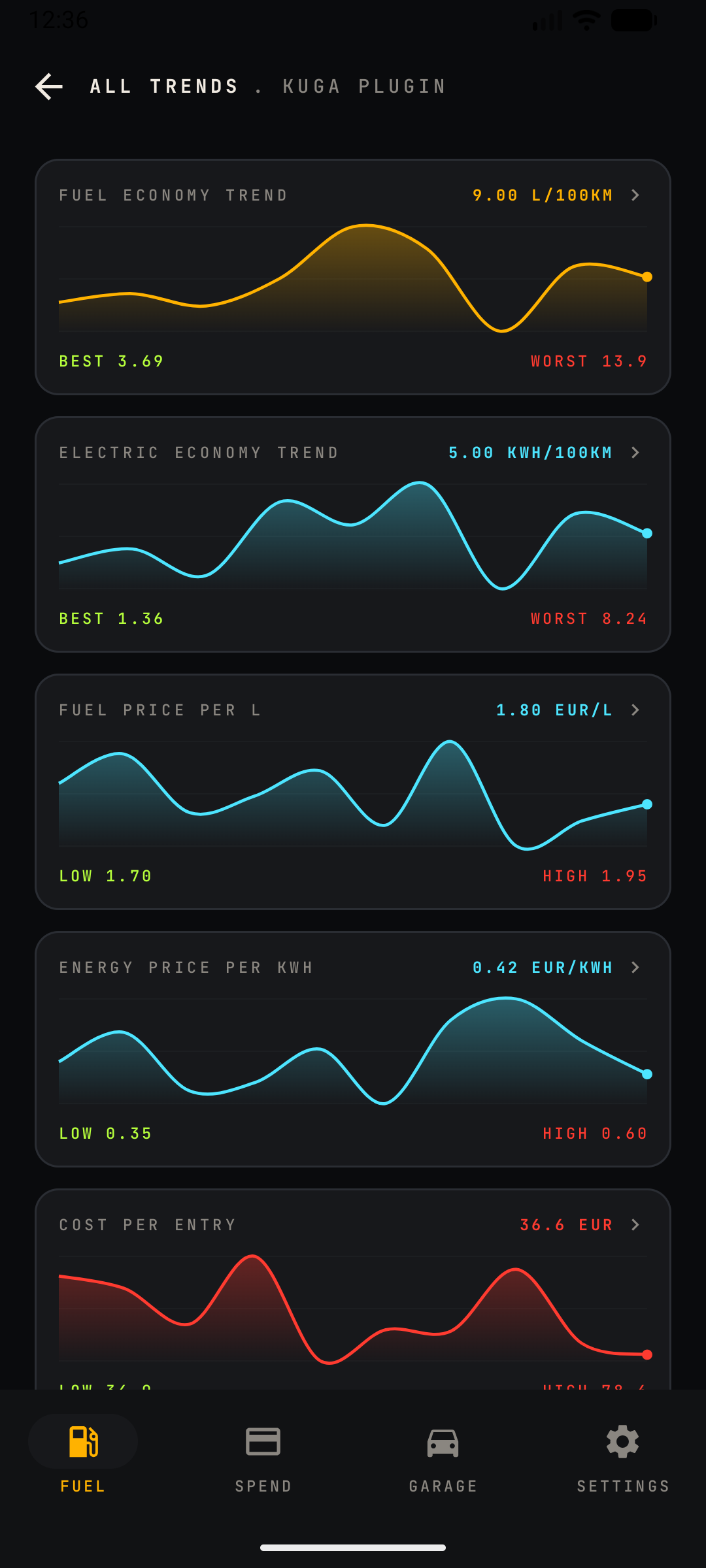
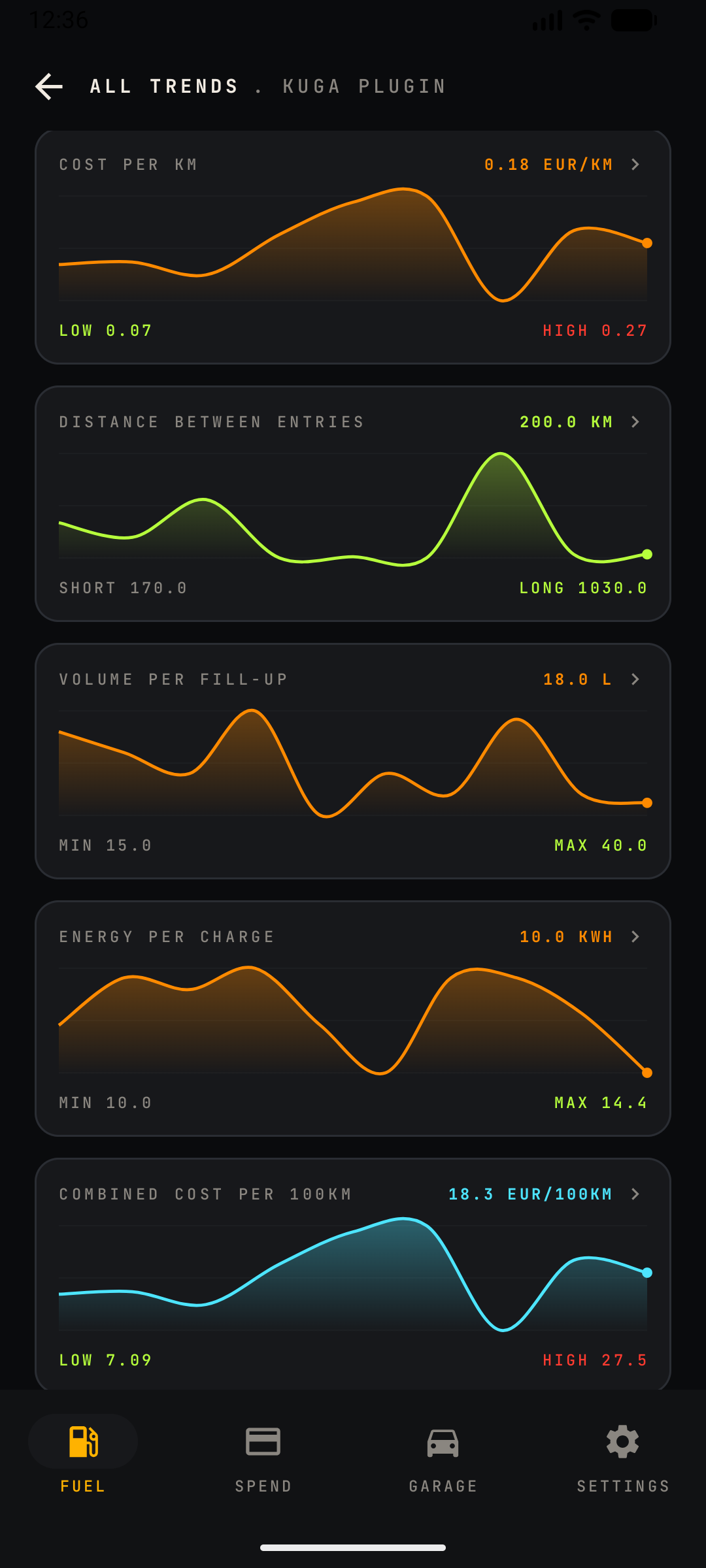
- An INSIGHTS button opens the hub with the full set — all Trends, Stations Avg, Consumption by Grade and Avg Speed. Each chart drills into a numeric table (see Trend Tables)Pro.
Breakdowns (inside Insights)
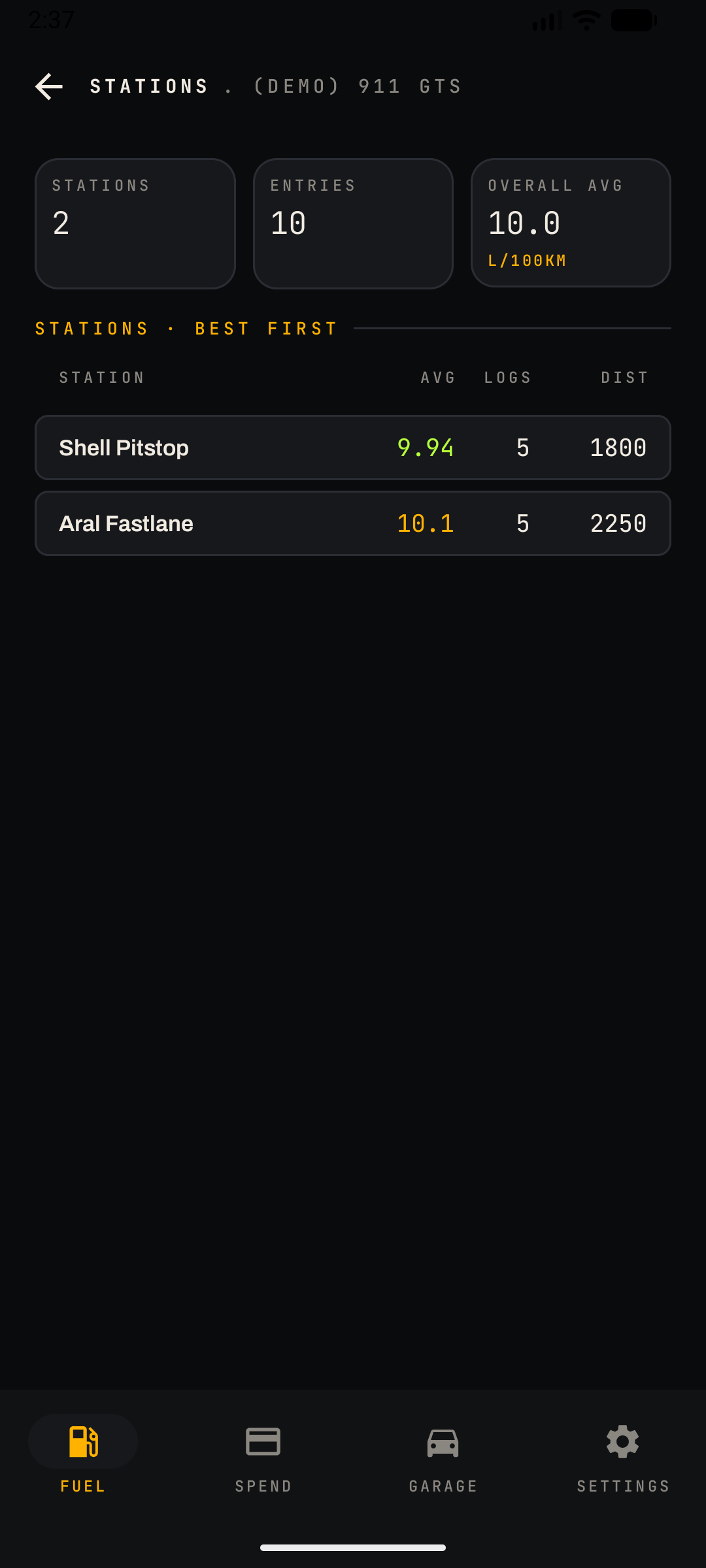
- Stations Avg: average consumption grouped by station name (e.g. Aral vs. Shell) with entry counts — useful for spotting fuel-quality differences. Opens the full Stations list, sorted best-average-first, with average, log count and distance columns per stationPro.
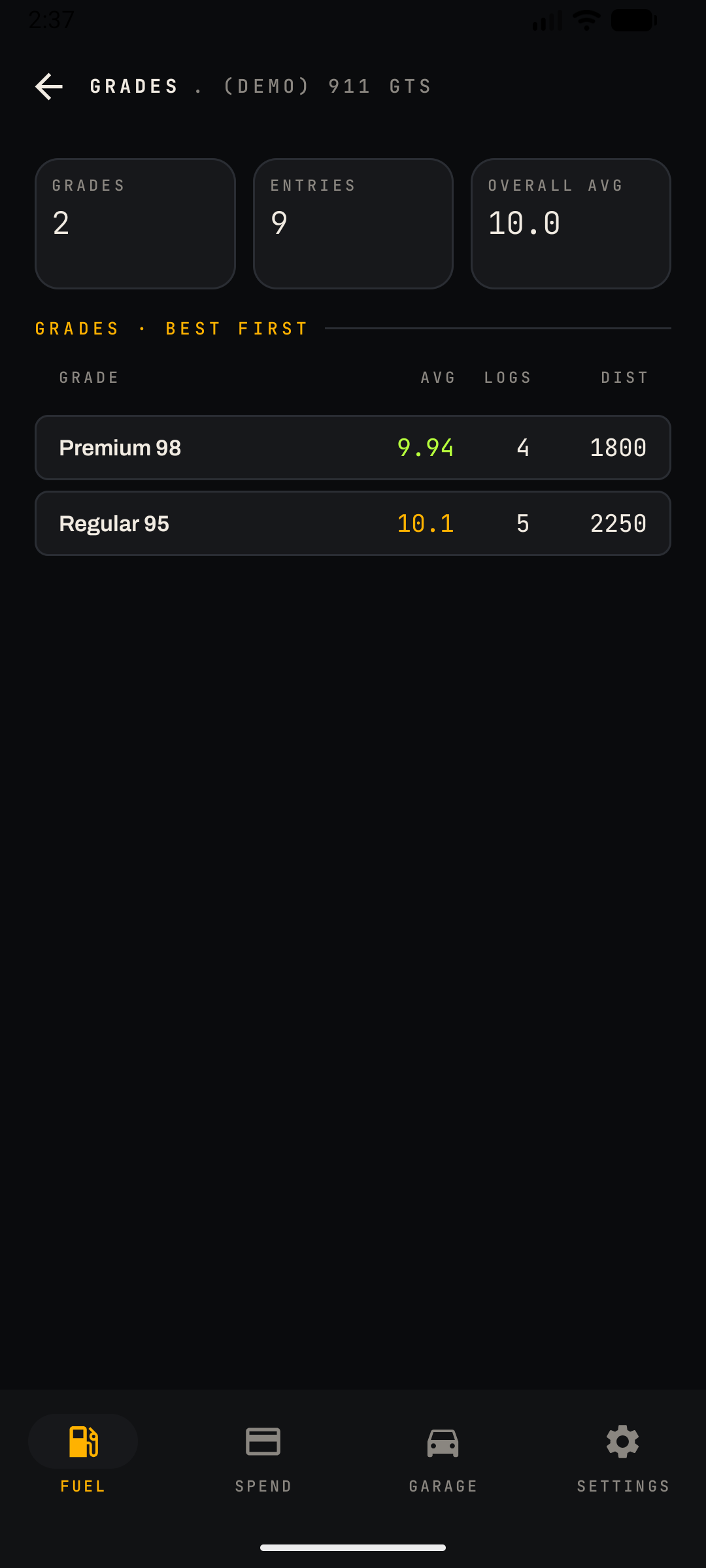
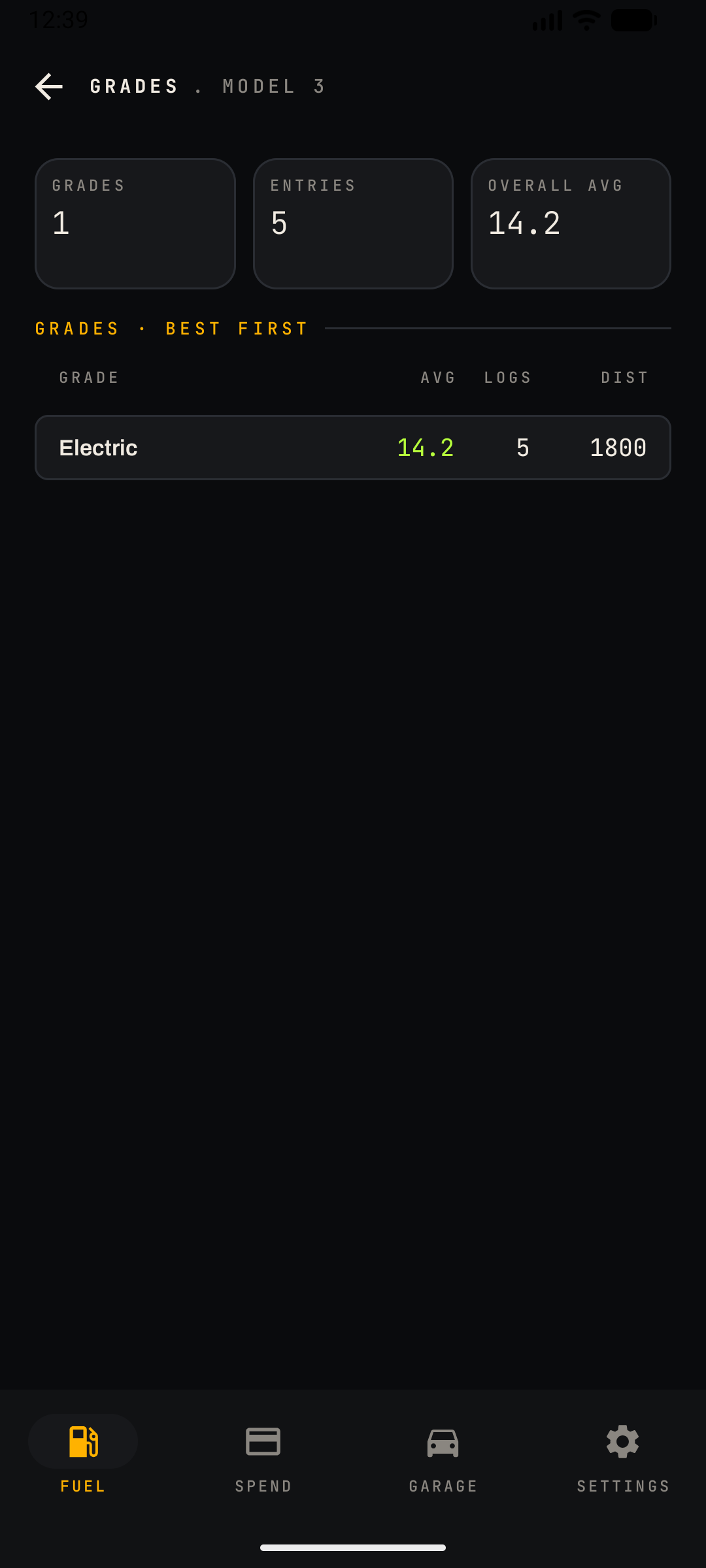
- Consumption by Grade: compares fuel grades (Regular 95 vs. Premium 98) by distance covered and L/100km. Opens the full Grades list, sorted the same wayPro.
Tank / battery estimate
- At the bottom of the screen, a button shows the estimated volume (or charge) remaining, with a subtitle noting when it was last calculated. Tap it to open the Tank / Battery Calculator.
Fill-up log
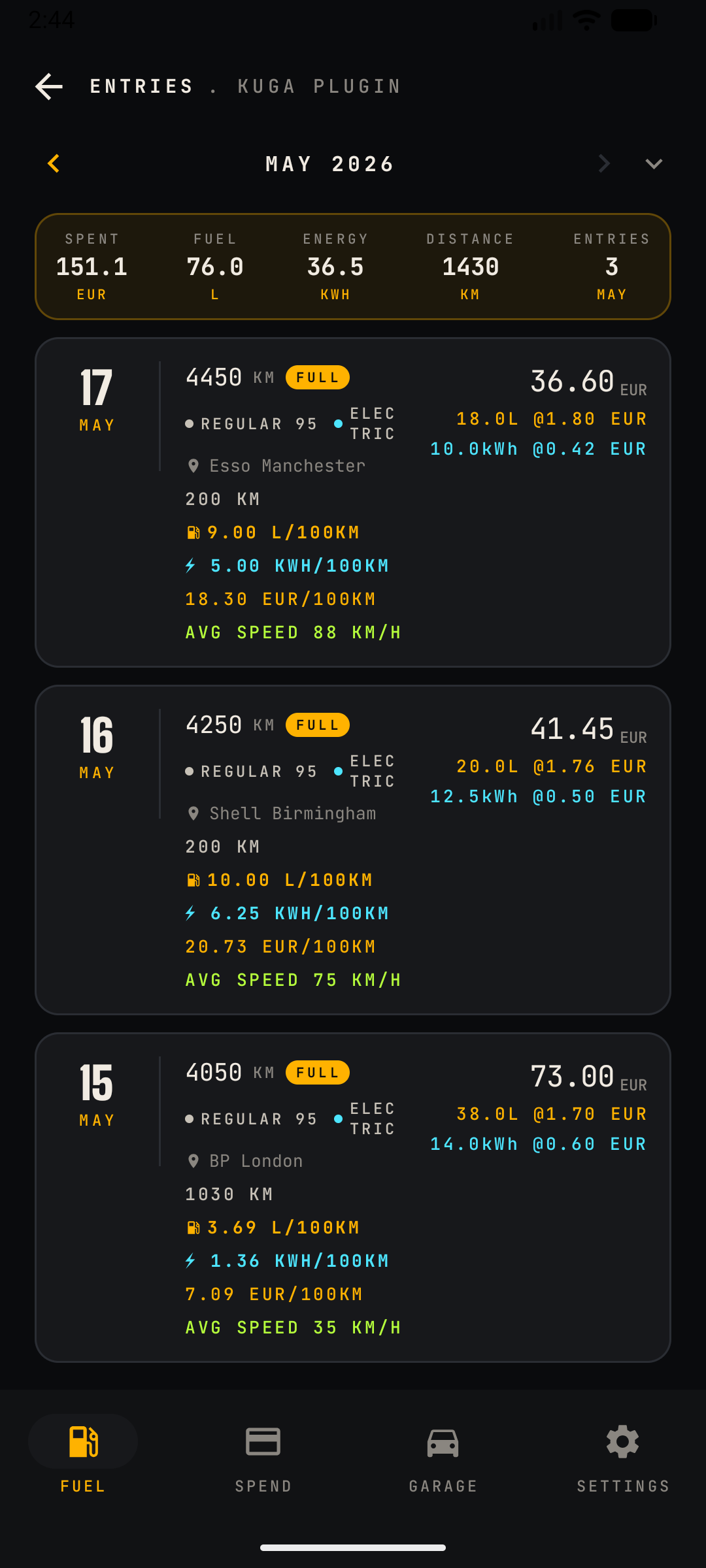
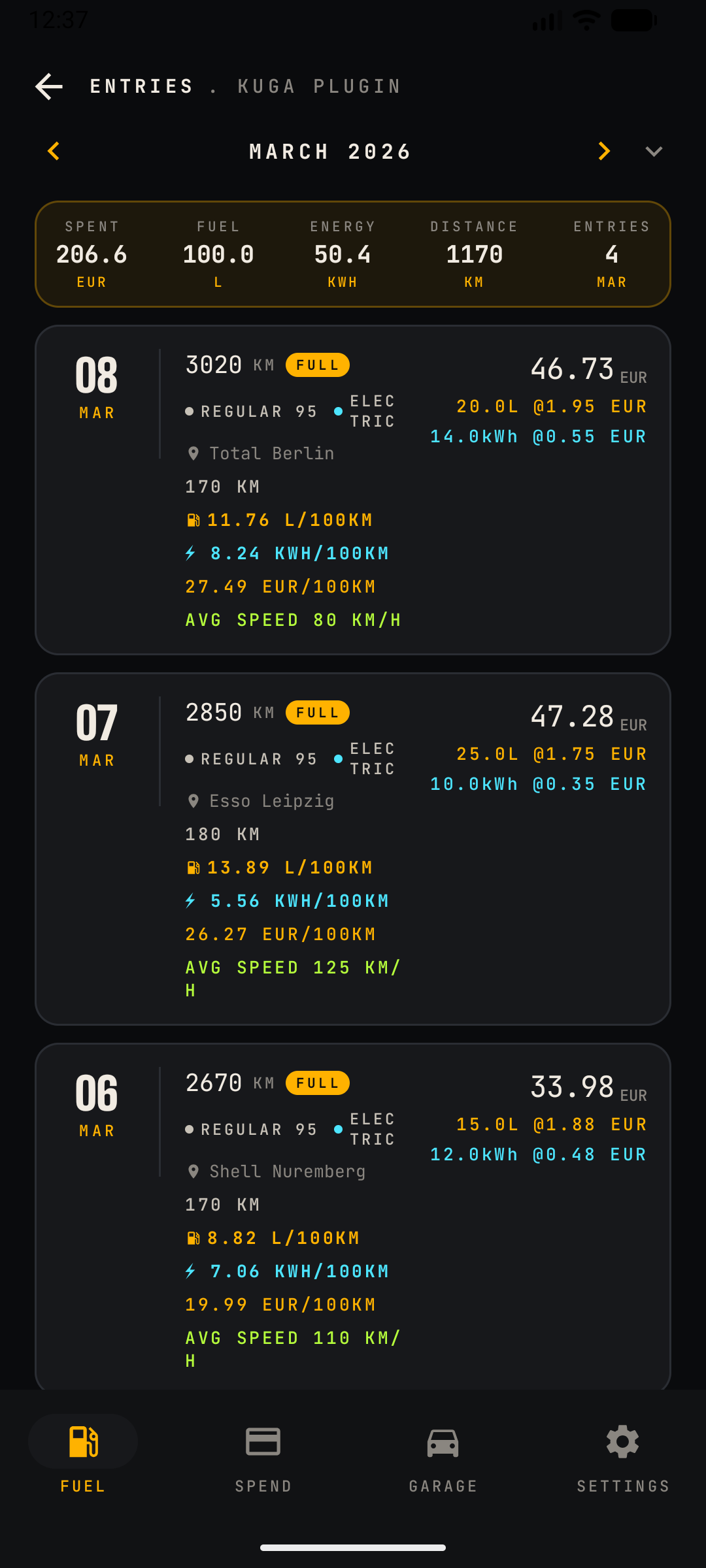
- Reverse-chronological cards, one per fill-up: date, odometer, a FULL badge for full-tank fills (only these are used for consumption maths), fuel grade, station, distance since last fill, computed L/100km and EUR/100km, average speed, free-text note, and the cost breakdown (total, litres @ price/L).
- ADD NEW + opens the log form: station, grade, volume, price, odometer, full/partial flag.
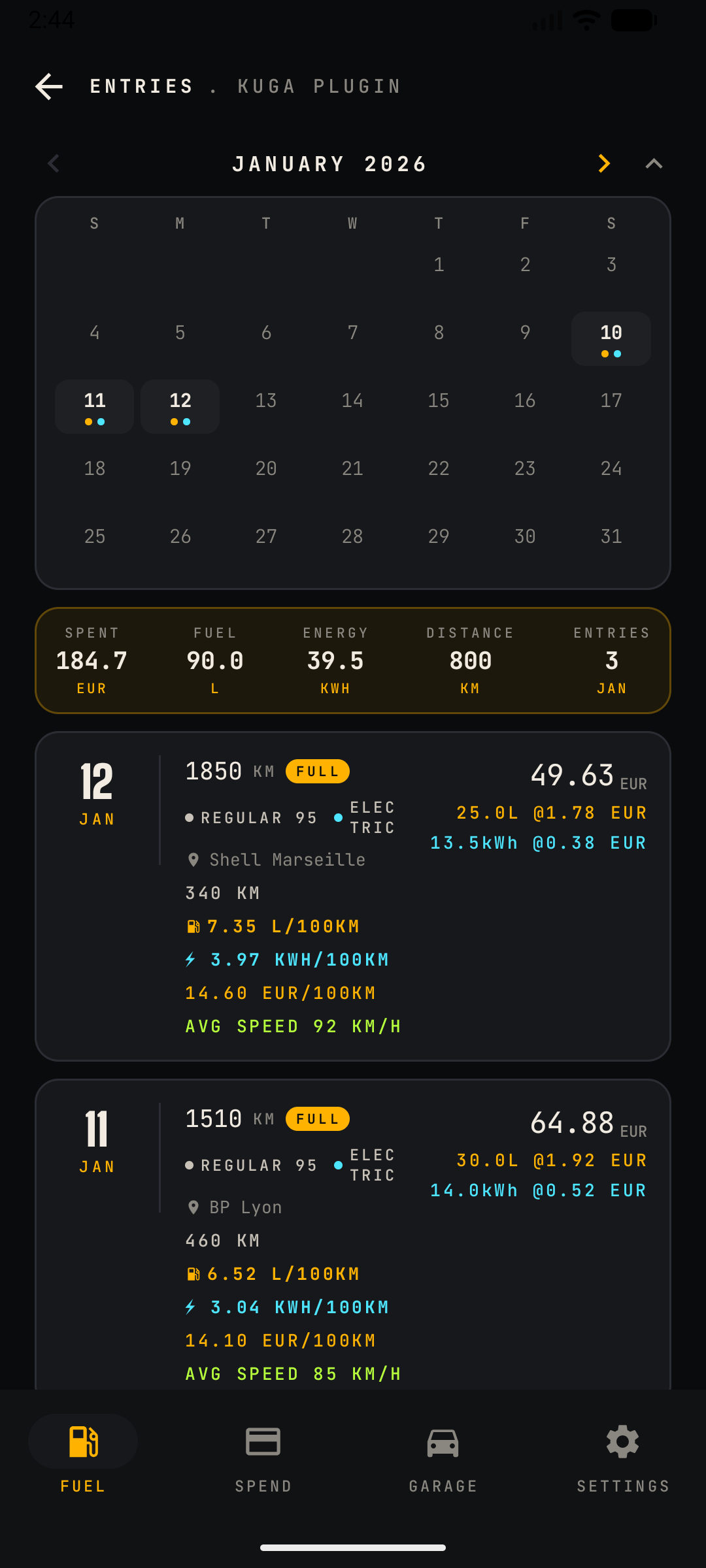
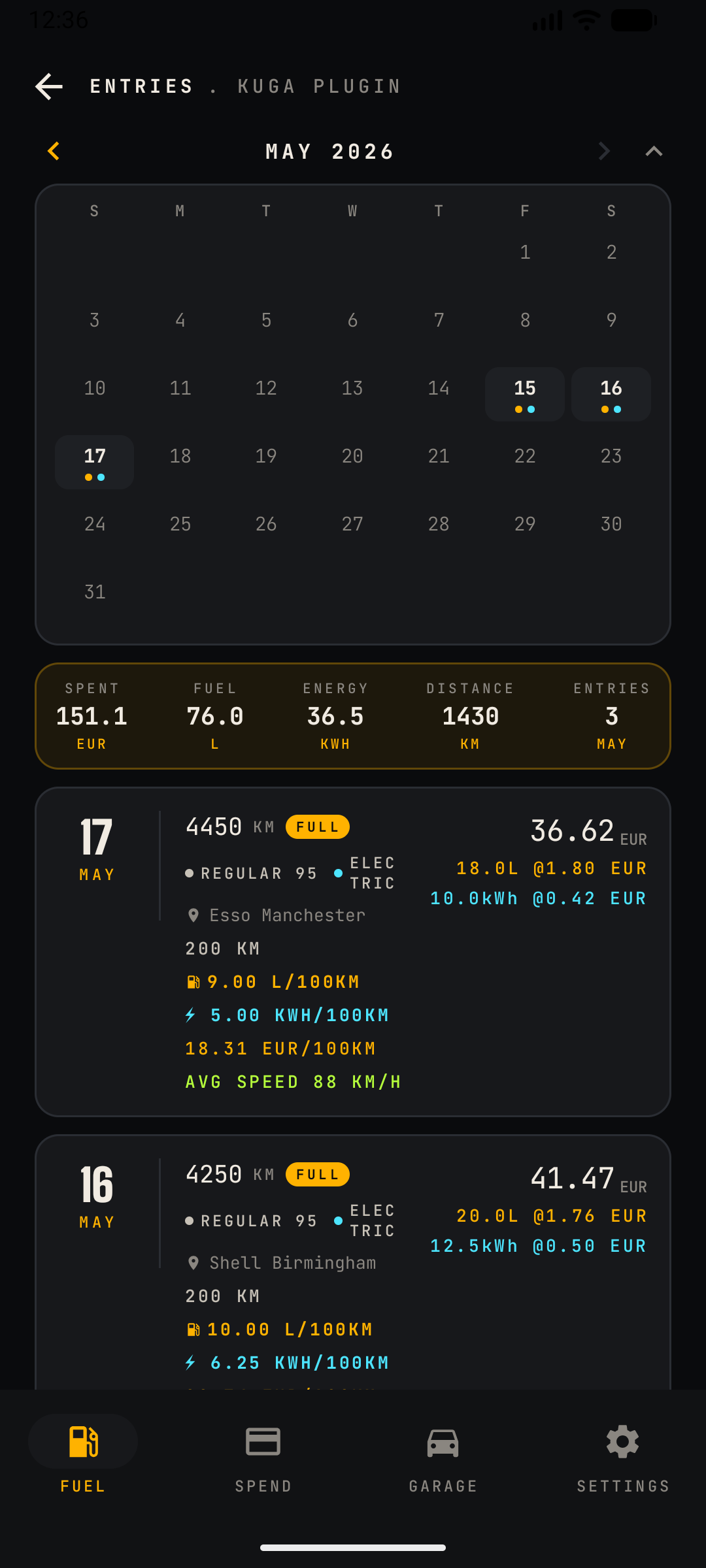
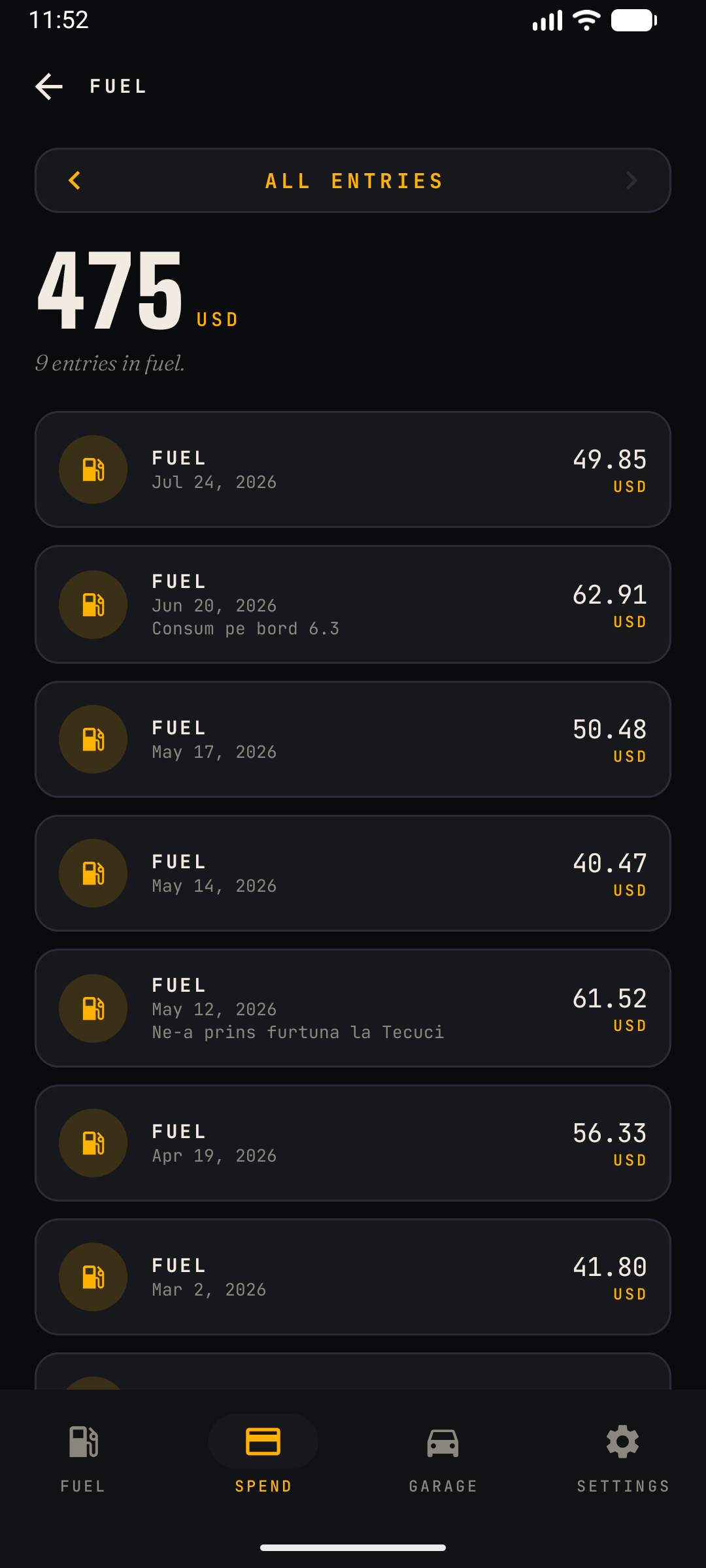
- Entries screen (screenshots 6–7): a dedicated monthly log view reachable from the fill-up log, with a totals strip (spent, fuel, energy, distance, entry count) per month. A calendar picker (chevron in the month header) lets you jump straight to a month by tapping a marked date instead of paging through months.
What this covers
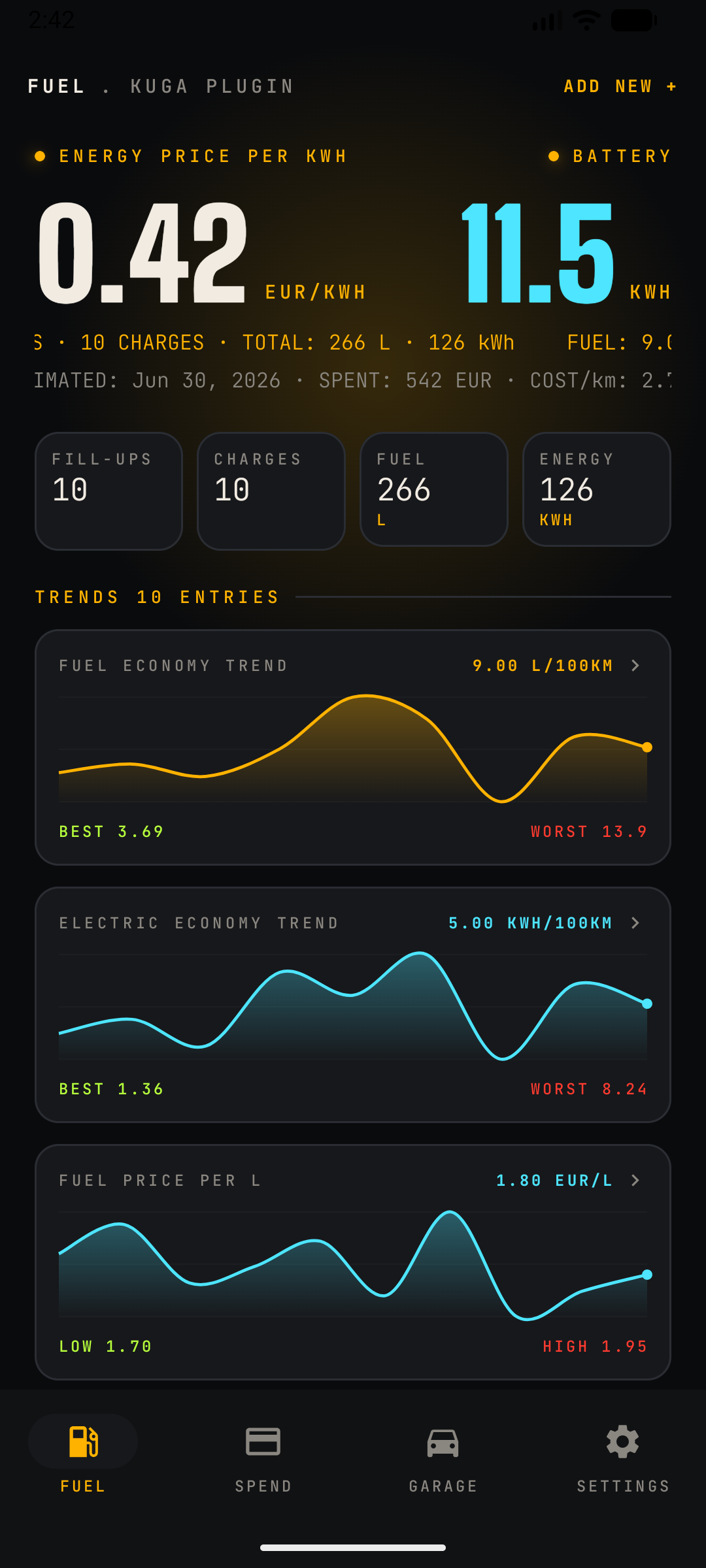
A plug-in hybrid records fuel and electricity — often in the same stop. CarSpend tracks both sides of the engine separately and together, so every screen adapts.
What's different on a PHEV
- Combined entries: a single log can hold both a fuel volume and a charged-kWh amount, each with its own price and total; the log card shows both.
- Two headline economies: fuel (L/100km) and electric (kWh/100km) are trended independently, plus a combined cost-per-100km.
- Tank + battery estimate: the bottom button shows both what's in the tank and what's in the pack, each with its last-calculated date.
- Two calculators: the Fuel/Battery toggle switches the range calculator between the tank and the pack.
What this covers
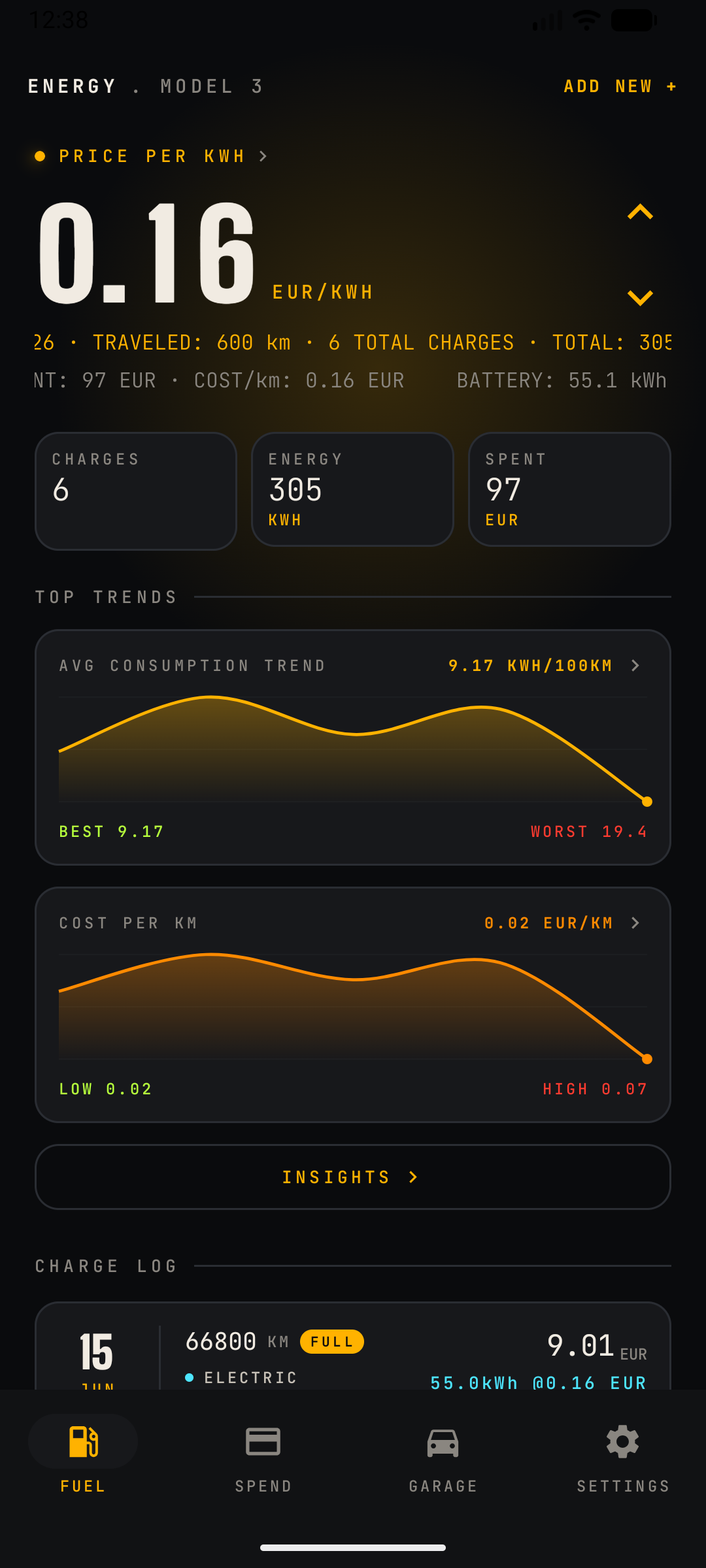
For a fully electric car the whole app speaks energy: the Fuel tab becomes an Energy tab, units switch to kWh and kWh/100km, and charges replace fill-ups.
What's different on an EV
- Energy headline: the same cyclable metric shows kWh economy, price per kWh, cost per km and more; charges and total energy replace fill-ups and volume.
- Charge log: per-charge detail with kWh @ price and the charger (home, supercharger), plus a battery volume-left estimate button.
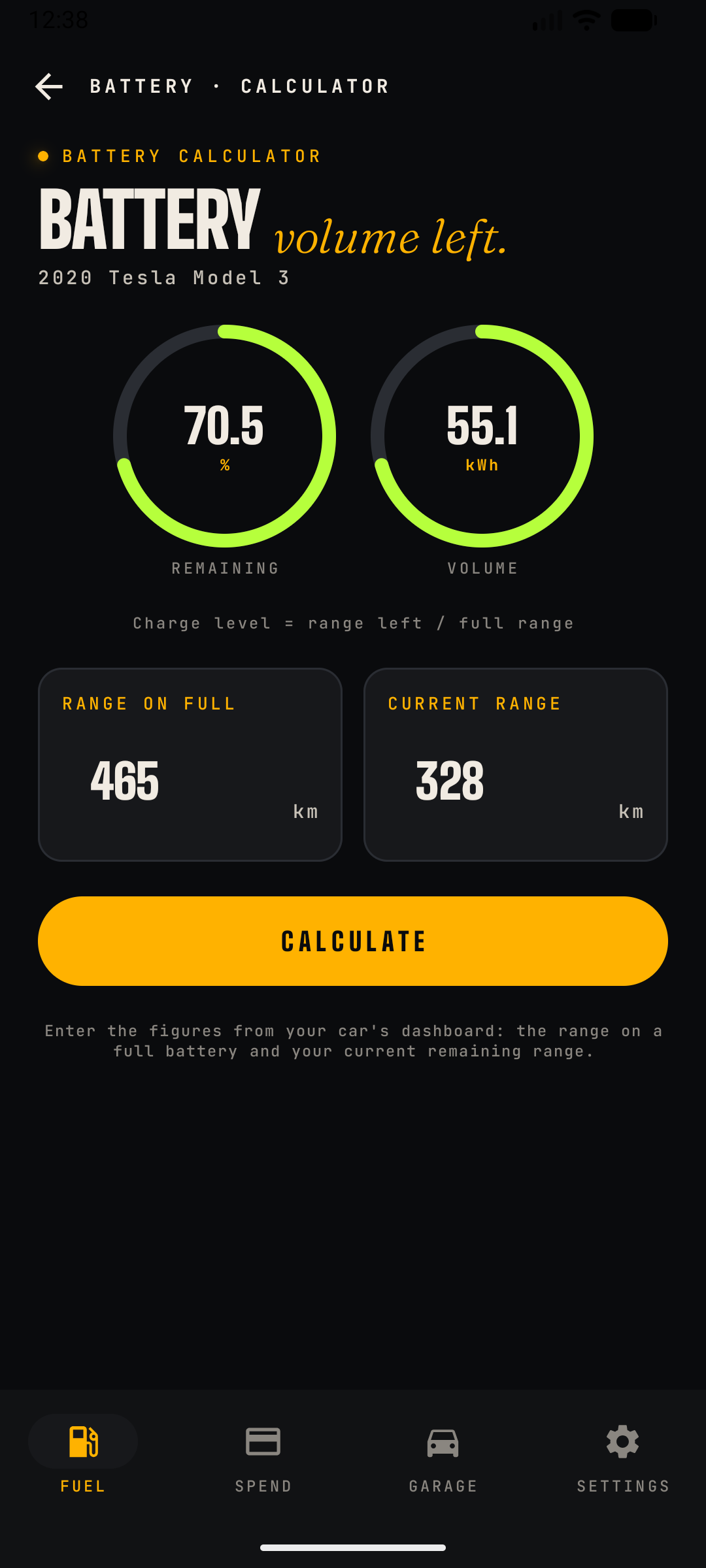
- Battery calculator: range-on-full and current range give charge percentage and kWh remaining.
- Everywhere else: the garage card, spend ledger and export all adapt to energy and charging.
What this screen does
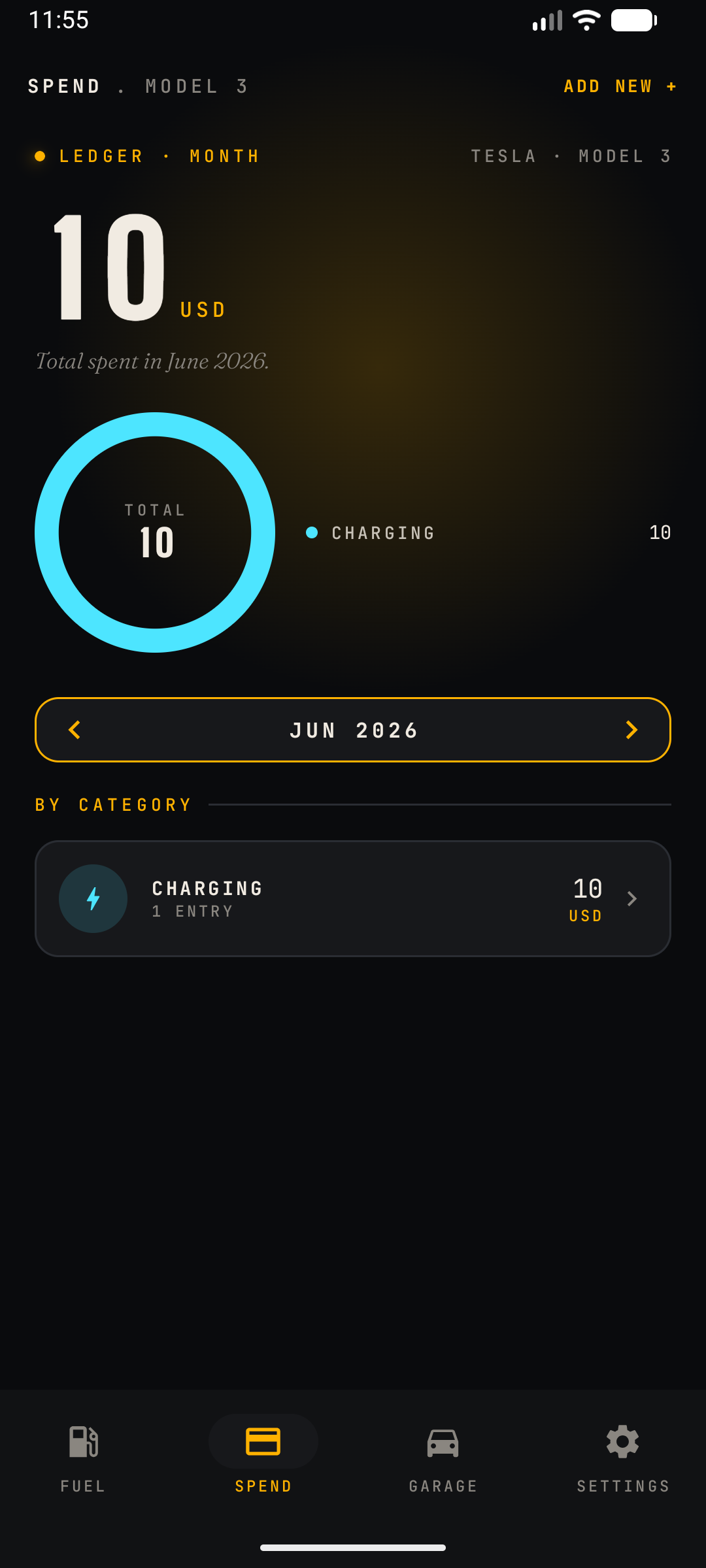
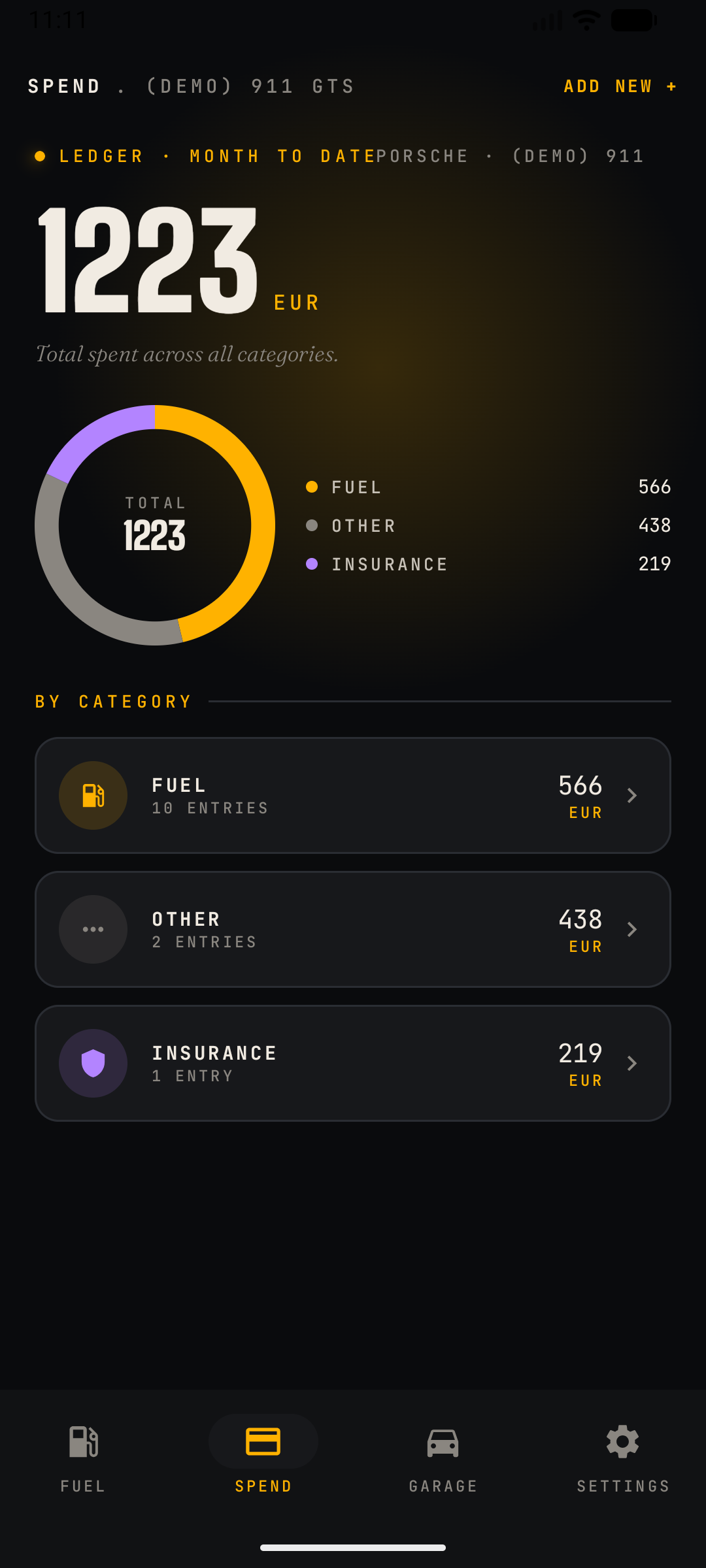
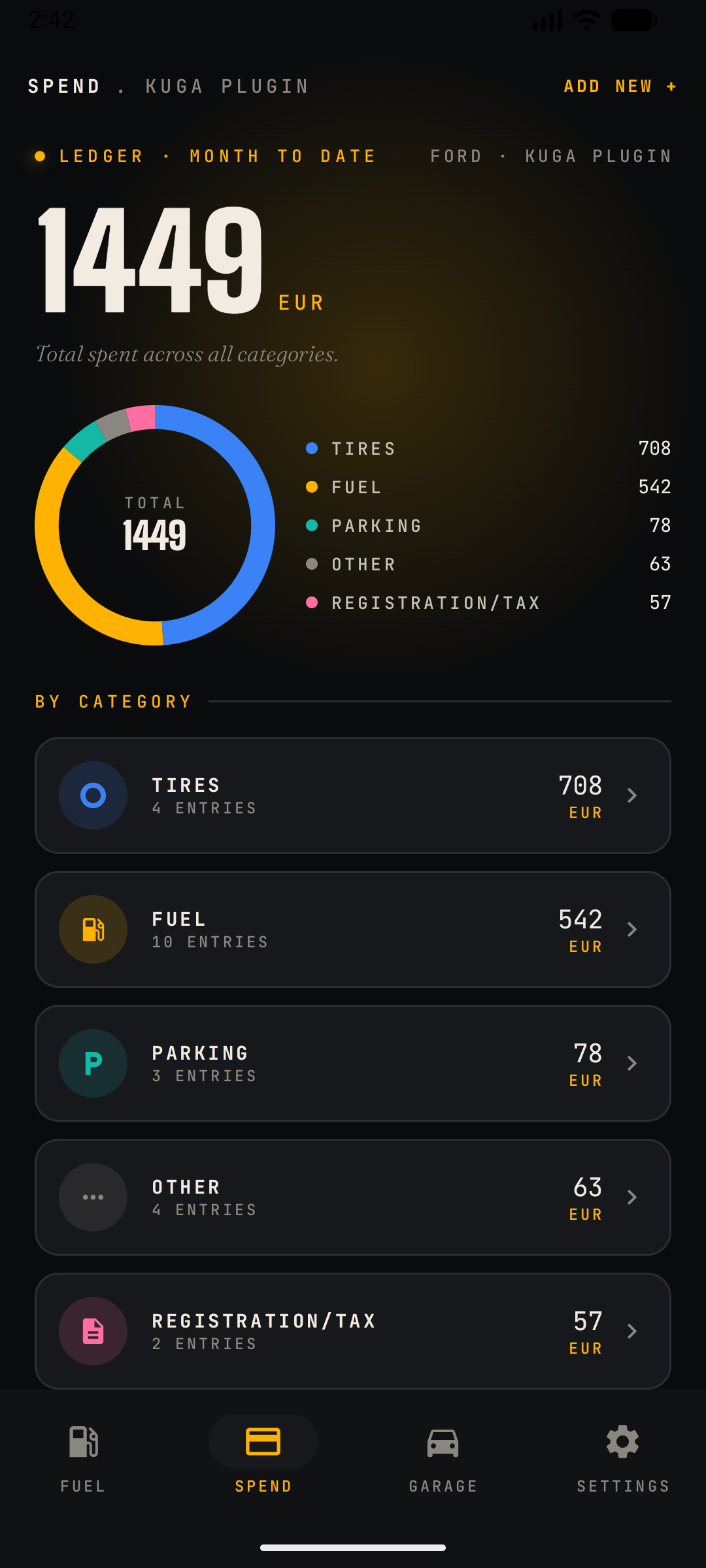
A ledger of every cost tied to the car — fuel, insurance, servicing, washes, parking, upgrades — with a visual category split. Shows all time by default, and can be scoped to any month or year.
Content
- Period selector: step through months (or pick a year, or “all time”) with the control below the header. The whole screen — headline total, donut and category list — re-scopes to the selected period, so you can compare one month against another. Opening a category keeps the same period.
- Headline total: spend across all categories for the selected period in the configured currency, labelled with the period and car name.
- Donut chart: proportional split by category (e.g. Fuel / Other / Insurance) with a colour-keyed legend and per-category amounts; the total repeats in the centre. Categories seen include Fuel, Insurance, Other, Tires, Parking and Registration/Tax.
- By Category list: one card per category showing its icon, entry count and subtotal for the selected period. Tapping a card drills into the individual entries — themselves filterable by month/year — where entries can be edited or deleted.
- ADD NEW + adds a manual expense: category, amount, date, note.
Automatic entries
- Fuel entries are mirrored automatically from the Fuel log — no double entry needed.
- Insurance / Road Tax amounts entered on the car in the Garage are synced deterministically into the ledger.
What this screen does
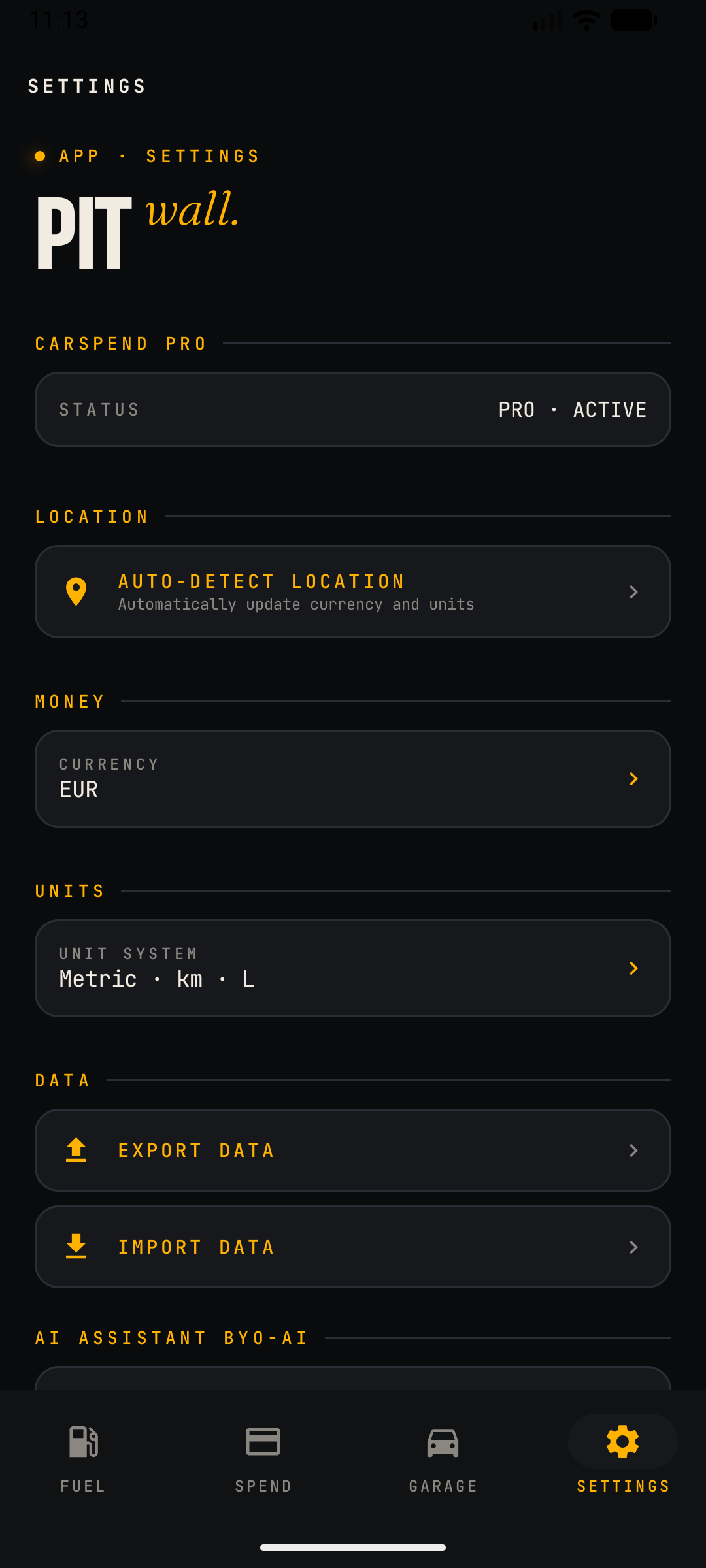
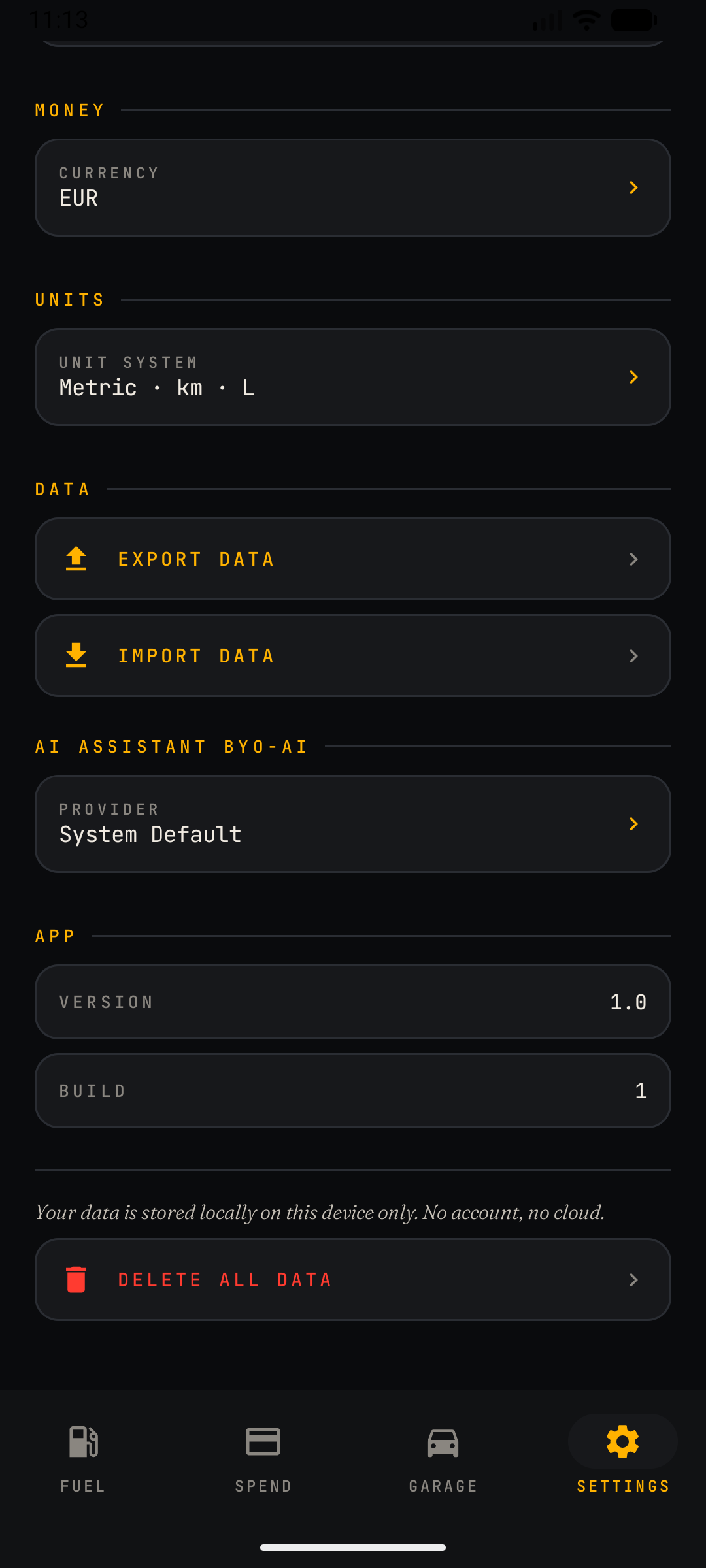
App-wide configuration: subscription status, localisation, units, backup/restore, AI provider and data deletion. Settings apply to the whole app, not a single car.
Sections, top to bottom
- CarSpend Pro: shows subscription status (e.g. PRO · ACTIVE). Pro unlocks features such as BYO-AI custom providers.
- Location — Auto-Detect: one tap sets currency and unit system from the device's location.
- Money — Currency: the display currency (e.g. EUR, USD) used everywhere in the app. Changing it does not convert historical amounts; it changes the label.
- Units — Unit System: Metric (km, L, L/100km) or Imperial (miles, gallons, MPG). All stats and charts re-render in the chosen system.
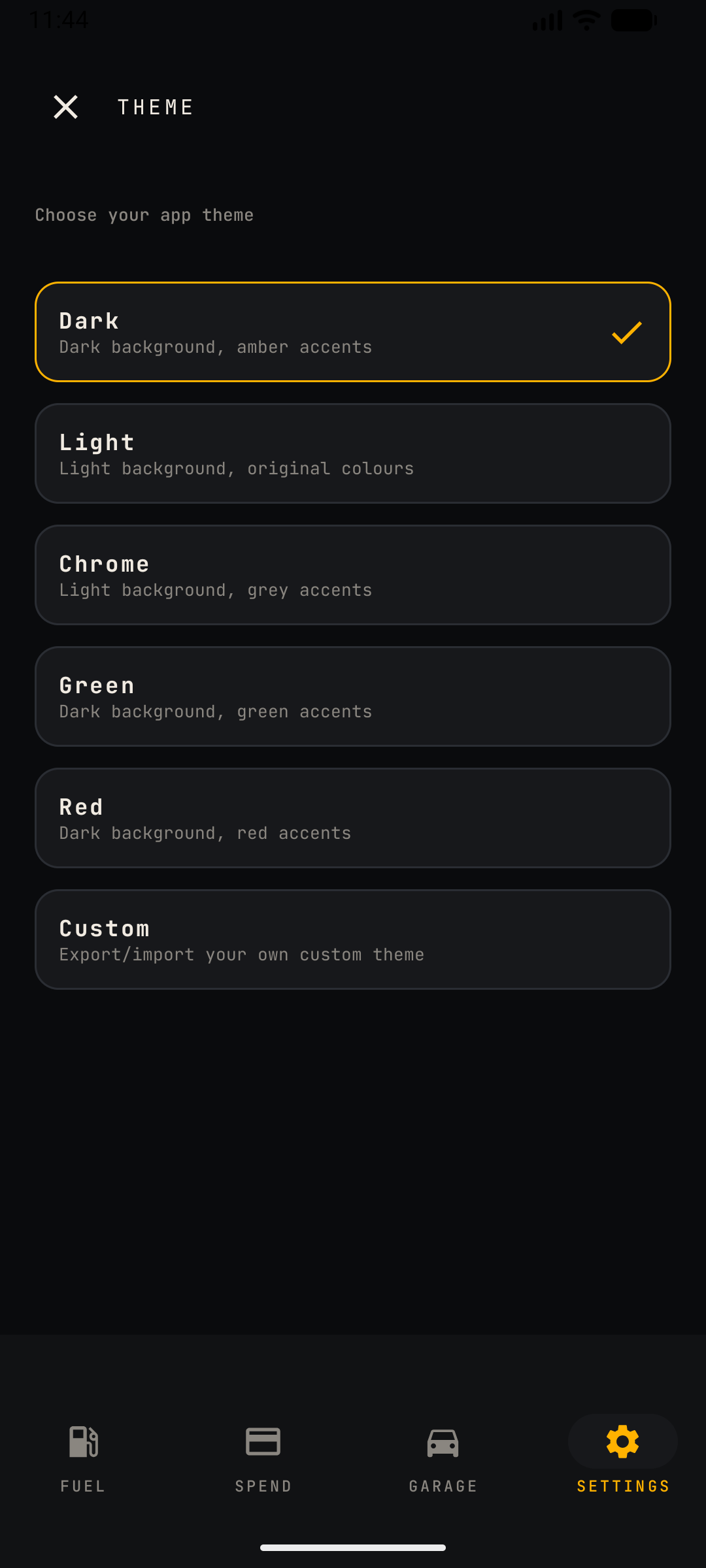
- Appearance — Theme: pick from Dark, Light, Chrome, Green, Red, or a Custom theme you can export/import (see the theme picker in the gallery).
- Data — Export Data: writes a JSON backup containing the full database: user profile (incl. mileage rate), cars, fuel logs (incl. PHEV combined entries), spendings, tyres, appointments, trips, maintenance reminders and preferred services. When CarSpend prompts you to back up (for example right after subscribing), the Back up now button takes you straight into this export save dialog in a single tap.
- Data — Import Data: restores from a JSON backup. This is the supported path for moving data to a new phone, including across Android ⇄ iOS — and for loading your data into the web app.
- AI Assistant BYO-AI — Provider: current provider (default: System Default); opens the BYO-AI screen.
- App: version and build number — handy to have on hand if you ever need to report a bug.
- Delete All Data: destructive reset (red). The footer reiterates the privacy model: "Your data is stored locally on this device only. No account, no cloud."
What this screen does
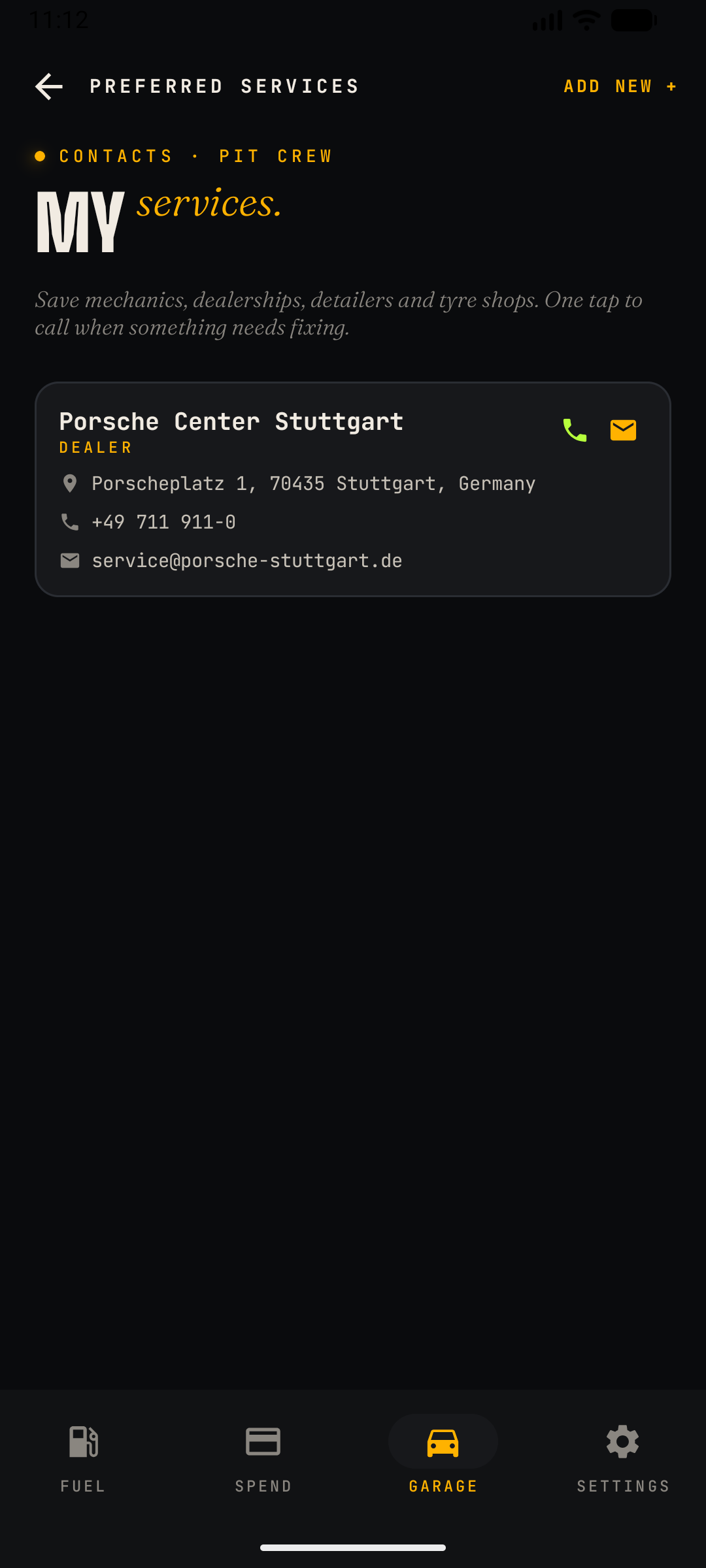
A contact book ("pit crew") of trusted garages, dealers, detailers and tyre shops, so the right number is one tap away when something needs fixing.
Content
- Provider cards: business name, a category label (Dealer, Independent Garage, Detailer, Tyre Shop, …), street address, phone number and email address.
- Quick actions: tap the phone icon to call or the envelope icon to email directly from the card; the address links out to navigation.
- ADD NEW + creates a provider with name, category and contact fields; existing cards can be edited or removed.
Notes
- Preferred services are included in the JSON backup and restored on import.
- Providers are referenced when logging services, so service history can point at who did the work.
What this screen does
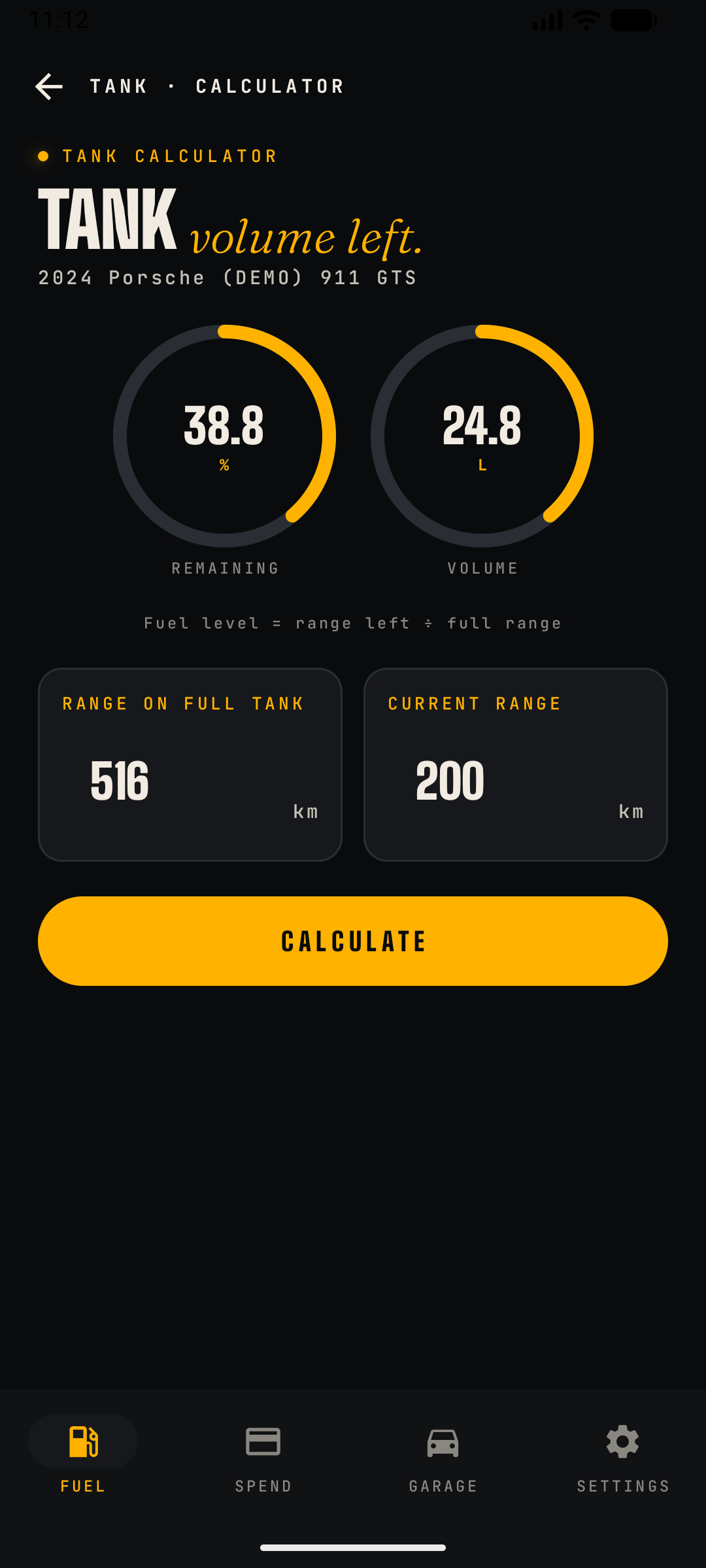
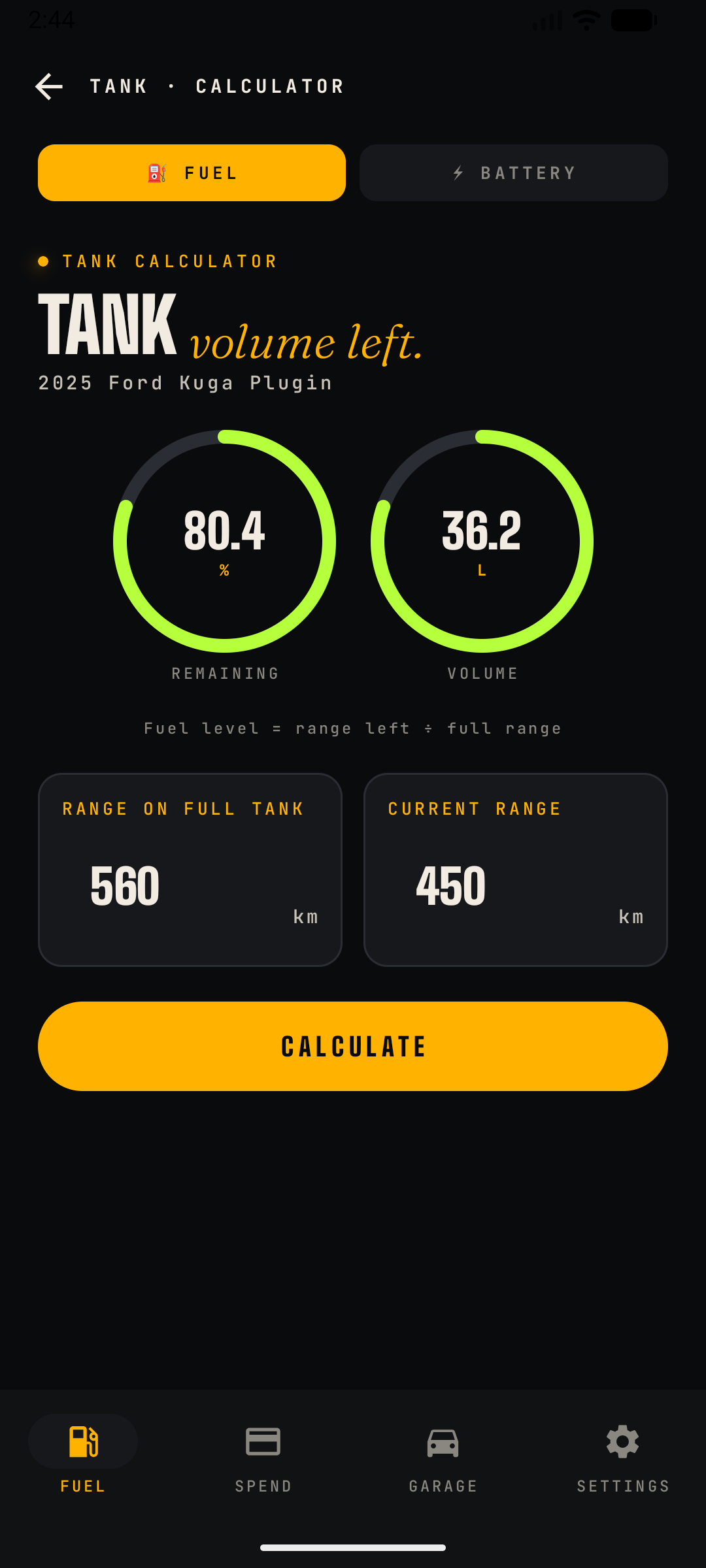
Estimates how much fuel is left in the tank from two numbers you can read off the dashboard — no sensor access needed.
How to open
- From the Fuel screen: tap the tank/battery estimate button at the bottom of the screen.
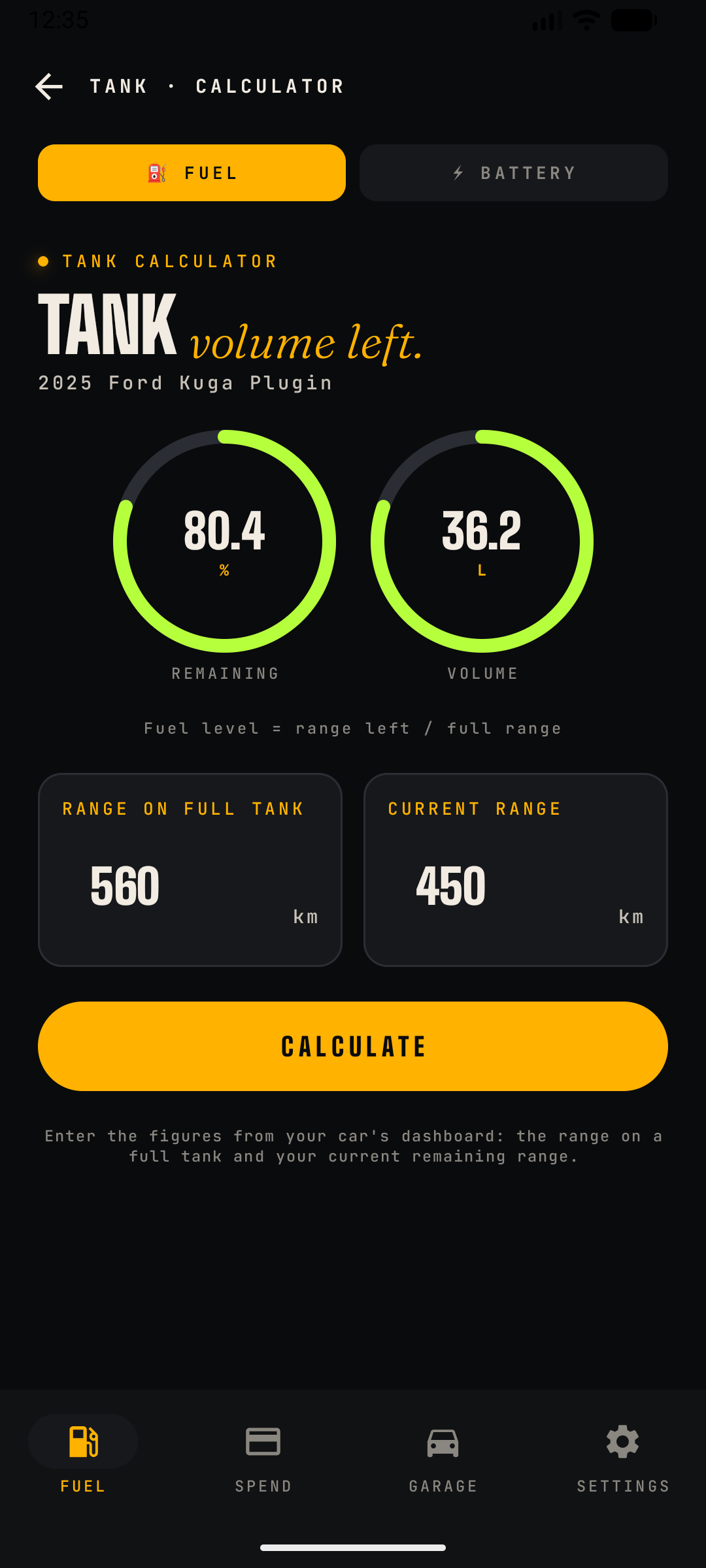
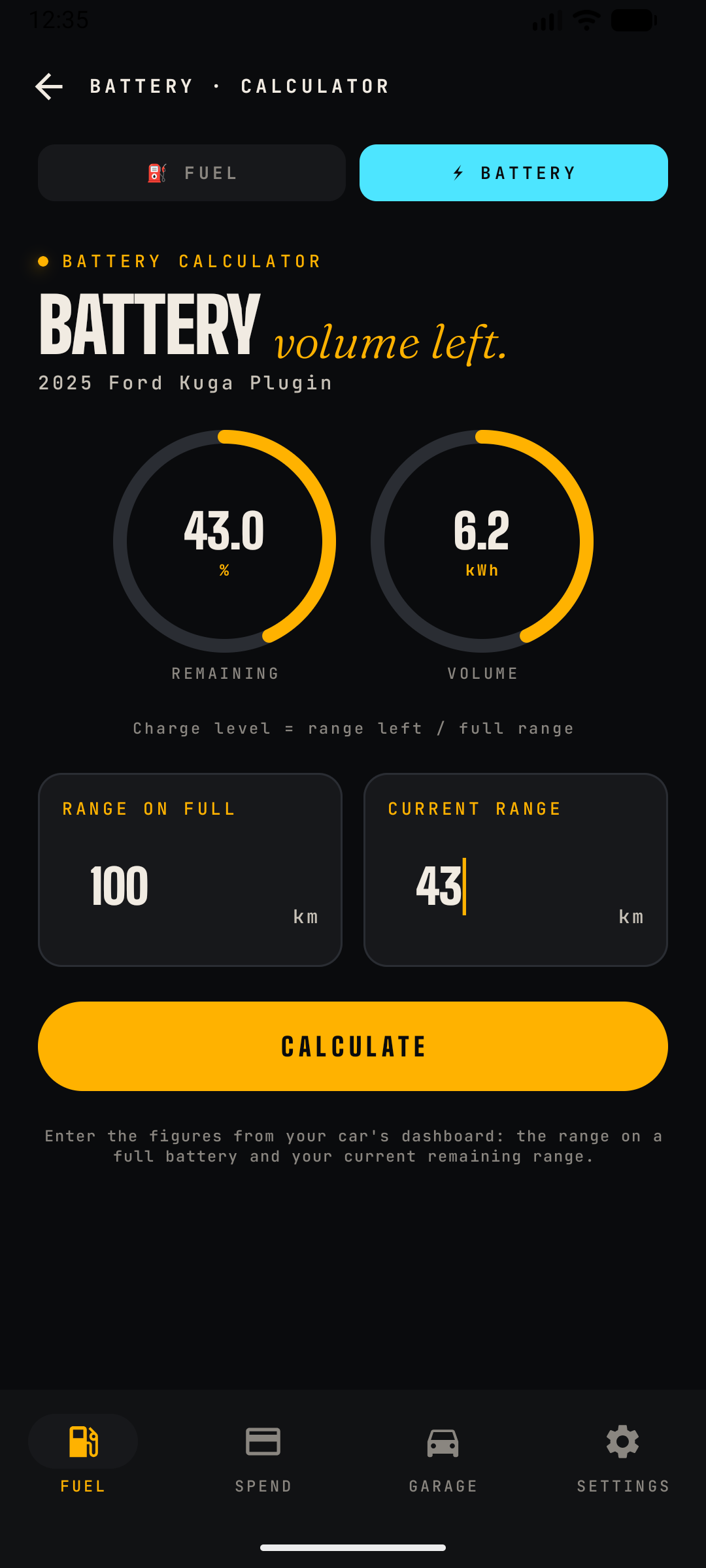
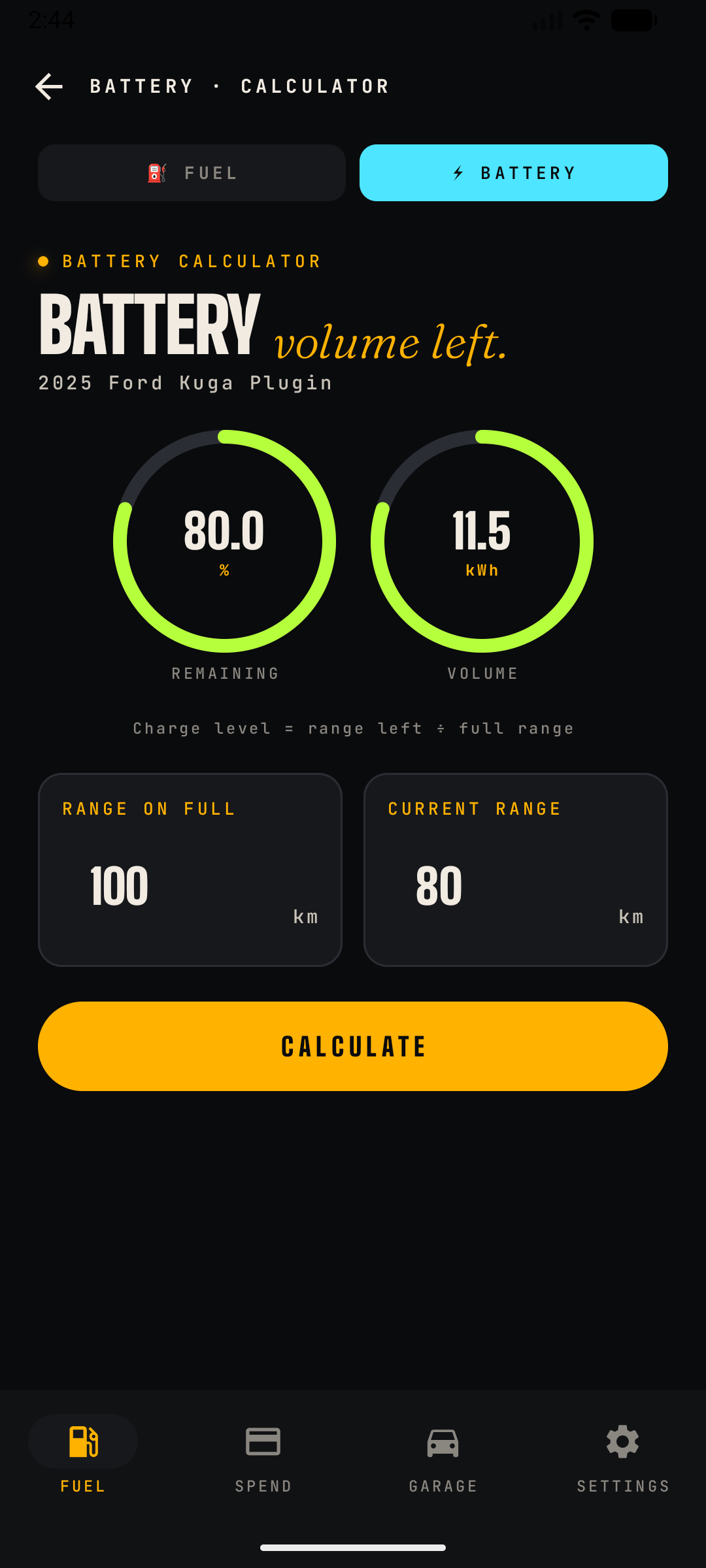
- For EVs and plug-in hybrids the same screen adds a FUEL / BATTERY toggle at the top (screenshots 2–3), switching the whole calculator to a battery calculator (charge percentage and kWh) using the same formula.
Content
- Gauges: two ring dials showing Remaining (%) and Volume (litres left).
- Inputs: Range on Full Tank (the car's typical full-tank range, e.g. 516 km) and Current Range (what the dashboard shows now).
- Formula: shown on screen — fuel level = range left ÷ full range, applied to the car's tank capacity.
- CALCULATE updates the gauges; the resulting litres figure is what the Fuel screen's tank estimate button shows.
Notes
- The estimate assumes the dashboard range prediction is linear; accuracy improves when "Range on Full Tank" reflects your real driving.
- For EVs the same logic applies to battery percentage and kWh.
What this feature does
A free home-screen widget for the selected car: month-to-date spend, the next maintenance due (with how many days remain), and your last fill-up or charge.
- Add it: long-press your home screen → Widgets → CarSpend.
- Always current: refreshes whenever your data changes, plus a periodic background refresh.
- Deep links: tap the spend figure to open Spend, the maintenance item to open Maintenance, or the last-fill line to open Fuel.
What Pro unlocks
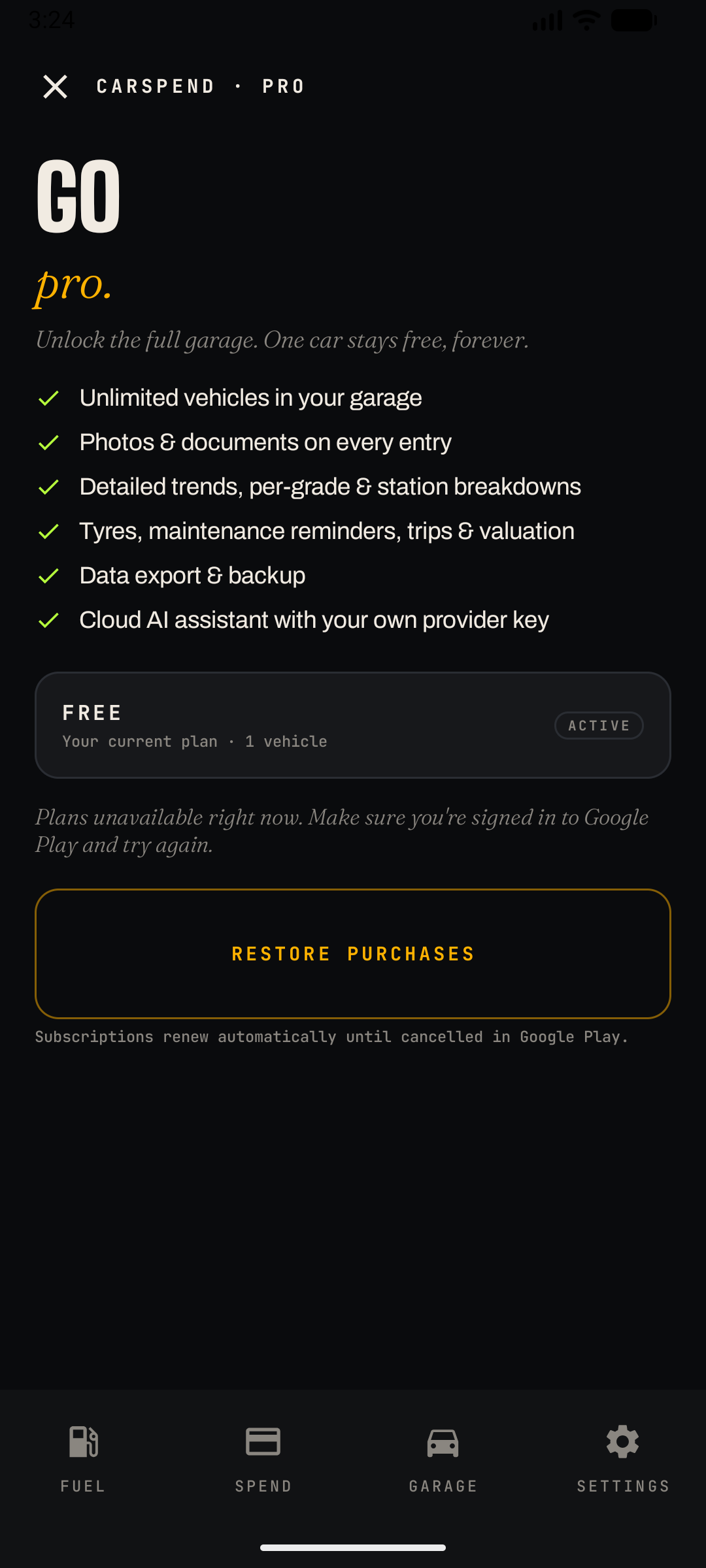
CarSpend is free for core tracking on one vehicle. Pro is a single upgrade that unlocks the full feature set:
- Unlimited vehicles — on the free plan you can keep one car in the Garage; adding a second requires Pro.
- Photos & documents — attach receipts, insurance papers and photos to any entry.
- Detailed trends — drill into the numeric trend tables, per-station averages and per-grade consumption breakdowns (on the free plan you'll see the summary charts only).
- Tyres, maintenance reminders, trips & valuation — the Garage drill-downs (Tyres, Maintenance, Trips, Valuation) and the Service logbook.
- Data export & backup — the JSON backup in Settings.
- Ask (AI assistant) — the whole Ask feature, including on-device Gemini Nano and BYO-AI with your own provider key.
How gating appears in the UI
- Locked quick actions in the Garage show a small lock disc overlay; attachment buttons show a lock icon with a PRO label.
- Tapping any locked feature opens the upgrade paywall naming the feature that triggered it.
- Settings shows PRO · ACTIVE when subscribed; otherwise it shows Upgrade to Pro and Restore Purchases buttons — the latter is the fix for "I paid but I'm not Pro" after a reinstall or new device.
- The paywall shows your current plan (e.g. FREE · 1 vehicle) and the available Pro plans. Subscriptions renew automatically until cancelled in Google Play.
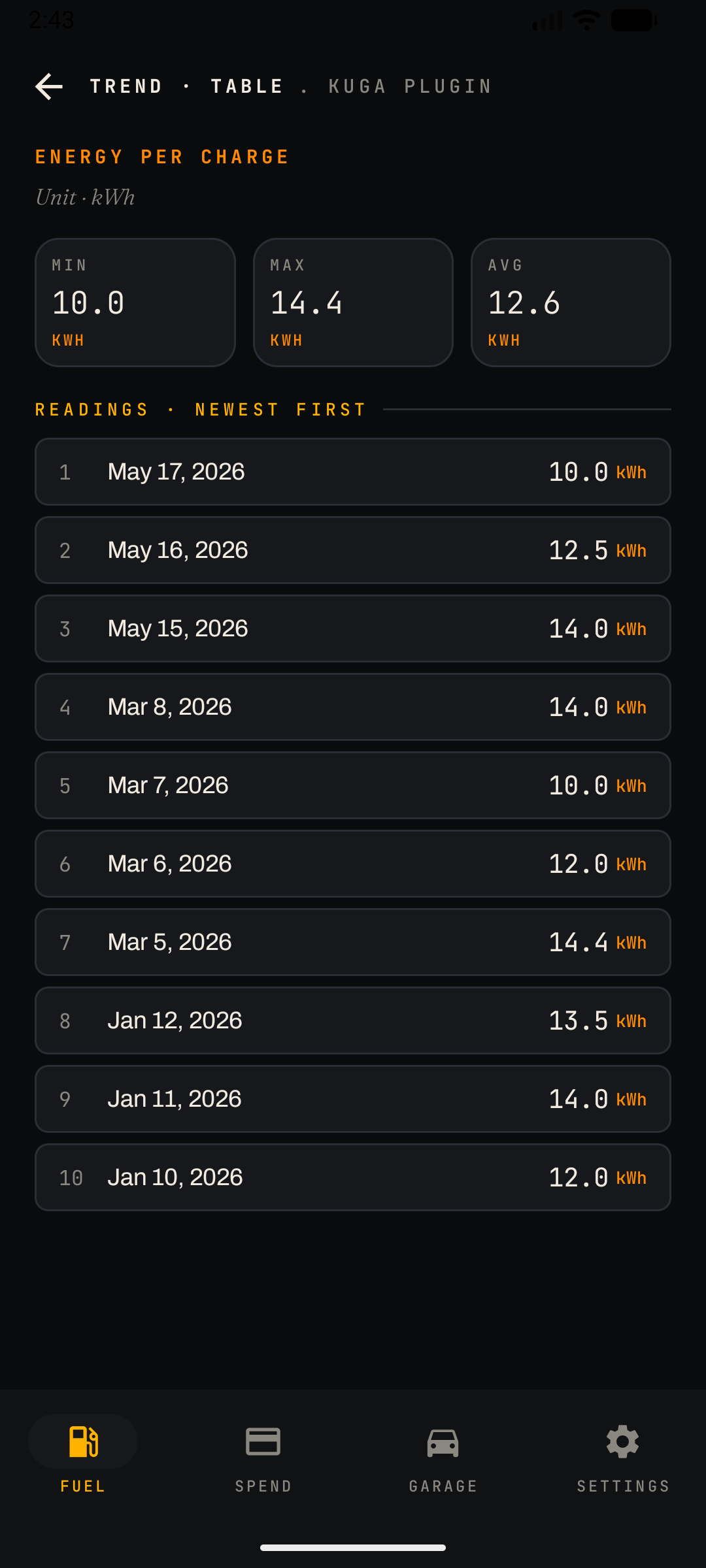
What this screen does
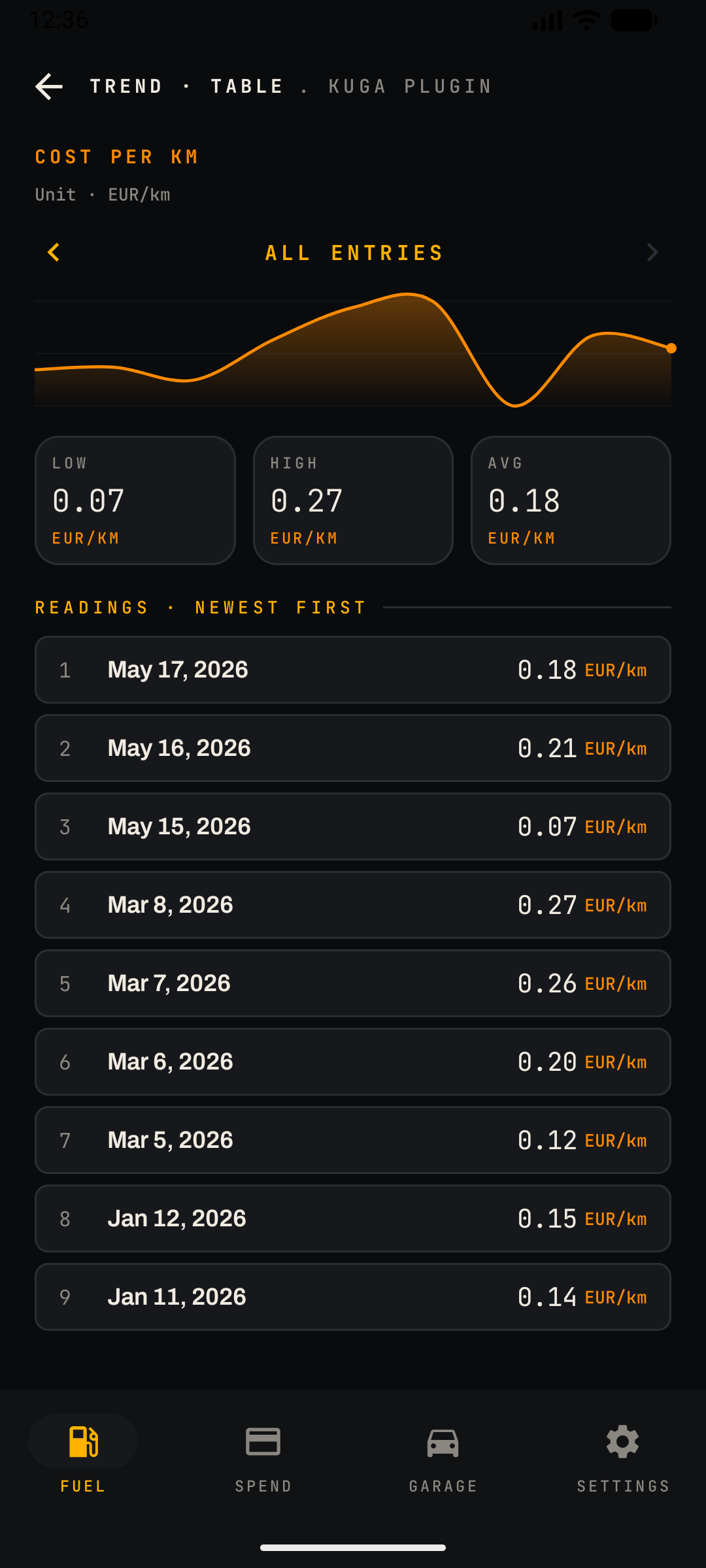
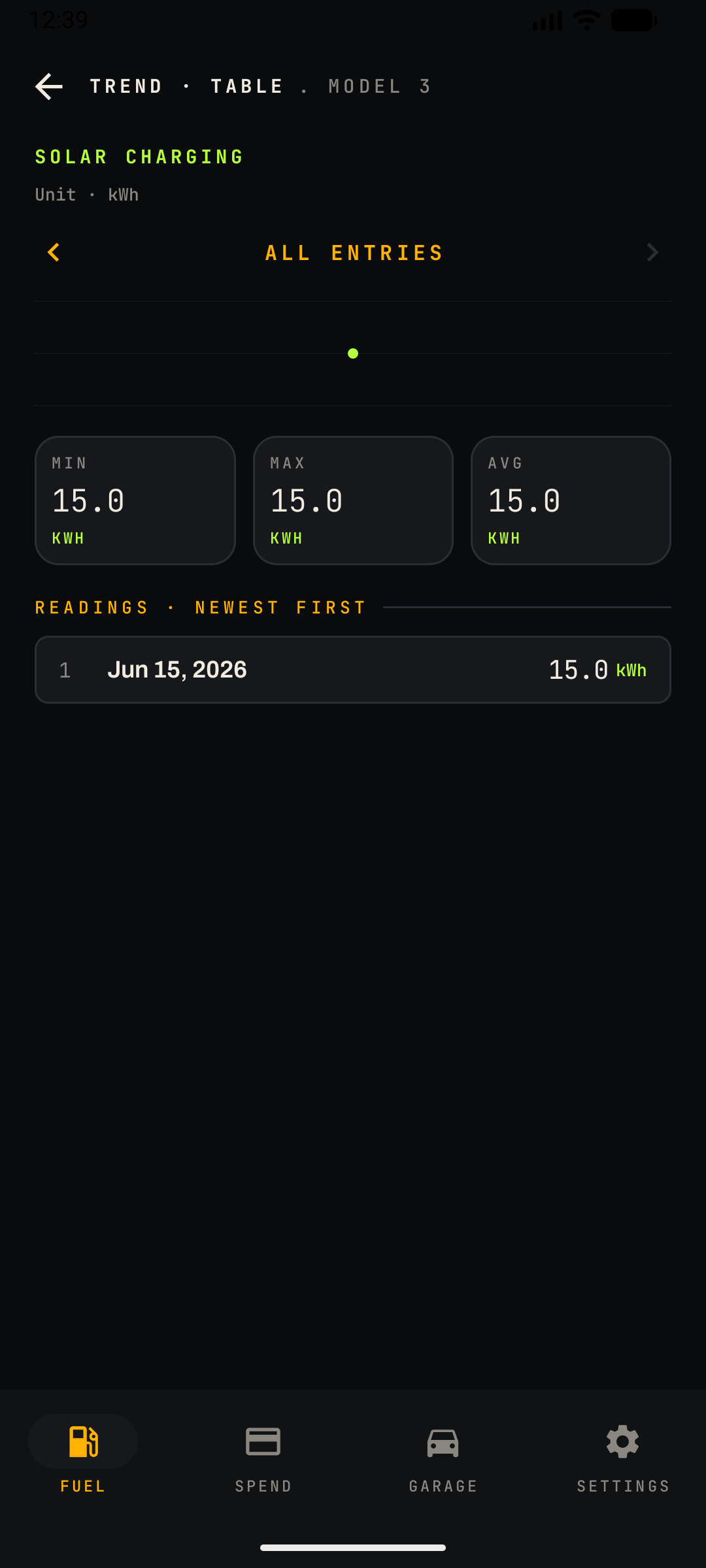
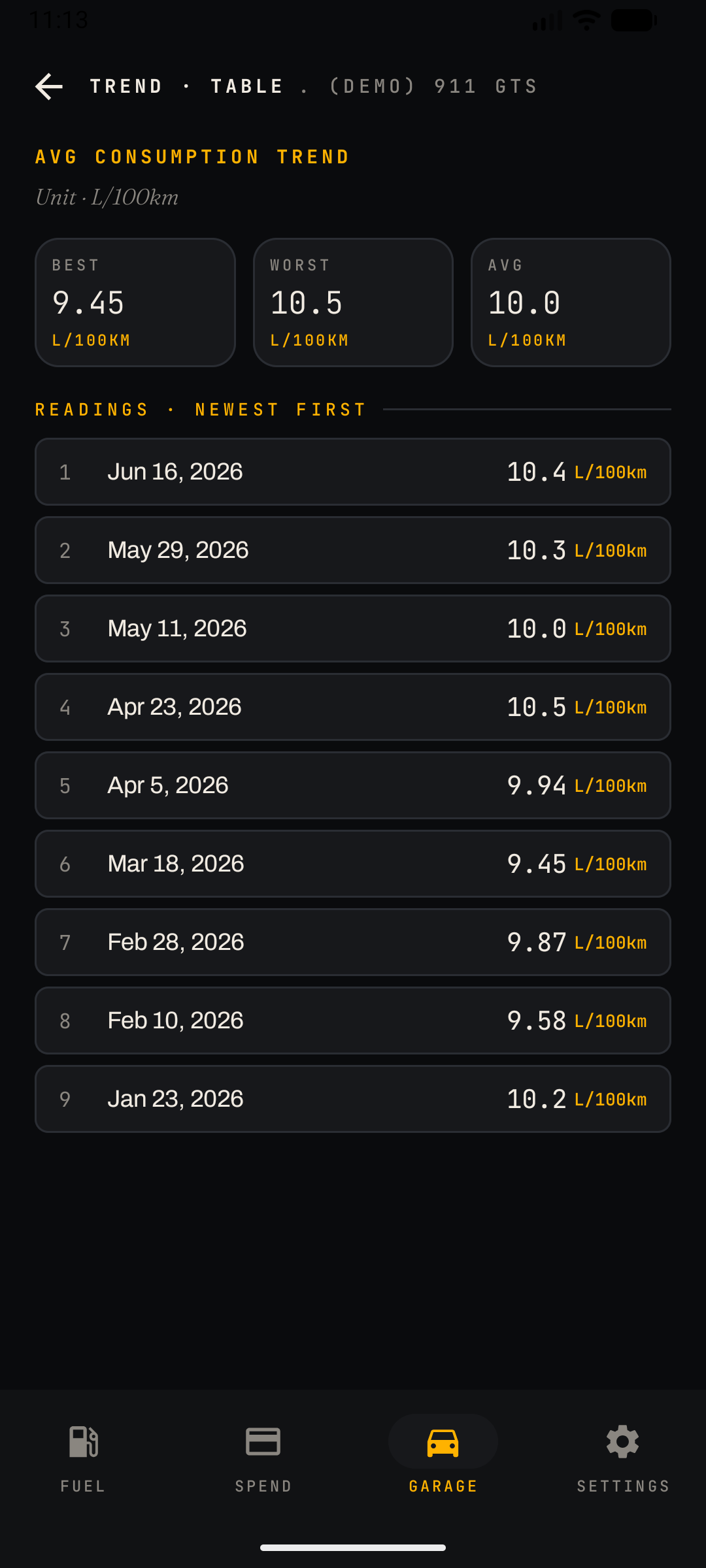
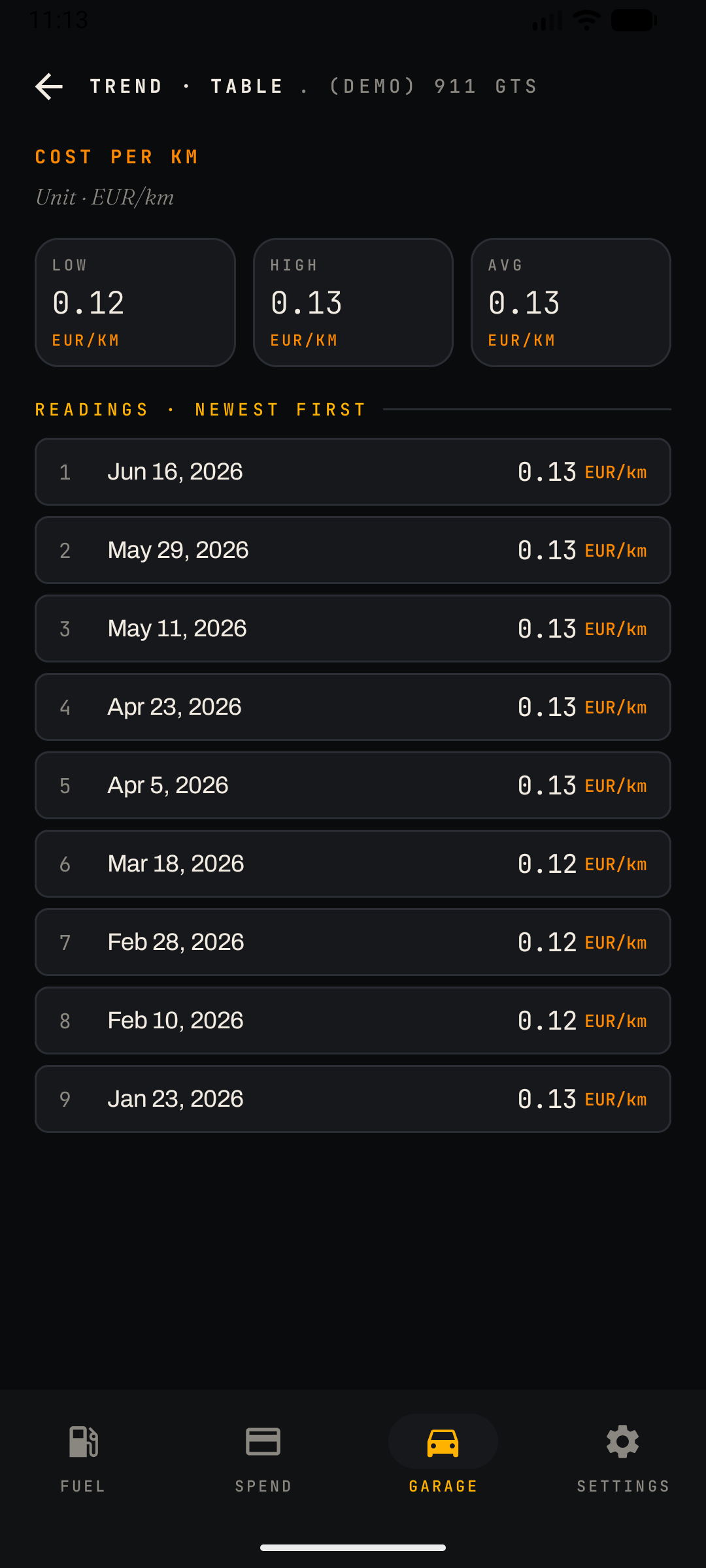
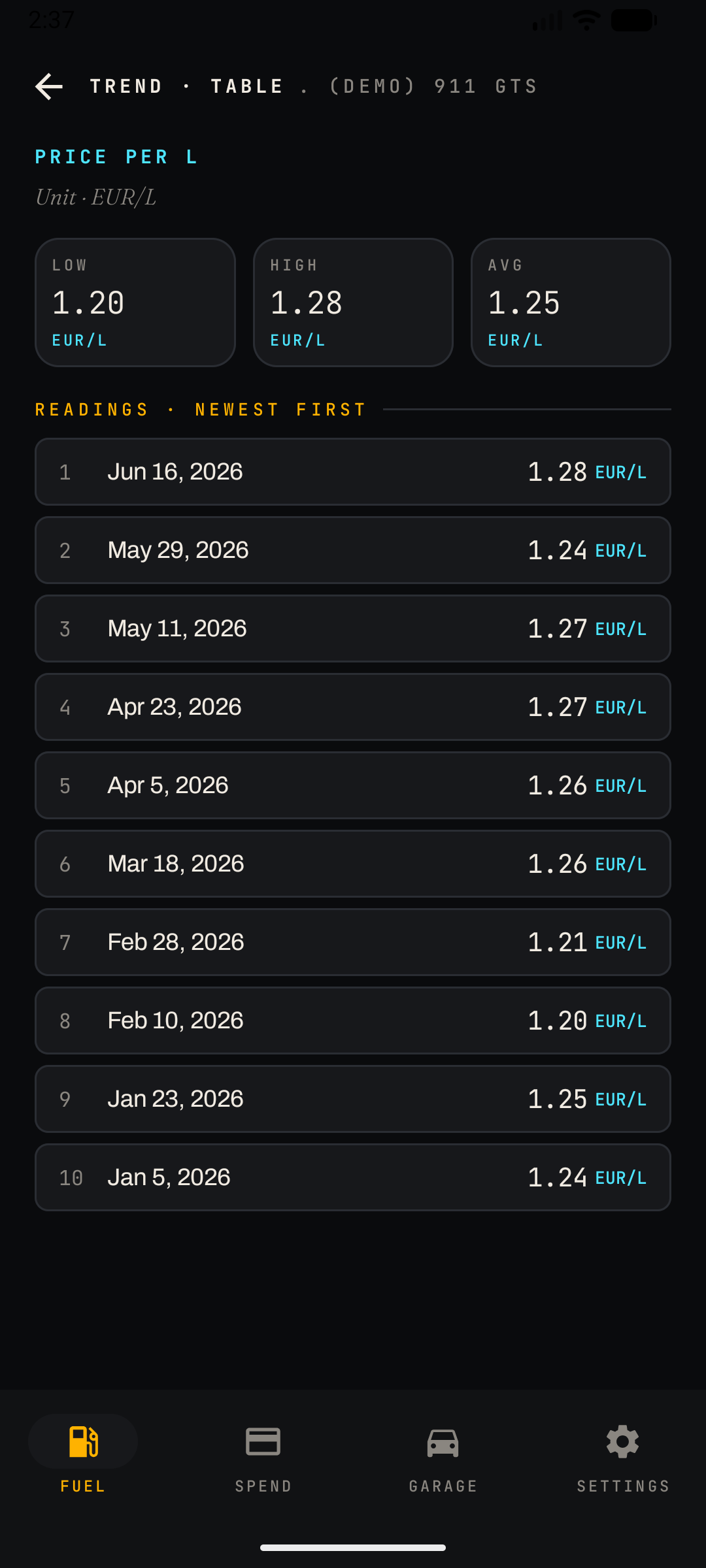
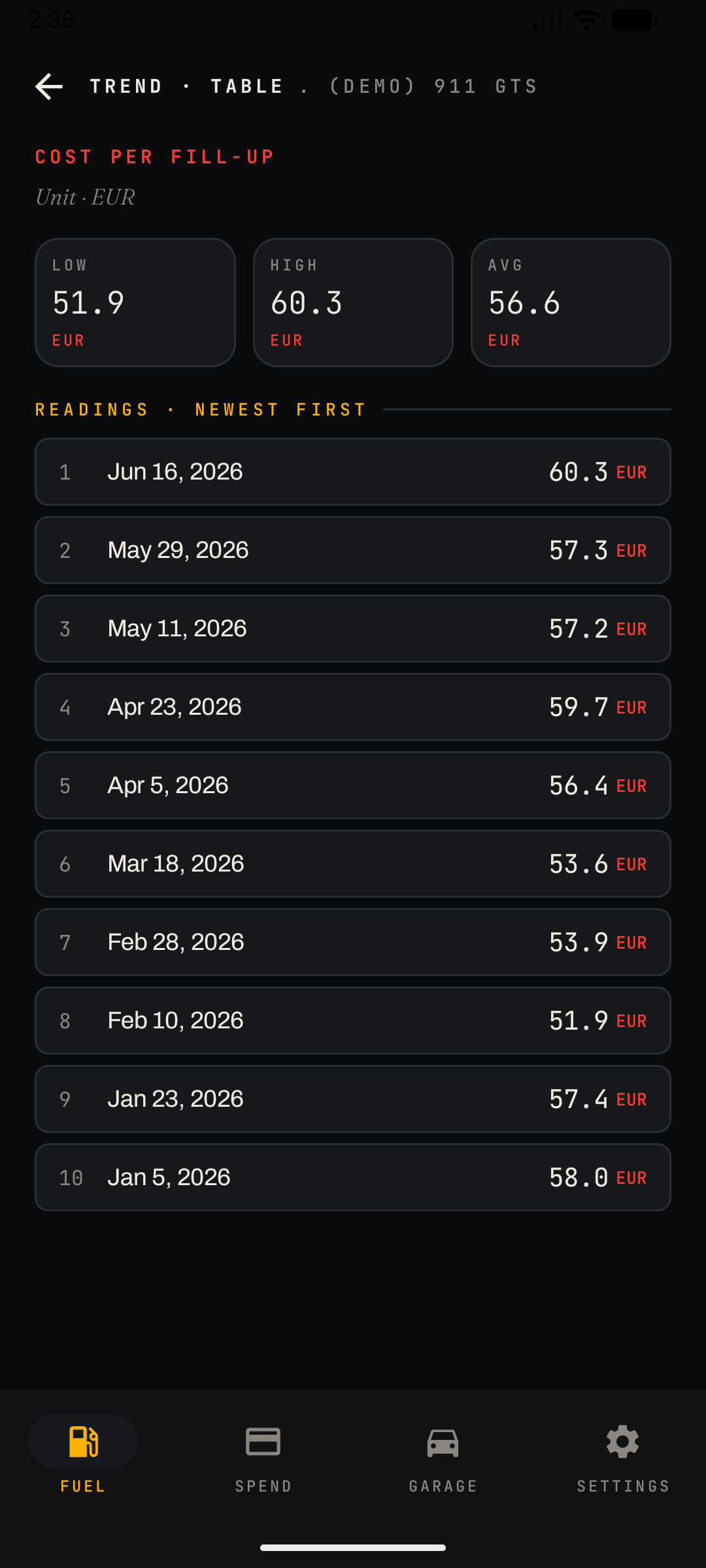
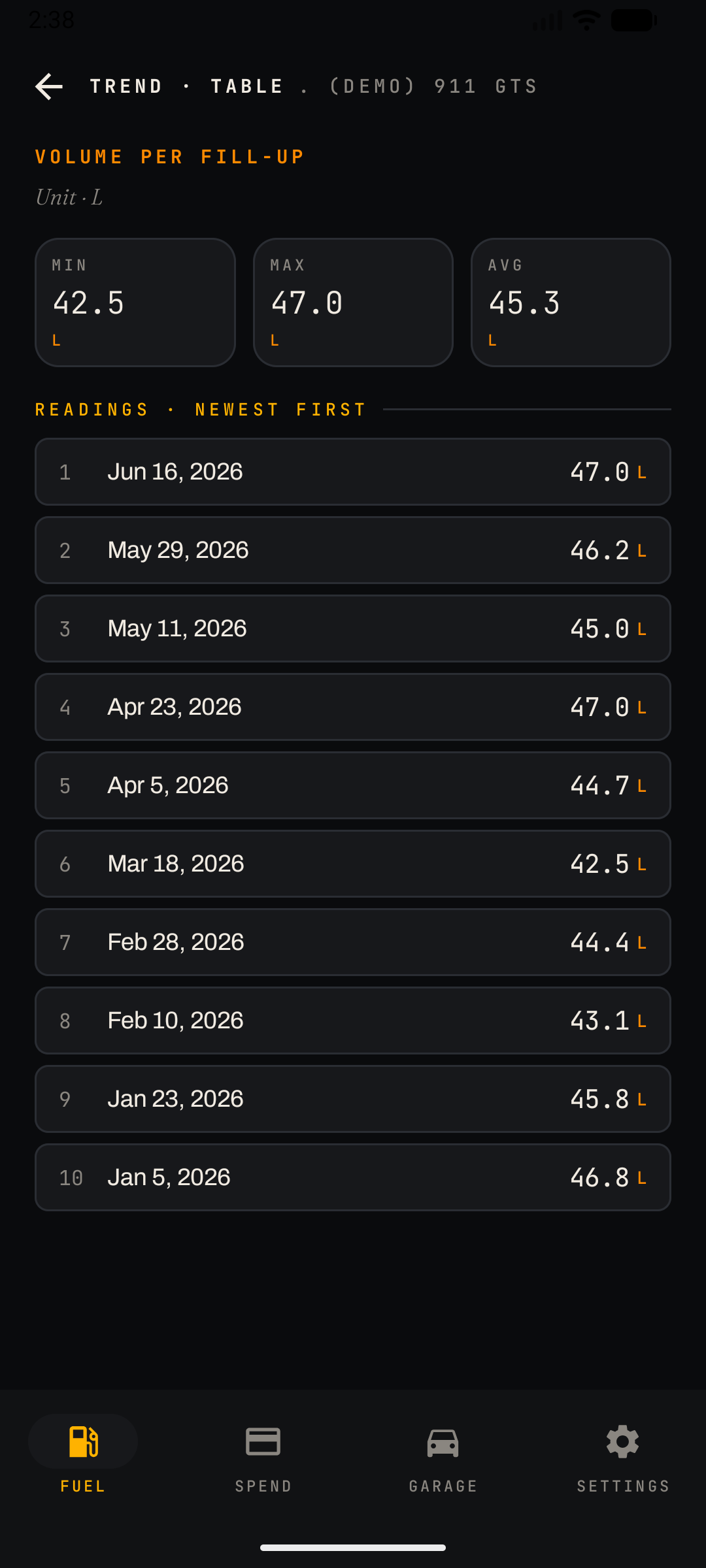
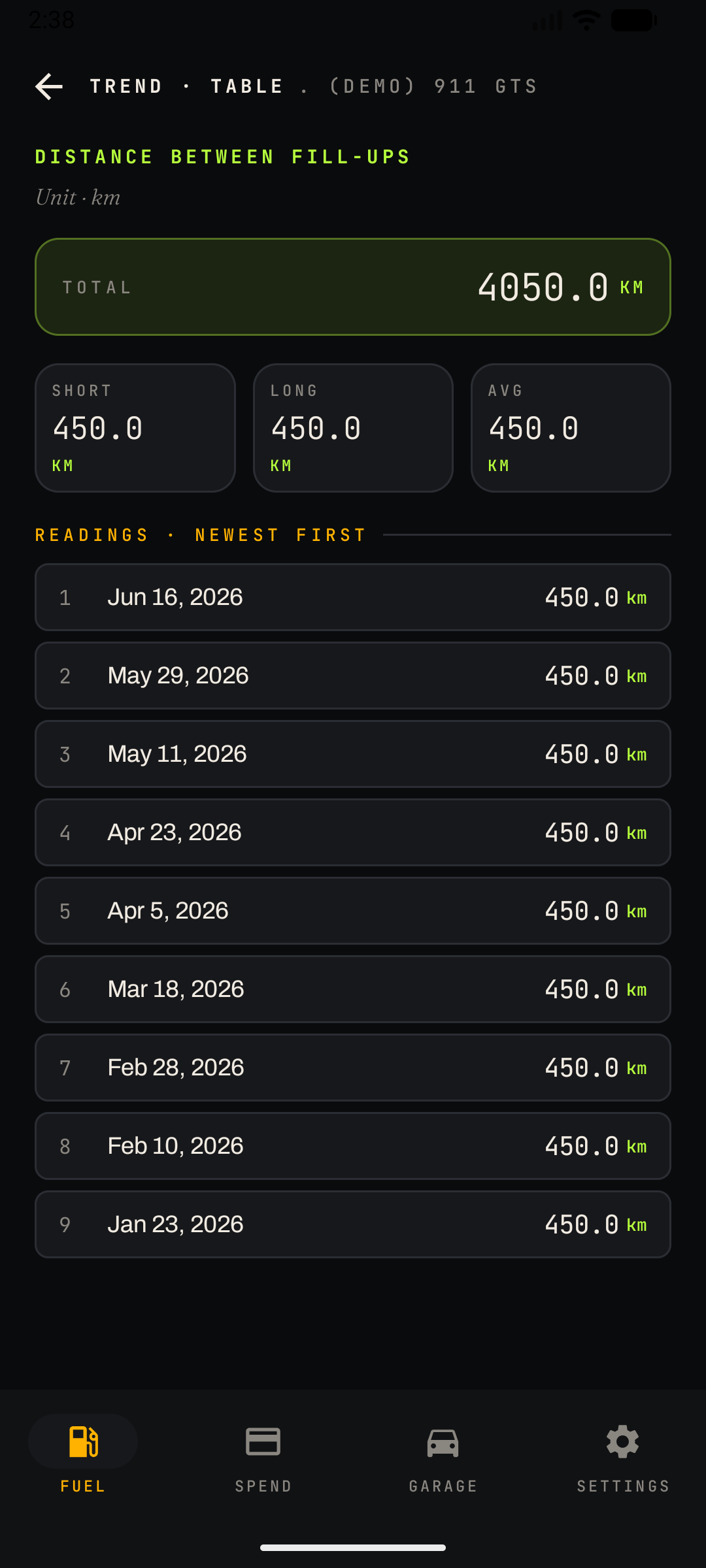
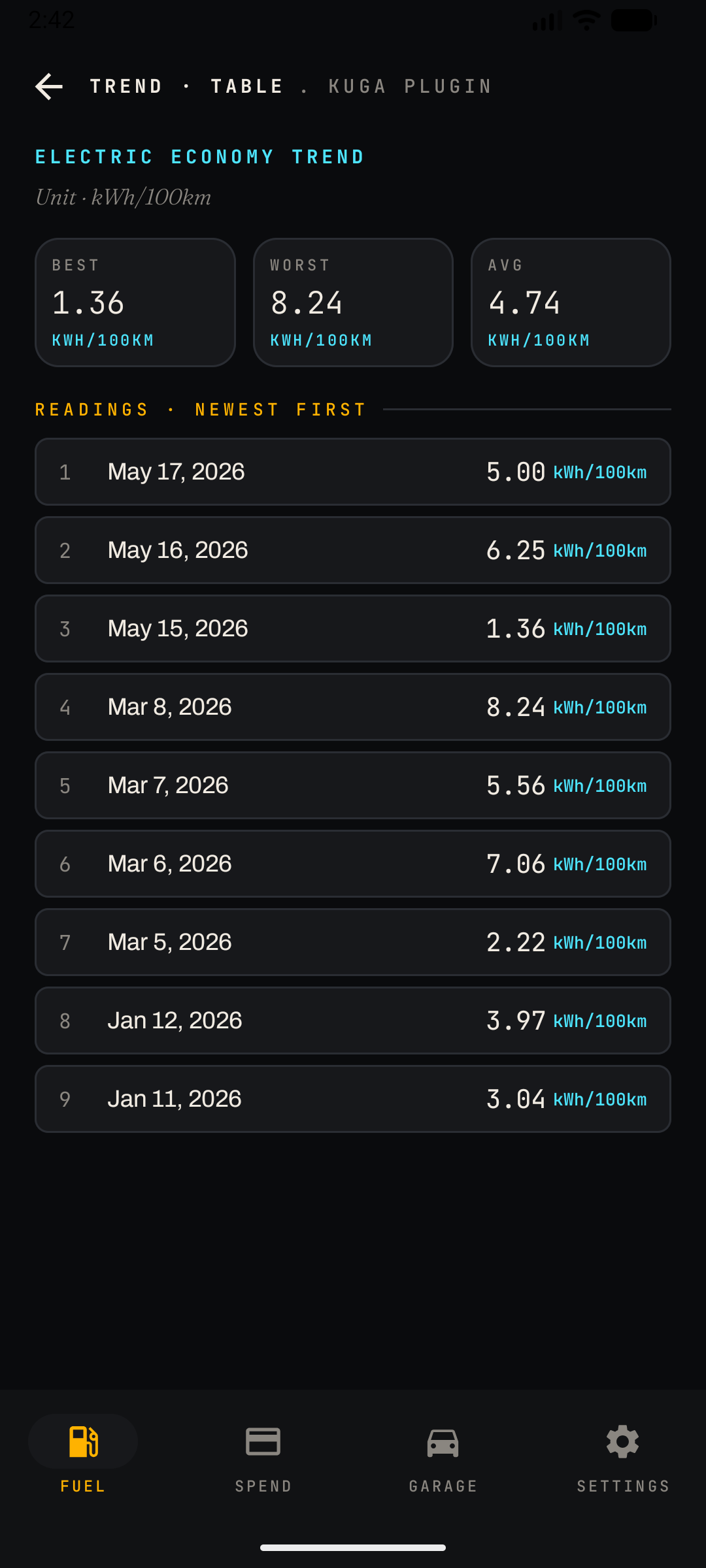
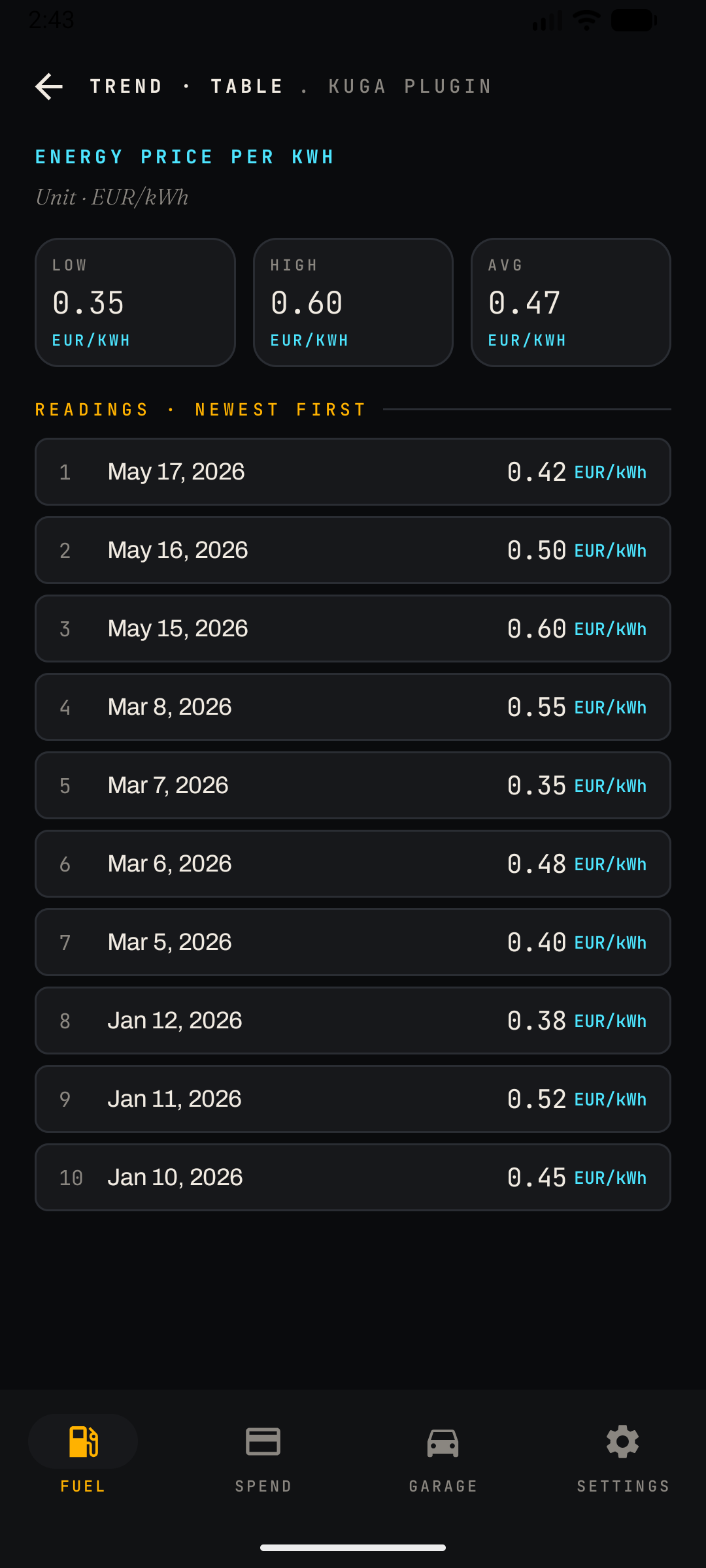
The numeric companion to the Fuel screen's charts: every trend can be opened as a dated table of readings, newest first, if you want exact values rather than a curve.
Content
- Summary cards: Best / Worst / Avg (for consumption) or Low / High / Avg (for costs), each with units.
- Readings list: numbered rows with date and value (e.g. Jun 16, 2026 — 10.4 L/100km). One row per qualifying fill-up.
- Unit line: the table states its unit (L/100km, EUR/km, EUR/L, …) and follows the app-wide unit system from Settings.
- Available trends include: Avg Consumption, Cost per KM, Price per L, Cost per Fill-up, and further volume/distance series — six in total, reachable via the INSIGHTS hub on the Fuel screen or the Trends quick action in the Garage.
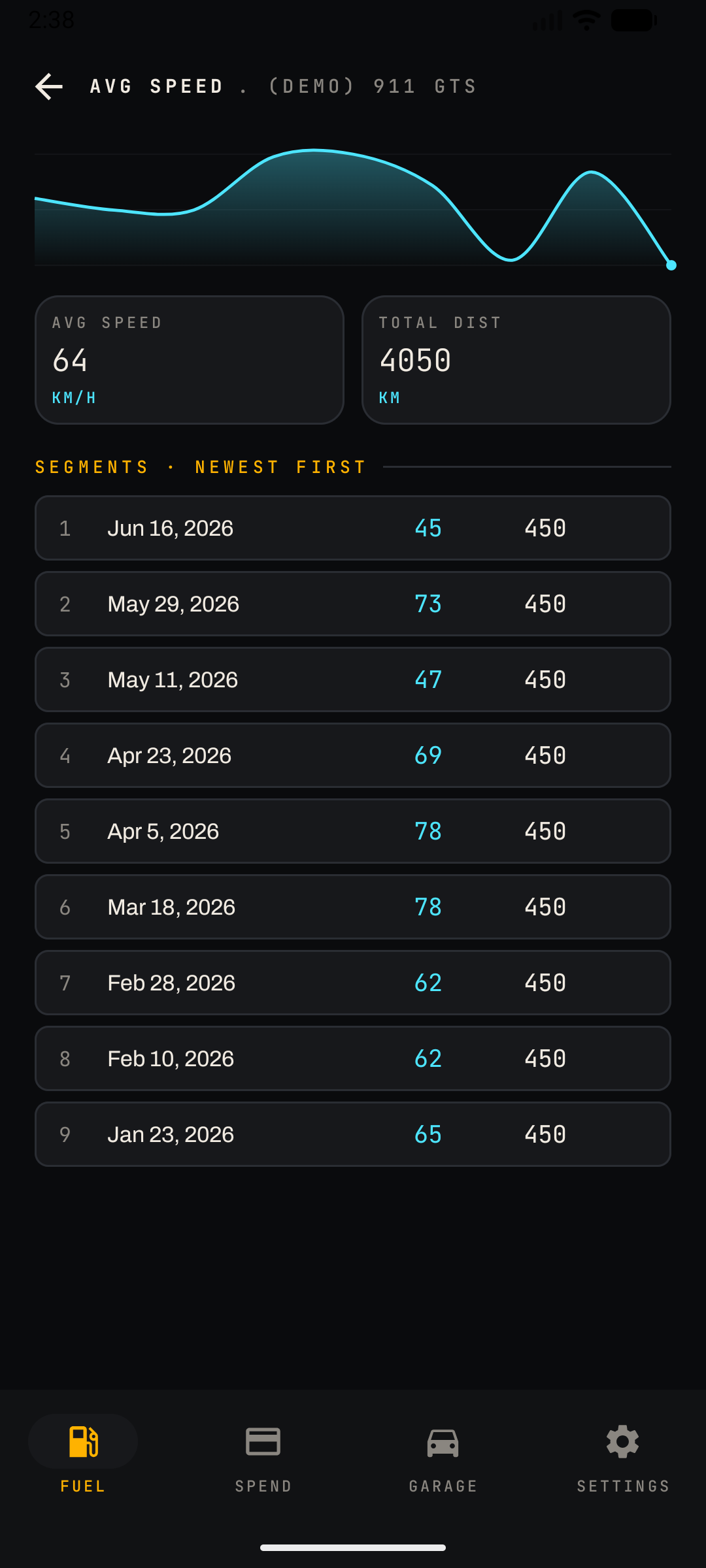
- Two additional trend tables were also observed: Volume per Fill-up and Distance Between Fill-ups (the latter also shows a running total across all fill-ups) — plus an Avg Speed screen that pairs a line chart with a numbered segments table (date, average speed, distance).
- On plug-in hybrid and electric cars, three more trend tables appear for the charging side: Electric Economy (kWh/100km), Energy Price per kWh, and Energy per Charge (kWh) — mirroring the fuel-side tables but for the battery.
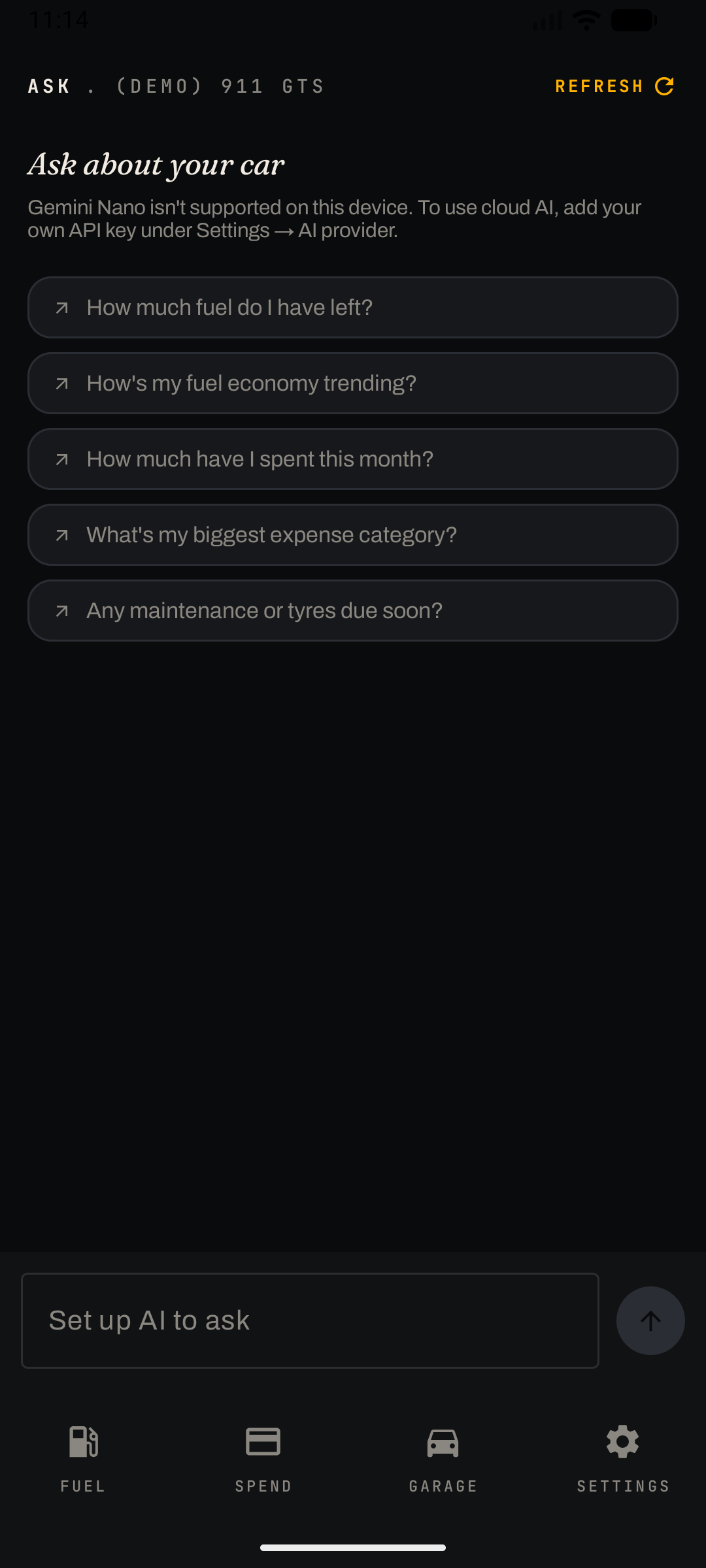
What this screen does
A conversational assistant that answers questions about your own car data. The AI receives a snapshot of the selected car (odometer, fuel history, expenses, reminders) so answers are grounded in the actual numbers.
Content
- Suggested questions: tappable chips such as "How much fuel do I have left?", "How's my fuel economy trending?", "How much have I spent this month?", "What's my biggest expense category?", "Any maintenance or tyres due soon?".
- Chat input: free-text field at the bottom with a send button; assistant replies render with Markdown formatting.
- REFRESH: top-right action re-snapshots the car data mid conversation.
AI providers & the setup notice
- By default Ask uses on-device Gemini Nano — private, runs on your phone, no key needed — on devices that support it. (Ask is part of CarSpend Pro.)
- If your device does not support Gemini Nano, the screen shows the notice "Gemini Nano isn't supported on this device" and the input reads "Set up AI to ask". You can fix this by adding an API key under Settings → AI Provider (BYO-AI).
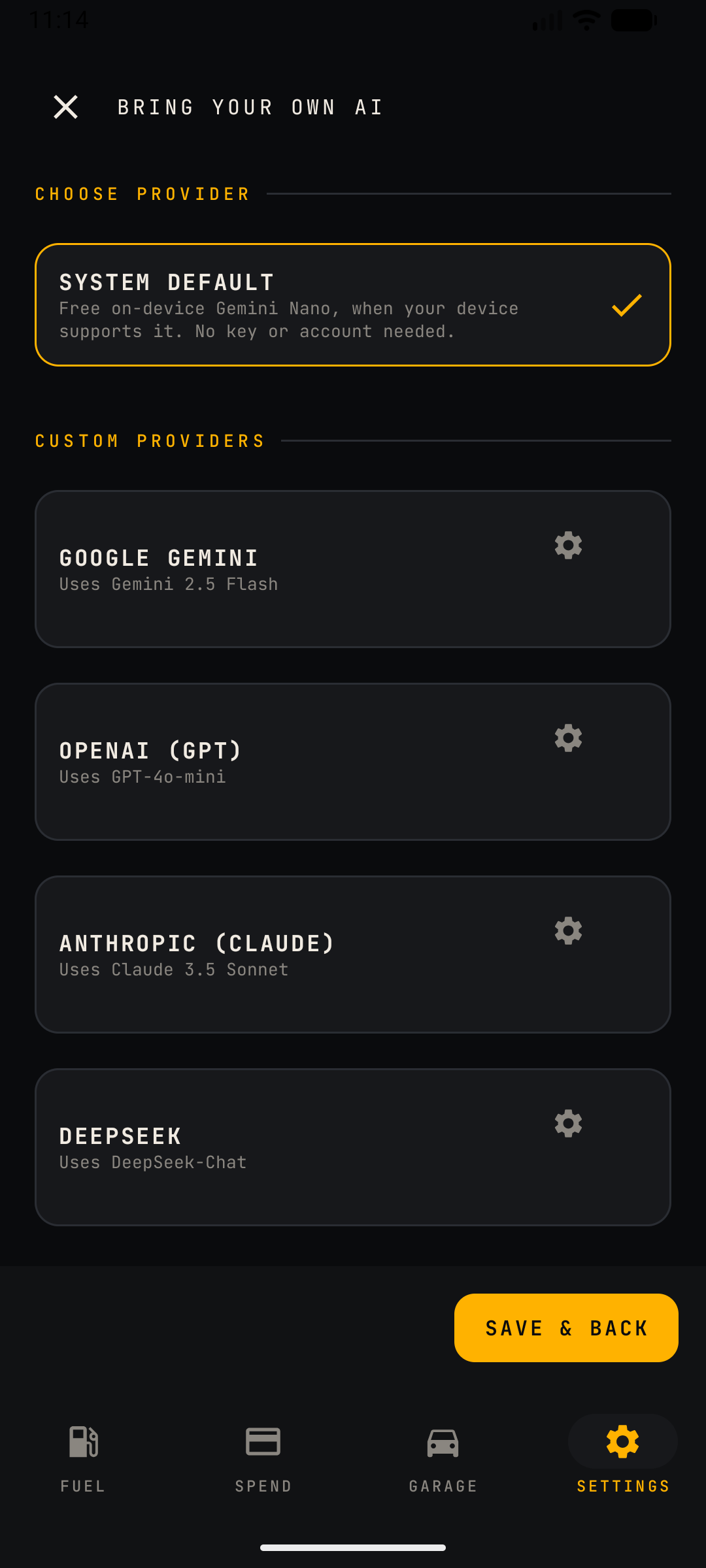
What this screen does
Selects which AI model powers the Ask assistant. You can stay on the free on-device default or plug in your own API key for a cloud model (a Pro feature).
Content
- System Default: free on-device Gemini Nano when the device supports it — no key, no account, fully private. Selected state is shown with a highlighted border and checkmark.
- Custom providers: Google Gemini (Gemini 2.5 Flash), OpenAI (GPT-4o-mini), Anthropic (Claude 3.5 Sonnet) and DeepSeek (DeepSeek-Chat). Each card has a gear icon opening the key entry form for that provider.
- Save & Back: persists the selection and returns to Settings.
Notes
- API keys are stored locally on the device and used directly against the provider's API — CarSpend has no middleman server.
- If a custom provider fails (bad key, quota), Ask surfaces the provider error; switching back to System Default restores on-device behaviour.
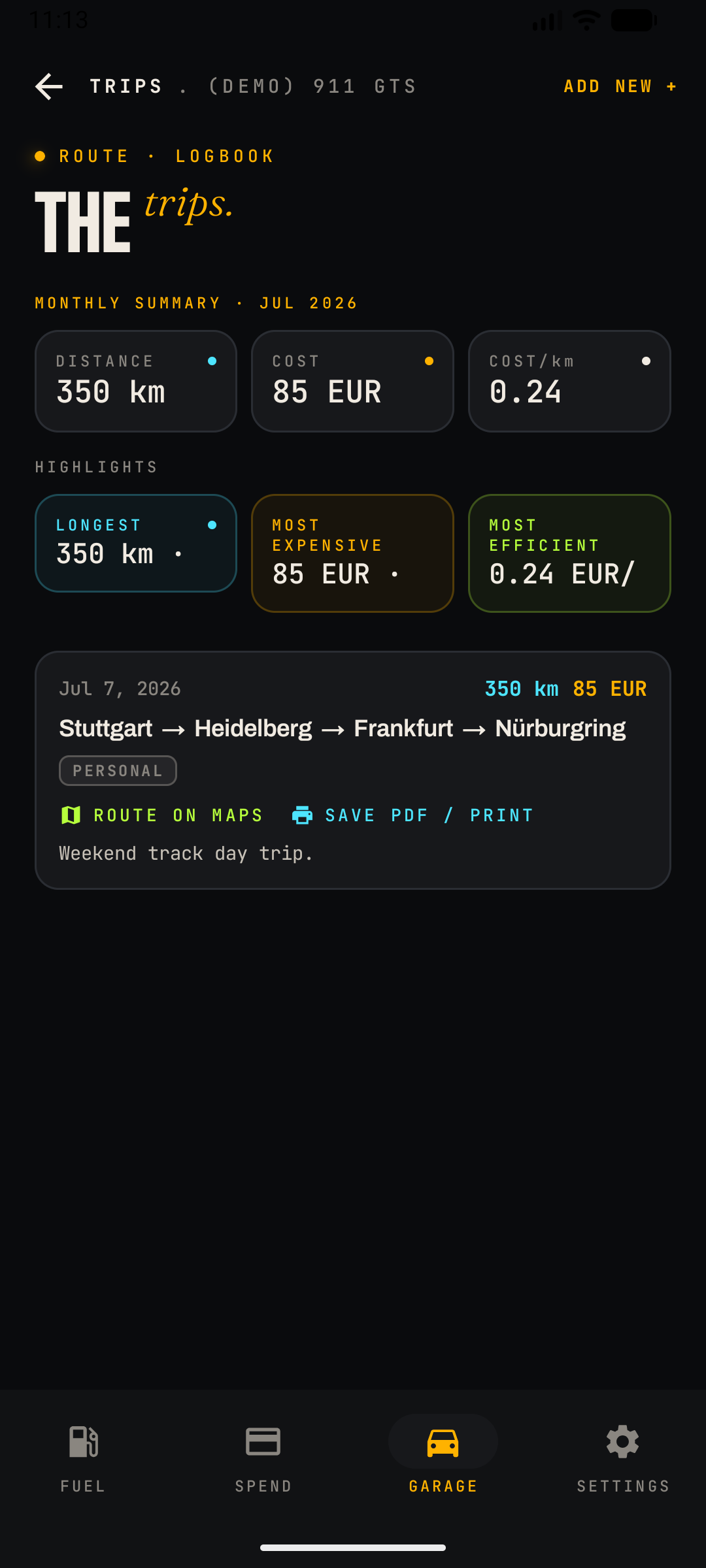
What this screen does
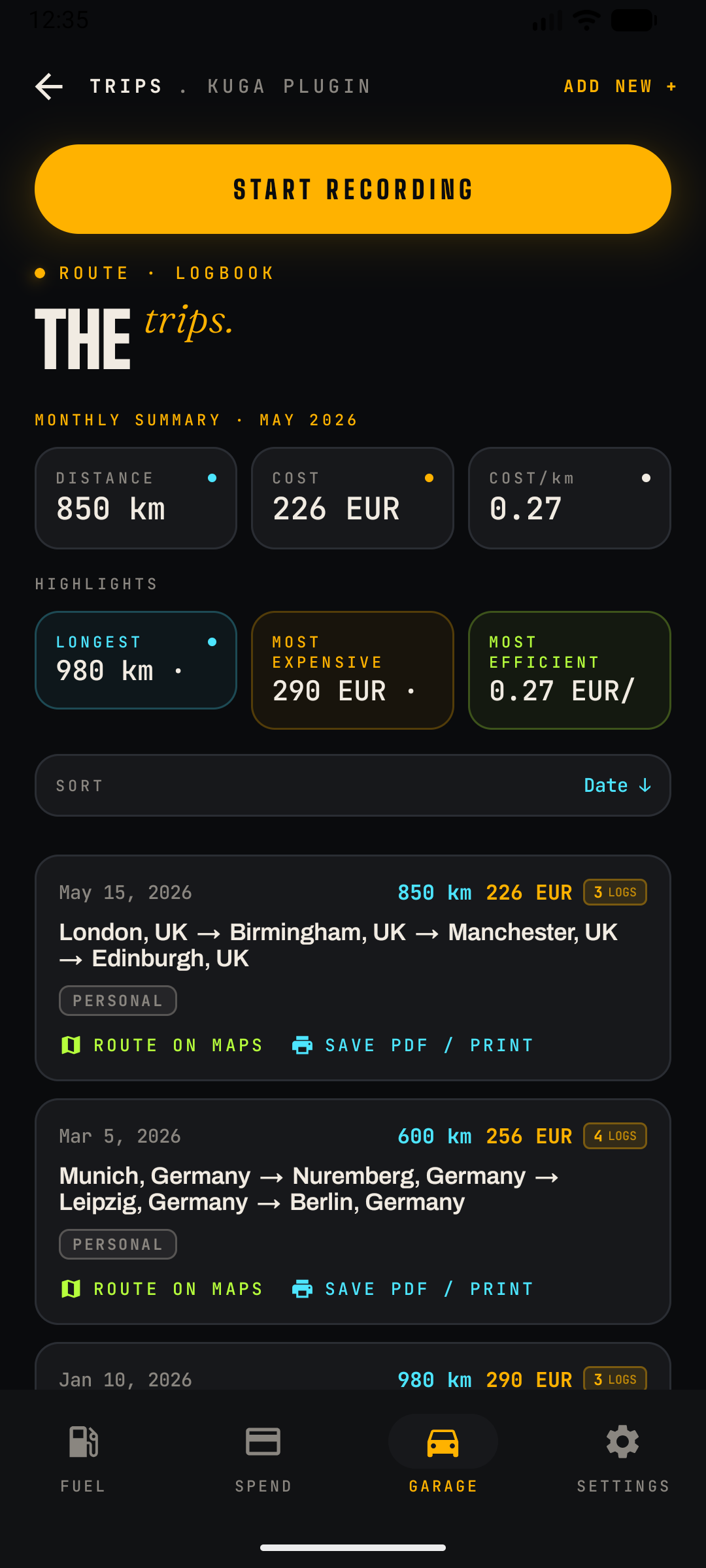
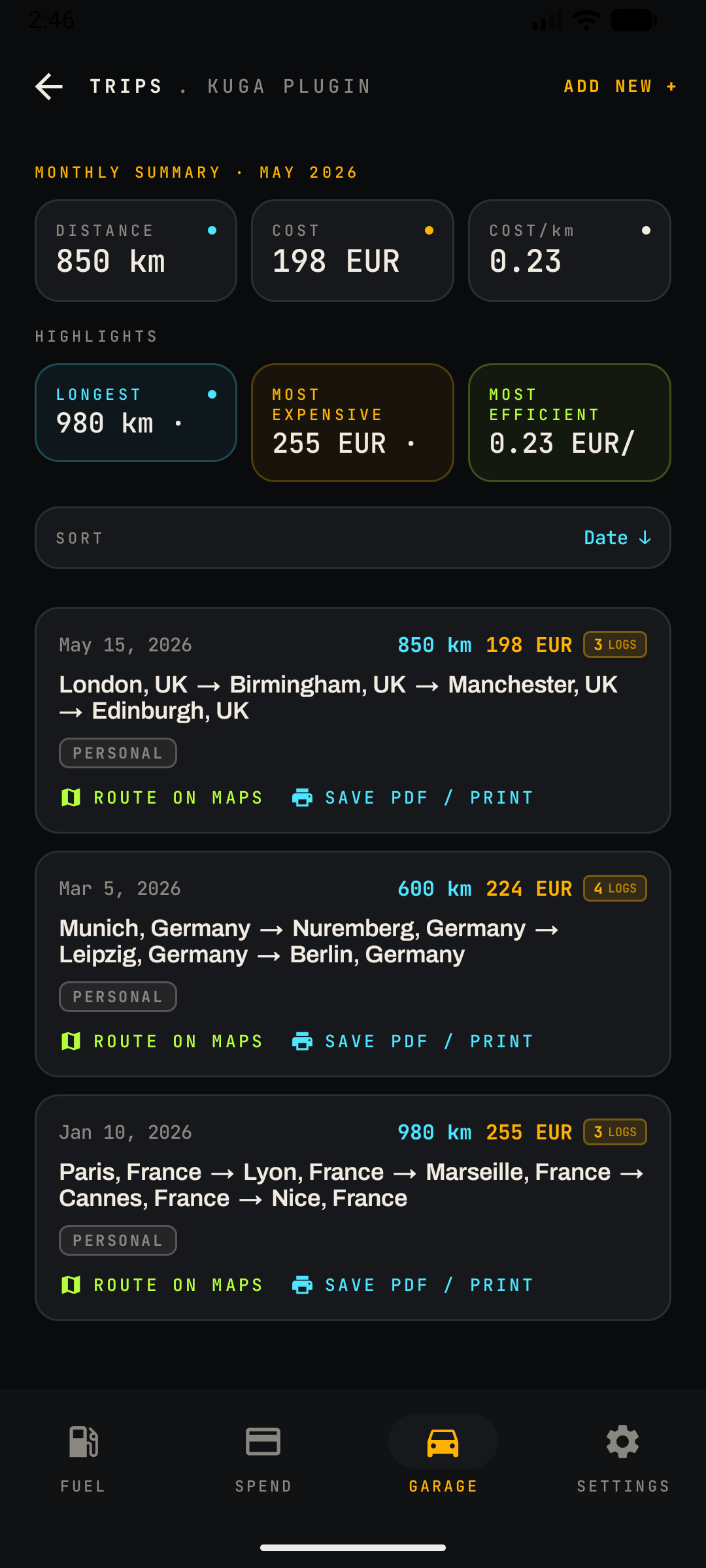
A journey logbook with per-trip costs and purpose tagging, designed to support expense reporting (mileage reimbursement) as well as personal record-keeping.
Content
- Monthly summary: total Distance, Cost and Cost/km for the current month.
- Highlights: colour-outlined cards for the Longest, Most Expensive and Most Efficient trip of the month.
- Trip cards: date, distance and cost, the waypoint chain (e.g. Stuttgart → Heidelberg → Frankfurt → Nürburgring), a purpose badge — Business, Personal or Medical — and a free-text note. A LOGS badge shows how many waypoint segments make up the trip (e.g. a 4-city route logs 3 segments).
- Per-trip actions: Route on Maps (opens the waypoints in Google Maps) and Save PDF / Print (exports the trip record, e.g. for an expense claim).
- ADD NEW + logs a trip: waypoints, distance, date, purpose, note. Trip cost is estimated from the car's real consumption and fuel prices; trips can optionally be linked to a specific fill-up for exact figures.
Mileage reimbursement
- Your profile stores a default mileage rate (configurable in settings/profile). Business and medical trips multiply distance by this rate for reporting; the PDF export includes it.
- Templates: frequent journeys can be saved as quick-add templates to avoid re-typing commutes.
What this screen does
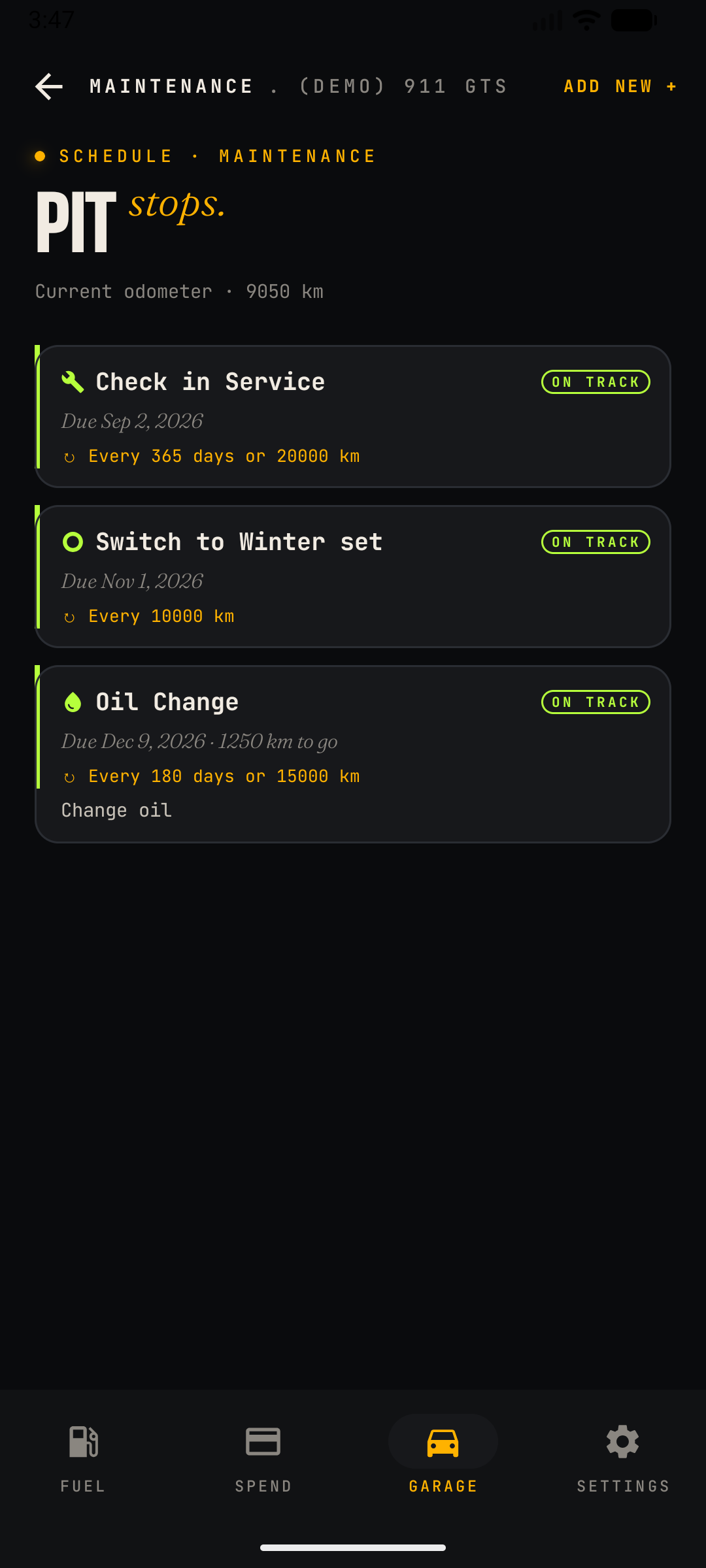
Tracks upcoming maintenance — oil, filters, brakes, inspections — and flags what is due, so nothing is missed between services. New reminders can be picked from a built-in catalog of 60+ common procedures with typical time/distance intervals pre-filled, filtered by vehicle type — cars and motorcycles each see their own list (chain lube for bikes, cabin filters for cars).
Content
- "Pit Stops" reminder list: one card per task (e.g. Check in Service, Switch to Winter set, Oil Change, custom items) with its due date, an optional free-text note, and the repeat interval.
- Dual triggers: intervals can combine time and distance — e.g. Every 180 days or 15000 km — whichever comes first. The header shows the current odometer used for the countdown; distance-based items also show how far is left (e.g. "1250 km to go").
- Status badges: each card carries a colour-coded status such as On Track, computed from today's date and the car's latest odometer, switching as an item comes due or goes overdue.
- ADD NEW + creates a reminder with name, due date/odometer and repeat interval.
- Completing a reminder records the work done (with cost, feeding the Spend ledger) and re-arms the next interval.
- Reminders are exported in the JSON backup (maintenanceReminders array) and surfaced to the Ask assistant ("Any maintenance due soon?").
What this screen does
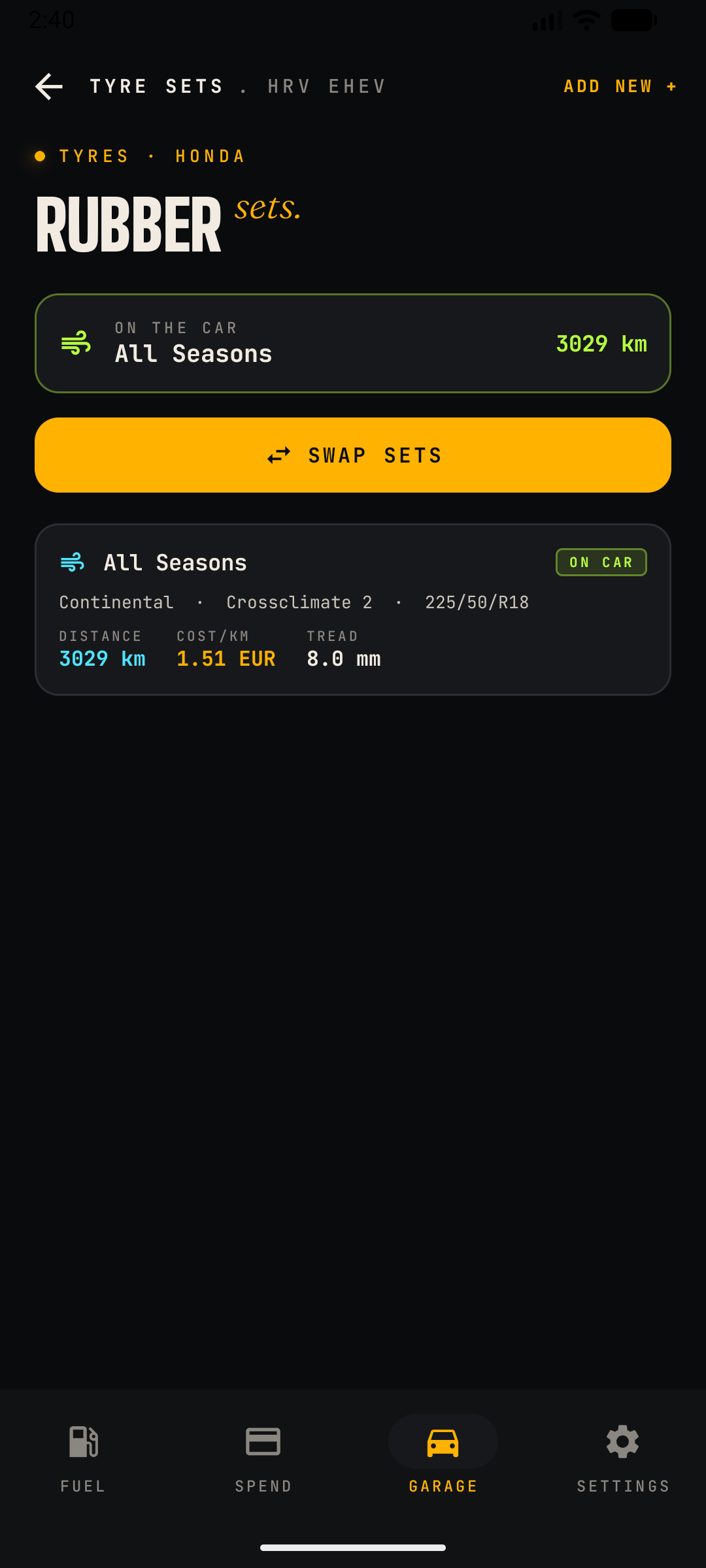
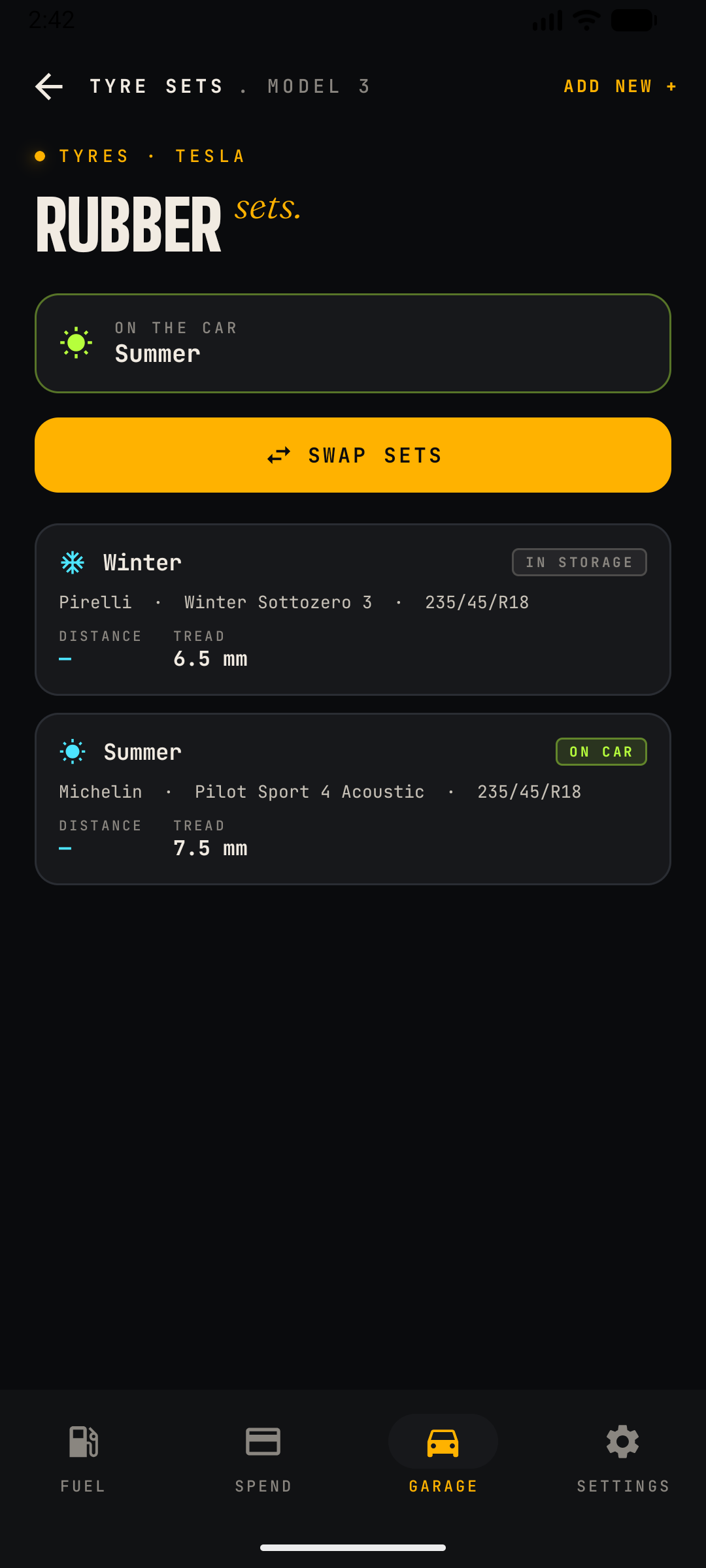
Manages multiple tyre sets (Summer, Winter, All-Season) and tracks how many kilometres each set has actually covered, based on the car's odometer at swap time.
Content
- Tyre sets: each set records season type, brand/model, size and position (front/rear where sizes differ).
- Mileage tracking: the app logs the odometer whenever a set is mounted or dismounted and accumulates distance per set — the number that matters for wear and replacement decisions. Each set also tracks cost per km (set price ÷ distance run) and tread depth (mm).
- SWAP SETS: a one-tap action on the overview screen that mounts the other set and dismounts the current one, recording the odometer at that moment.
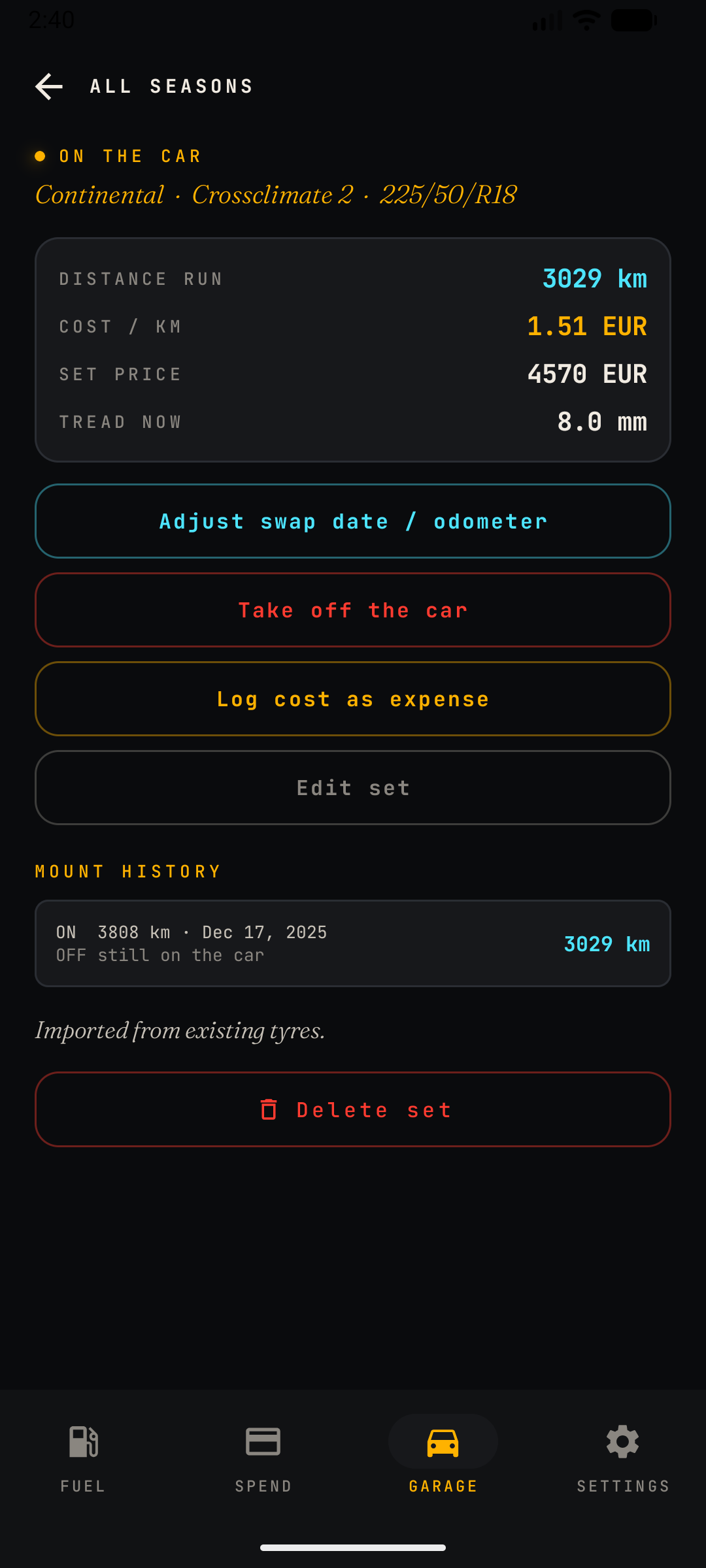
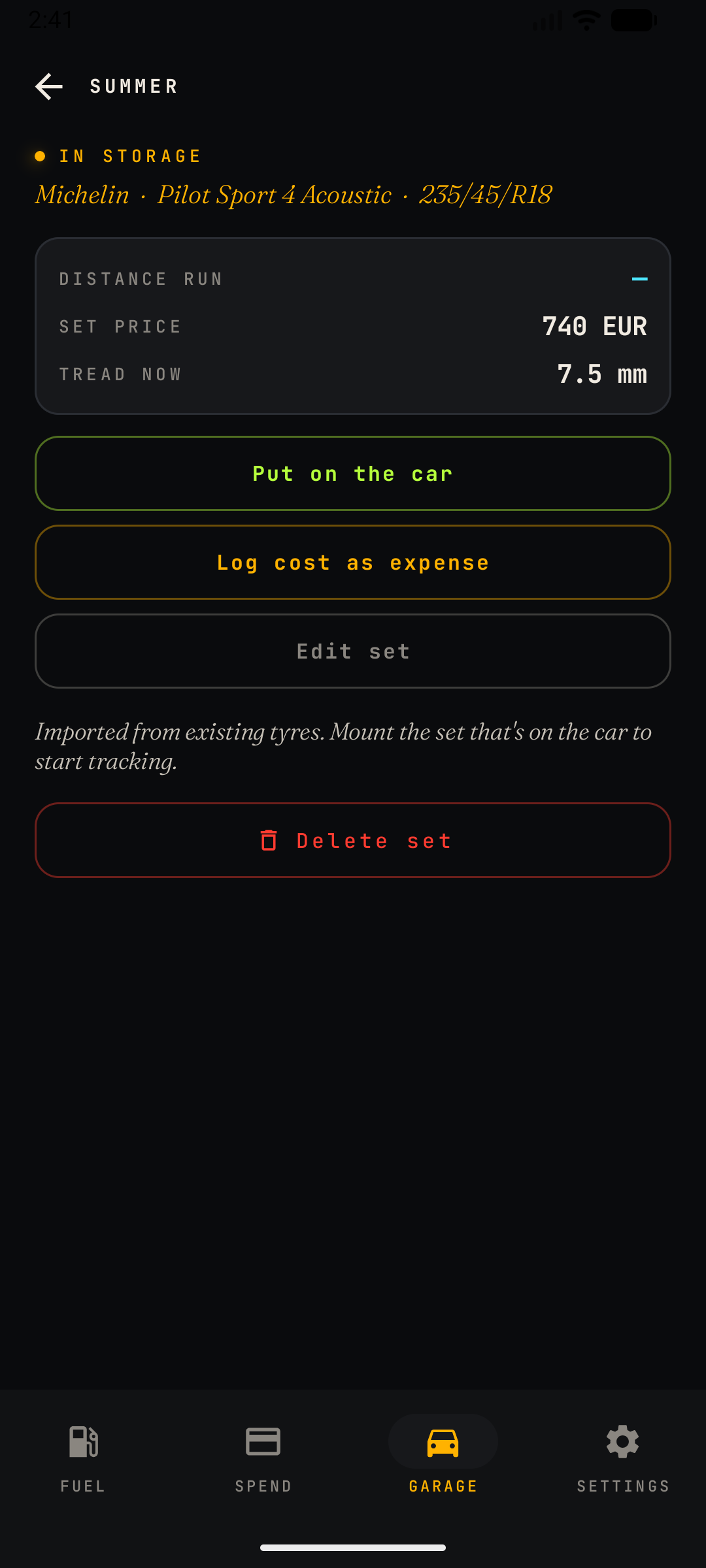
- Set detail screen: reached by tapping a set card. For a mounted set it offers Adjust swap date/odometer, Take off the car, Log cost as expense (mirrors the set price into the Spend ledger), Edit set, and a Mount History timeline of on/off dates and odometer readings. A set in storage instead offers Put on the car.
- Installation history: a timeline of swaps and replacements.
- Season summary: distance covered per season across years.
- Tyre data is included in the JSON backup (tyres array) and feeds the Ask assistant's "tyres due soon?" answer.
What this screen does
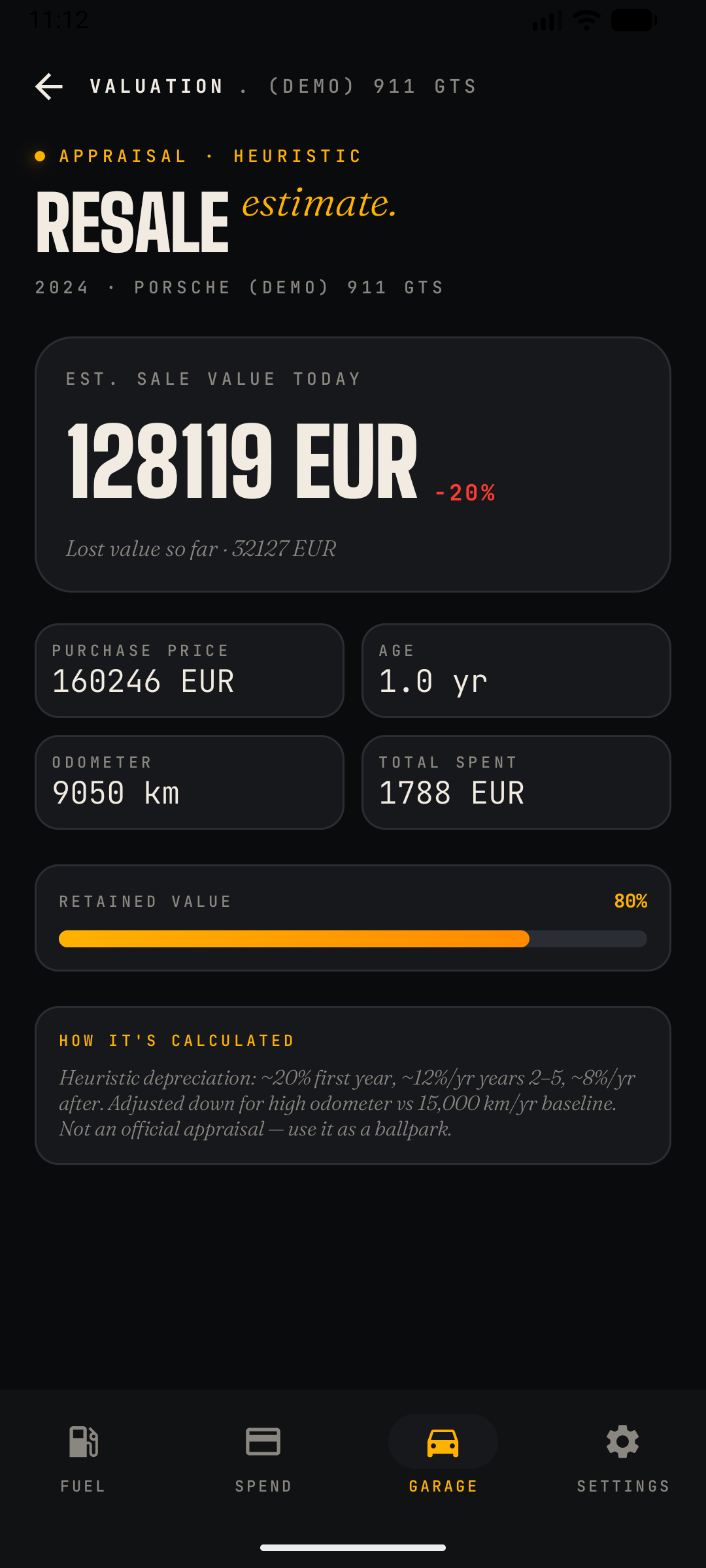
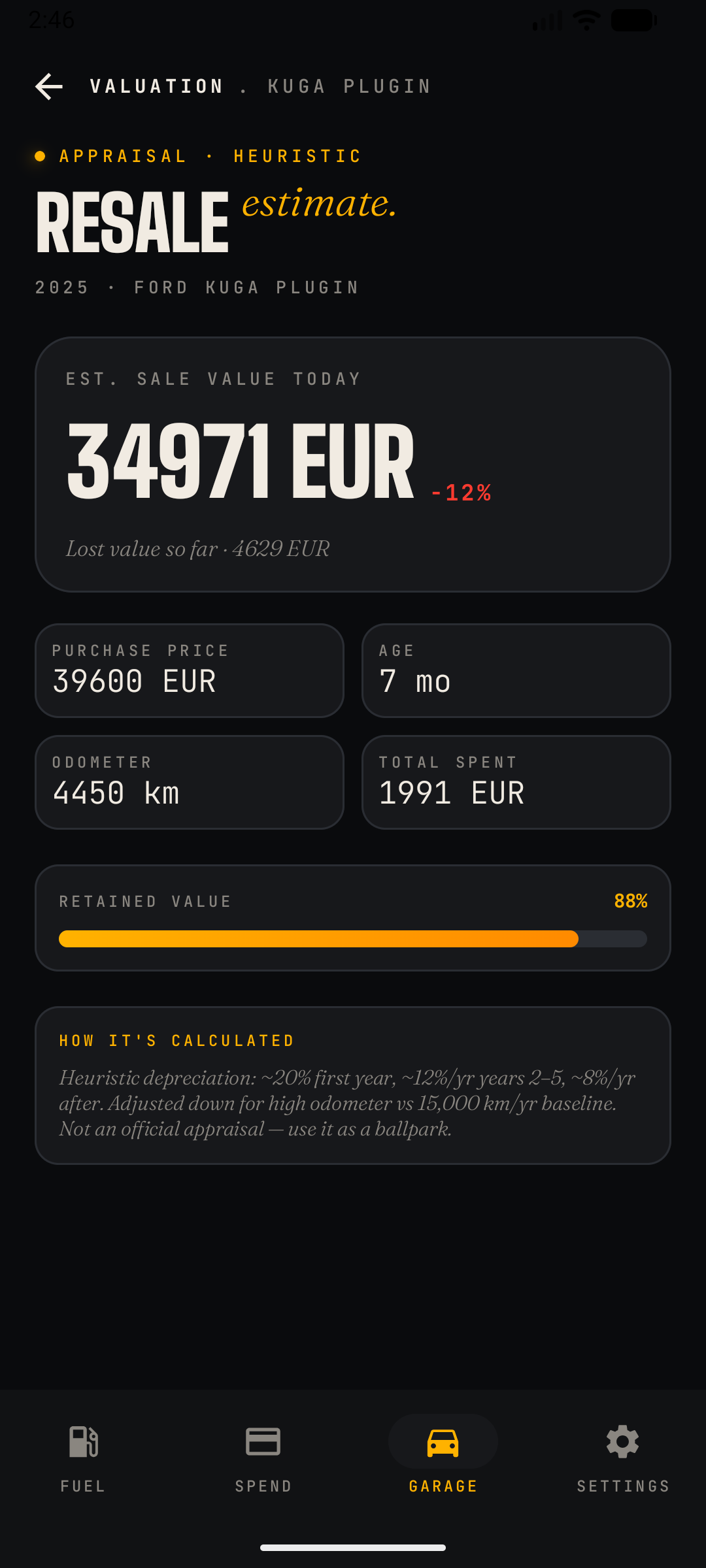
Estimates what the car is worth today using a transparent depreciation heuristic — a ballpark, not an official appraisal, and the screen says so explicitly.
Content
- Est. Sale Value Today: headline figure with the percentage lost since purchase (e.g. −20%) and the absolute lost value so far.
- Inputs grid: Purchase Price, Age (years), Odometer and Total Spent in the app.
- Retained Value bar: visual percentage of purchase price retained (e.g. 80%).
- How It's Calculated: the formula in plain words — roughly 20% depreciation in year one, ~12%/yr in years 2–5, ~8%/yr after, adjusted down when the odometer exceeds a 15,000 km/yr baseline.
What this feature does
Records a trip's actual route with GPS — manually with one tap, or automatically whenever your phone connects to your car's Bluetooth. Recorded trips are saved with the route, an estimated odometer span and reverse-geocoded start/end locations, ready for review in the Trips logbook.
Manual recording
- Open Trips and tap START RECORDING. A persistent notification shows live distance, duration and average speed while you drive.
- Tap STOP — in the app or straight from the notification — and the trip is saved automatically, then opened for review so you can set purpose, costs and linked fuel logs.
- Full-screen recorder: while a trip is running, Trips opens a dedicated recording screen with the live clock, distance and speed. A slowly pulsing dot means recording; a solid dot means paused.
- Pause & resume: tap PAUSE to freeze the whole recording — the clock stops and no points are logged, so a long stop doesn't stretch the trip or bend the route. Tap RESUME to carry on in the same trip. On Android the notification carries the same PAUSE / RESUME action, so you never need to open the app. A deliberate pause never triggers the inactivity auto-stop.
Automatic recording (Bluetooth)
- Android: in the car editor, pick My car's Bluetooth from your paired devices and switch on Auto-record trips. Android always posts a tap-to-start notification rather than recording unprompted.
- iOS: the car is matched on the name of the car's audio route instead — iOS never exposes a Bluetooth address — so connect to the car once with Auto-record trips on and it binds itself. With Location set to Always, recording starts on its own; otherwise you get the same tap-to-start notification. If no car is bound, CarSpend uses the single car that has auto-record switched on, and records nothing when two cars could both match — attributing a drive to the wrong car is worse than missing it.
- Recording starts when the phone connects to the car and stops when it disconnects. Connections under a minute are discarded; stops shorter than five minutes (fuel stop, school run) are merged into the same trip.
Route map & speed playback
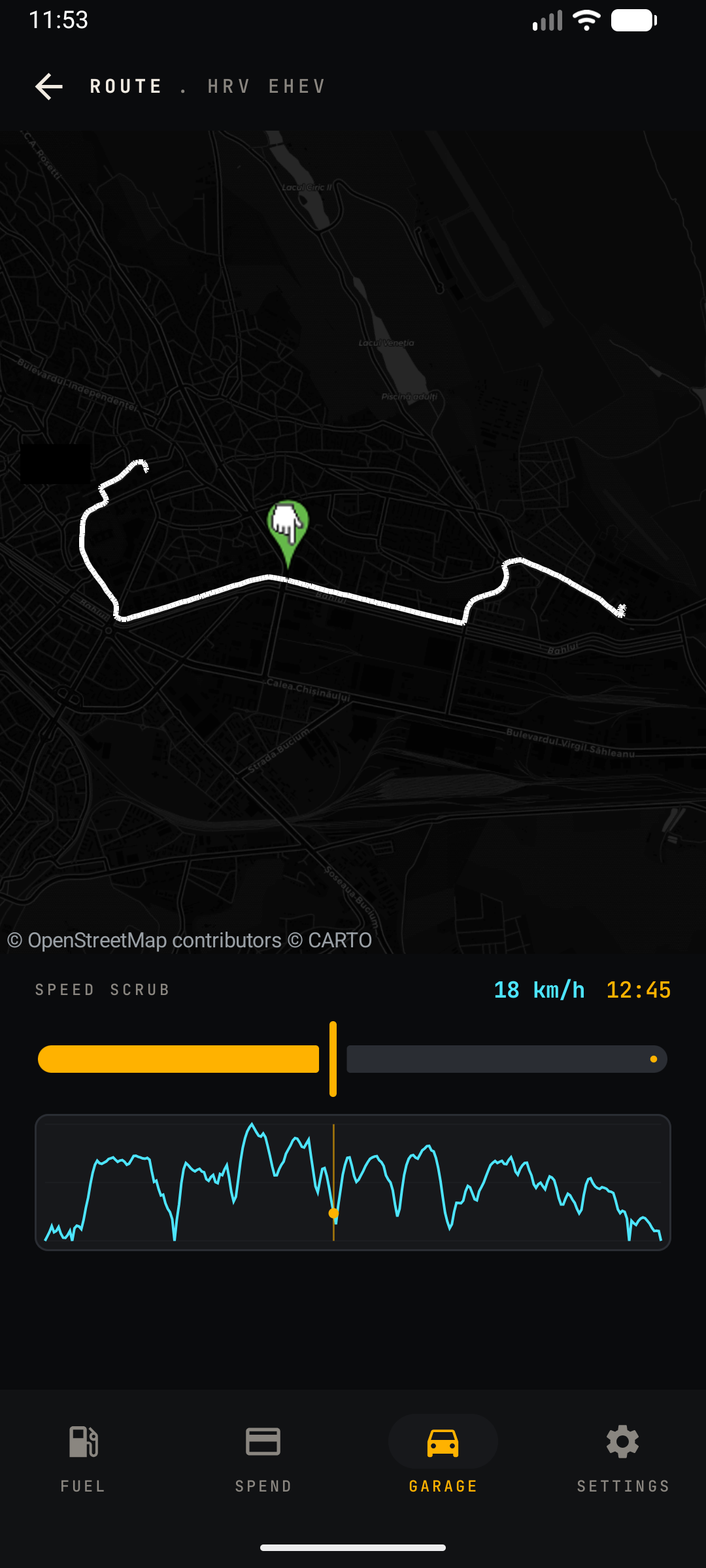
- Recorded trips show a route thumbnail on the trip card; tap it for a full OpenStreetMap view of the route.
- Drag the slider to move a marker along the route and see your speed and time at that exact point, with a speed-over-time chart below the map.
If the app closes mid-drive
Every GPS point is written to a small journal file on the phone the moment it is recorded, so a force quit, a flat battery or the system reclaiming the app can cost you at most the last few seconds — never the whole drive. The next time you open CarSpend the journal is turned into a finished, saved trip, with distance, duration and speeds recomputed from the points themselves.
Recovery deliberately saves rather than resumes: the drive ended when the phone did, so nothing starts recording again behind your back. The journal is local scratch state — it is never exported and never appears in a backup.
Fuel stop reminders
Optional (Settings, off by default): if you stop for 3+ minutes during a recorded trip, CarSpend asks whether you filled up or charged and opens a pre-filled log.
What this feature does
When a recorded trip ends, CarSpend remembers where you parked — no extra taps. The Trips screen shows a parking card at the top with the address and how long ago you left the car. (It used to sit on the Garage; it moved to Trips so the card lives next to the recording that produced it.)
- Note & photo: add "Level −2, spot 114" or snap the pillar number (photo attachments require Pro).
- Navigate back: one tap opens turn-by-turn navigation to the spot.
- Auto-clear: the saved spot clears when your next trip starts — the card always points at where the car actually is.
What this feature does
On the Add Fill-up or Add Charge form, tap SCAN and photograph the pump display, EV charger screen or receipt. CarSpend reads it entirely on your device and pre-fills volume or kWh, unit price, total, station and date. Auto-filled fields are highlighted so you can review before saving, and the photo is attached to the entry.
How it reads the numbers
- On-device text recognition — no photo ever leaves the phone, and no cloud AI is involved unless you've configured your own provider key in BYO-AI.
- The parser cross-checks volume × unit price ≈ total, handles European and US number formats (1.234,56 vs 1,234.56) and detects the currency.
- No printed date? The photo's capture time is used — you scan at the pump, so that's the fill-up time.
Tips for better scans
- Fill the frame with the display or receipt; avoid glare and harsh shadows.
- Receipts with printed totals and unit prices work best.
- If a scan fails you can retry, or open the form with just the photo attached and type the values yourself.
What this feature does
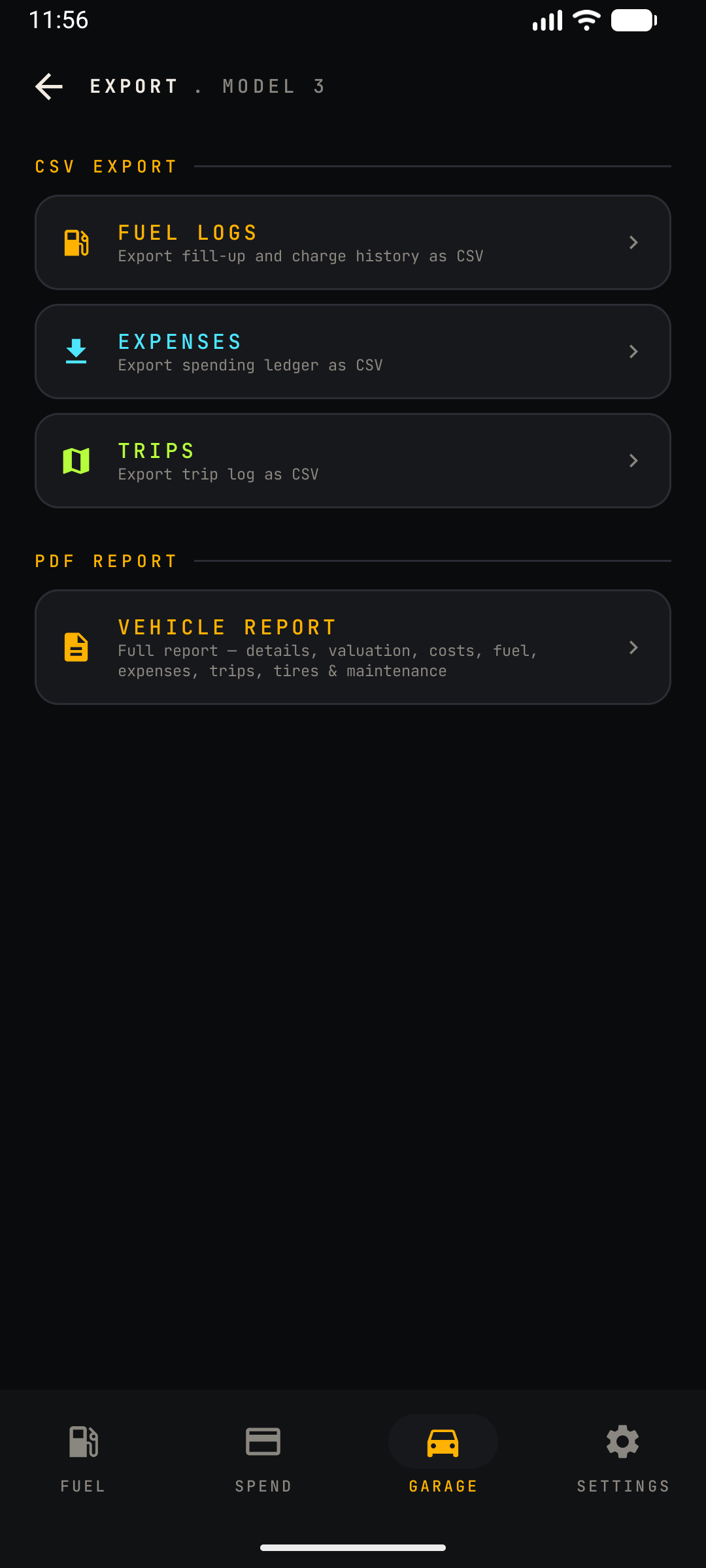
Gets your data out in formats other tools understand — per vehicle, per data set.
- CSV: fuel logs, expenses or trips as clean spreadsheet files — numeric columns with units in the headers, in your chosen units, ready for Excel or Google Sheets.
- PDF vehicle report: a per-car summary with total distance and costs, a consumption-trend table from your recent fill-ups, and completed maintenance history.
What it is
A companion web app that opens your CarSpend data on a full-size screen in any modern browser — nothing to install. It uses the same local-first model: your data lives only in that browser, never on a server.
Getting your data in
- Import a backup: export the JSON backup from the phone app (Settings → Export) and load it in the web app. When you're done, export from the web and import it back on the phone — the file is fully compatible both ways, including maintenance reminders and preferred services.
- Or load a demo car to look around without importing anything.
What you can do
- The full garage: Garage stats, Fuel log, Spend ledger, Trips, Tires, Maintenance reminders, Preferred services, Valuation, and CSV / printable PDF export.
- Add, edit and delete entries; switch cars; change units and currency.
Free vs Pro on the web
- Free: explore one car (or the demo) — view everything and edit the car's own details.
- Pro: unlock editing across all your cars plus web export, trips, tires, maintenance and valuation — using your existing phone Pro subscription, no separate purchase.
Unlocking Pro (pairing)
- The web app shows a browser pairing code. On the phone app's Pro screen, enter that code and tap Generate — it creates an unlock code tied to that browser. Paste it back into the web app.
- For security an unlock code works on one browser at a time: unlocking a different browser signs the previous one out, so codes can't be shared or resold. Unlocking needs a brief internet connection to verify.